
Ultrawide vs Dual Monitors: Which Setup Is Better in 2026?
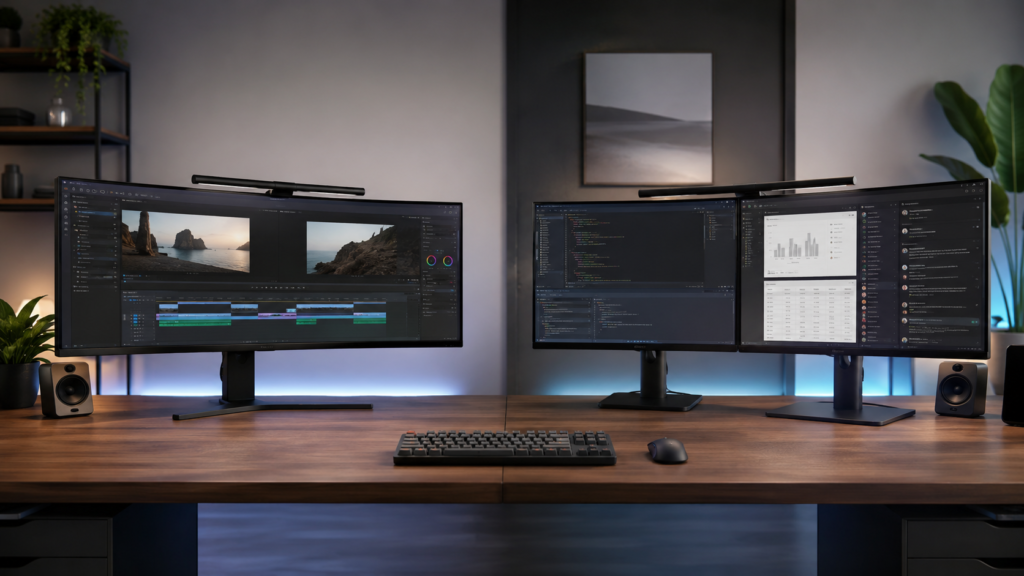
Choosing between ultrawide vs dual monitors is one of the most important decisions when building a modern desk setup. Whether you’re gaming, working remotely, coding, editing videos, or simply trying to improve multitasking, the right monitor setup can dramatically affect your productivity, comfort, and overall experience.
In short:
- Ultrawide monitors are usually best for immersion, cleaner setups, and creative workflows
- Dual monitors are often better for multitasking, flexibility, and structured productivity
However, the best choice depends entirely on how you use your computer.
An ultrawide monitor setup offers a single seamless display with wider aspect ratios like 21:9 or 32:9, while a dual monitor setup uses two separate displays working together. Some users prefer the uninterrupted screen continuity and minimalist look of ultrawides, while others prefer the practical organization and flexibility of multiple screens.
In this guide, we’ll compare ultrawide monitor vs dual monitor setups across productivity, gaming, office work, programming, content creation, ergonomics, desk space, hardware requirements, pricing, and long-term usability to help you decide which setup actually fits your workflow best.
For additional monitor comparisons and setup advice, browse our monitor and display guides.
Understanding Ultrawide and Dual Monitor Setups
What Ultrawide Monitors Are and How They Work
Ultrawide monitors are extra-wide displays designed to provide more horizontal screen space than standard 16:9 monitors. Most ultrawide displays use a 21:9 aspect ratio, while super ultrawide monitors often use 32:9 layouts that can effectively replace two monitors.
Common ultrawide sizes include:
- 34 inch ultrawide
- 38 inch ultrawide
- 49 inch ultrawide
These displays are popular for gaming, multitasking, content creation, and immersive workflows because they provide continuous screen real estate without a center bezel splitting the workspace.
Many modern ultrawide monitors also feature curved panels to improve viewing angles and reduce eye movement across the wider display area. Understanding how size, aspect ratio, and refresh rates affect usability is important when evaluating different setups.
What a Dual Monitor Setup Looks Like
A dual monitor setup uses two separate displays connected to the same computer. The screens may match in size and resolution or serve completely different purposes.
Some users run two identical 27-inch monitors side by side, while others combine a gaming monitor with a secondary productivity display. Dual monitors for multitasking remain popular because they allow users to dedicate separate screens to specific tasks.
Common use cases include:
- One monitor for work and another for communication apps
- Gaming on one screen while Discord, streams, or guides stay open on the second
- Coding on one monitor with documentation on the other
- Editing content while preview windows remain visible
This modular approach gives users more flexibility than a single ultrawide setup in certain workflows.
Key Differences Between Ultrawide and Dual Screens
The biggest difference between ultrawide vs dual monitors is how the workspace is physically divided.
An ultrawide monitor uses one continuous panel. This creates a seamless viewing experience with uninterrupted screen continuity and fewer cables. Window management ultrawide workflows rely heavily on snapping software or virtual screen divisions.
Dual monitors create physically separate workspaces. Each display functions independently, which makes organization feel more structured for many users.
Key differences include:
- Single panel vs multiple displays
- Seamless viewing vs bezel interruption
- Centralized workspace vs separated workflows
- Simpler cabling vs greater flexibility
- Immersive experience vs modular organization
Some users strongly prefer the clean ultrawide desk setup aesthetic, while others value the practical organization of multiple displays.
Who Each Setup Is Best Suited For
Ultrawide monitors are often best for:
- Immersive gaming
- Creative workflows
- Video editing timelines
- Minimalist desk setups
- Users who prefer a seamless workspace
Dual monitors are often best for:
- Heavy multitasking
- Office work
- Programming
- Monitoring dashboards
- Flexible upgrade paths
If your workflow involves constantly switching between isolated applications, dual monitors may feel more efficient. If you value immersion and screen continuity, an ultrawide monitor setup may feel more natural.
Ultrawide vs Dual Monitors: Side-by-Side Comparison
| Feature | Ultrawide Monitor | Dual Monitors |
|---|---|---|
| Screen Layout | Single seamless display | Two separate screens |
| Multitasking | Flexible but software-based | Strong physical separation |
| Gaming | More immersive | More practical with second screen |
| Desk Setup | Cleaner with fewer cables | More cables but more flexibility |
| Cost | Higher upfront cost | Often more affordable |
| Upgrades | Harder to upgrade gradually | Easier to expand over time |
| Workspace Feel | Seamless and modern | Structured and organized |
| Best For | Creators, gamers, minimalists | Office work, multitaskers, developers |
Productivity and Daily Workflow Performance
Multitasking Efficiency Across Both Setups
When discussing ultrawide vs dual monitors for productivity, multitasking is usually the deciding factor.
Dual monitors for productivity create clearly separated work zones. Many users prefer this because each monitor becomes dedicated to a specific task. One display might hold spreadsheets while the other handles communication tools or browsers.
An ultrawide for productivity provides the same total workspace in a more fluid format. Instead of isolated screens, applications share a continuous workspace that can feel more natural for drag-and-drop workflows and multi-window arrangements.
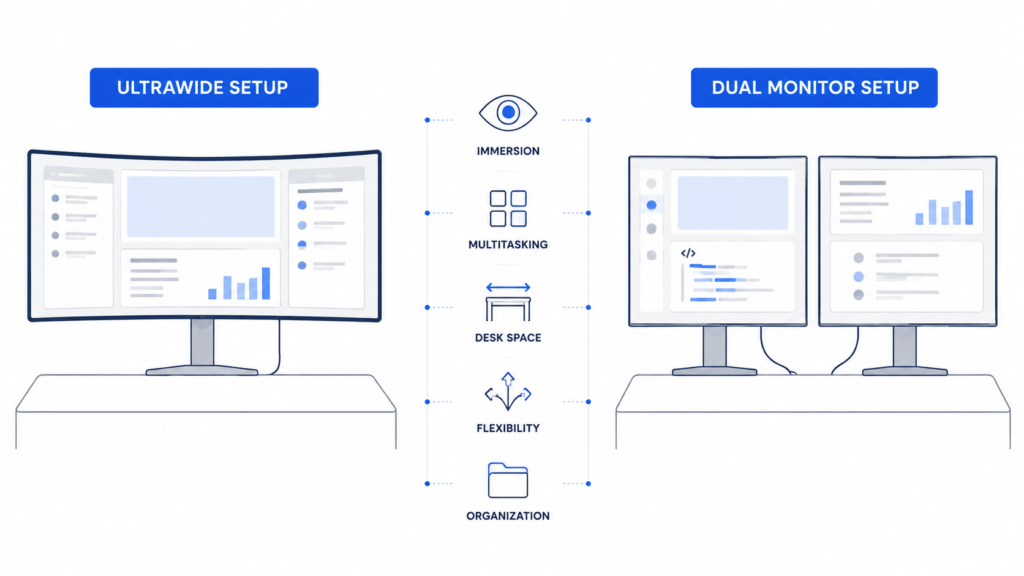
The best monitor setup for productivity depends heavily on how you mentally organize tasks.
Window Management and Screen Organization
Window management differs significantly between ultrawide and dual monitor configurations.
Dual monitors naturally separate applications because each display acts independently. This simplifies organization without requiring additional software.
Ultrawide multitasking often depends on software-based screen partitioning. Features like Windows Snap Layouts, FancyZones, or manufacturer software can divide the screen into virtual sections.
For users who frequently resize applications, compare documents, or drag windows across the workspace, ultrawide displays can feel very flexible. However, some users still prefer the structure of physically separated monitors.
Ultrawide Screen Splitting in Real-World Use
Modern ultrawide displays are excellent for split-screen workflow setups.
A 34-inch ultrawide can comfortably handle:
- Two large windows side by side
- Three medium-sized applications
- Video editing timelines with tool panels
- Large spreadsheets alongside browsers
Super ultrawide monitors can effectively simulate dual monitors or even triple monitor layouts.
Still, virtual screen partitions are not identical to separate displays. Some users dislike manually arranging windows, while others enjoy the flexibility of fluid workspace sizing.
Dual Monitors for Structured Workflows
Dual monitors work extremely well for structured productivity workflow environments.
Examples include:
- Email permanently open on one display
- Excel or analytics tools isolated on another
- Dedicated communication monitor
- Monitoring dashboards
- Separate workspaces for meetings and active tasks
This separation can reduce distraction for users who prefer clearly defined task boundaries.
Best Setup for Office Work and General Productivity
For general office work, both setups work very well.
Dual monitors for work often excel in:
- Spreadsheet-heavy workflows
- Administrative tasks
- Multi-application office environments
- Constant communication monitoring
Ultrawide for office work tends to feel better for:
- Cleaner workspace organization
- Side-by-side document comparison
- Less bezel interruption
- Flexible window sizing
Many users researching the best monitor setup for work ultimately choose based on personal workflow preference rather than raw productivity differences.
Coding and Development Workflows
Ultrawide vs dual monitors for programming is highly subjective.
Developers who prefer separation often choose dual monitors so code remains on one screen while documentation, terminals, browsers, or debugging tools stay on another.
Others prefer ultrawide setups because the larger uninterrupted workspace makes large IDE layouts feel cleaner.
A curved ultrawide can also improve visibility when multiple code panels remain open simultaneously.
Content Creation and Editing Performance
Ultrawide vs dual monitors for video editing often favors ultrawide displays.
Video editing timelines benefit greatly from extended horizontal space. Wider displays allow editors to see more timeline detail without constant zooming.
Designers and photographers may also prefer ultrawide monitors because creative applications feel more immersive and cohesive on a single panel.
However, dual monitors still work extremely well for content creation when creators want:
- Fullscreen previews on one monitor
- Editing tools on another
- Dedicated reference screens
- Streaming controls separated from editing software
Focus, Distraction, and Workflow Comfort
Some users feel dual monitors increase distraction because secondary screens constantly pull visual attention away from primary tasks.
Ultrawide displays often feel more focused because all applications remain within one continuous field of view.
On the other hand, dual monitors can reduce clutter by isolating background applications away from active work.
This becomes less about performance and more about personal cognitive preferences.
Day-to-Day Usability and Workflow Experience
Long-term usability is where personal preference becomes extremely important.
Some users immediately prefer the seamless nature of ultrawide displays. Others never fully adjust to software-based window management and prefer physical monitor separation.
In practice:
- Ultrawides often feel cleaner and more modern
- Dual monitors often feel more practical and flexible
The best monitor setup for remote work or productivity depends less on benchmarks and more on how your brain naturally organizes tasks.
Gaming Experience and Immersion
Ultrawide Gaming: Immersion and Field of View
Ultrawide gaming is one of the strongest arguments for choosing an ultrawide display.
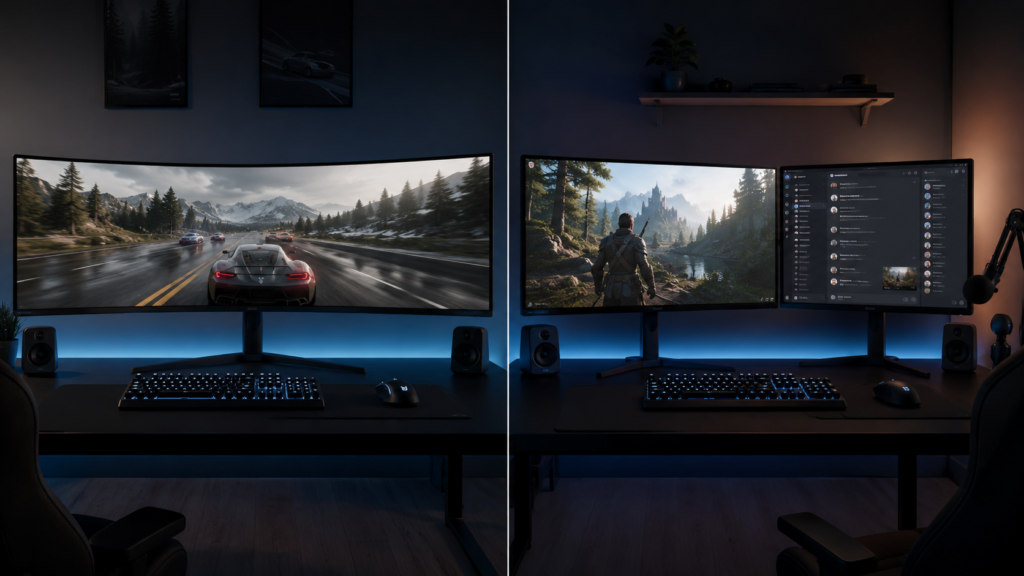
Wider aspect ratios provide expanded field of view in supported games, creating a more immersive experience. Racing games, open-world games, simulators, and cinematic titles often look dramatically better on ultrawide displays.
Ultrawide immersion can make environments feel more natural and engaging because more of the world remains visible without camera movement.
Many players researching how to choose a gaming monitor eventually prioritize ultrawide gaming because of the increased immersion.
Game Compatibility With Ultrawide Resolutions
One limitation of ultrawide gaming is compatibility.
While modern PC games increasingly support ultrawide resolutions, not all games scale perfectly. Some titles may:
- Add black bars
- Stretch the image
- Limit HUD placement
- Restrict field of view
Older games and some competitive esports titles may not fully support 21:9 or 32:9 formats.
Fortunately, compatibility continues improving each year.
Dual Monitors in Gaming Setups
A dual monitor gaming setup offers different advantages.
Most gamers only play on one screen while using the second monitor for:
- Discord
- Twitch chats
- Music controls
- Browsers
- Guides
- Streaming tools
- Hardware monitoring
This creates an extremely practical gaming workflow.
While ultrawide gaming focuses on immersion, dual monitors focus more on convenience and multitasking.
Competitive Gaming Considerations
Competitive gaming priorities are very different from immersive gaming.
Many esports players still prefer standard 16:9 gaming monitors because:
- They are easier to fully view
- Eye movement stays minimal
- Performance demands remain lower
- Some tournaments standardize 16:9 formats
Ultrawide competitive gaming can provide increased peripheral visibility in supported games, but not all players consider this beneficial.
Performance Impact and FPS Differences
Does ultrawide lower FPS?
Usually yes.
Ultrawide resolutions contain significantly more pixels than standard 1440p displays, increasing GPU workload.
For example:
- 3440×1440 ultrawide resolutions push far more pixels than 2560×1440 monitors
- 49-inch super ultrawides can approach dual-monitor-level pixel counts
Ultrawide GPU requirements are generally higher, especially for gaming.
Console Gaming on Ultrawide vs Dual Monitors
Console support for ultrawide displays remains limited.
Most PS5 and Xbox systems output standard 16:9 resolutions, meaning ultrawide monitor for PS5 or ultrawide monitor for Xbox setups often display black bars on the sides.
Dual monitor setups work more predictably with consoles because the primary gaming display functions normally while the second monitor remains available for multitasking.
Hardware Requirements and System Performance
GPU Demands for Ultrawide Resolutions
Ultrawide resolution requirements can be demanding, especially at higher refresh rates.
Gaming at ultrawide resolutions requires more rendering power because the GPU processes more pixels each frame.
This becomes even more important when combining:
- High refresh rates
- HDR
- Ray tracing
- Ultrawide resolutions
System Load in Dual Monitor Configurations
Dual monitors performance impact is usually fairly small for modern systems during general productivity.
However, gaming while running applications on a second monitor can increase:
- GPU usage
- VRAM consumption
- CPU load
- Memory usage
Streaming, browsers, hardware monitors, and communication tools all contribute additional system load.
Ports, Cables, and Connectivity Requirements
Common connections include:
- HDMI
- DisplayPort
- USB-C
- Thunderbolt
HDMI vs DisplayPort for ultrawide gaming often favors DisplayPort because of better support for high refresh rates and resolutions.
Laptop Compatibility and External Display Limits
Can laptops run ultrawide monitors?
Usually yes, but it depends on the GPU and available outputs.
Can laptops run dual monitors?
Again, usually yes, but limitations vary.
Some laptops only support:
- One external display
- Limited resolutions
- Lower refresh rates
- Restricted bandwidth over USB-C docks
Modern productivity laptops typically handle office-focused ultrawide setups without issue, but gaming laptops require stronger GPUs for ultrawide gaming.
Software and Compatibility Considerations
Modern operating systems handle multiple displays far better than older systems.
Still, some compatibility issues can appear with:
- Display scaling
- Mixed resolutions
- HDR behavior
- Color calibration
- Window persistence
- Driver support
Ultrawide monitors may require dedicated software for advanced screen partitioning and workflow customization.
Cost, Pricing, and Long-Term Value
Price Ranges for Ultrawide and Dual Monitor Setups
Ultrawide monitor price ranges vary significantly.
Budget ultrawides start around entry-level dual monitor setup cost ranges, while premium OLED ultrawide monitor models can become extremely expensive.
Typical categories include:
- Budget ultrawides
- Mid-range productivity ultrawides
- High refresh gaming ultrawides
- Premium OLED ultrawides
- Super ultrawide displays
Dual monitors can often deliver similar total screen space for less money.
Value for Money Comparison
Ultrawide vs dual monitor value depends heavily on use case.
Dual monitors usually provide:
- Better flexibility
- Easier upgrades
- Lower entry cost
- Modular expansion
Ultrawides often provide:
- Cleaner aesthetics
- Better immersion
- Fewer cables
- Simplified mounting
The best value monitor setup is different for every user.
Hidden Costs to Consider
Hidden setup costs are common.
Additional purchases may include:
- Monitor arms
- Adapters
- Docking stations
- Premium cables
- Desk reinforcements
- GPU upgrades
Users planning a cleaner workspace often invest in dedicated monitor mounting solutions to improve ergonomics and reduce desk clutter.
Upgrade Flexibility Over Time
Dual monitors are generally easier to upgrade gradually.
You can:
- Replace one display at a time
- Add monitors later
- Mix different monitor types
- Repurpose older displays
Ultrawides are less modular because replacing the setup typically means replacing the entire display.
Desk Space, Aesthetics, and Setup Design
Space Requirements for Each Setup
Ultrawide vs dual monitors for small desk environments is an important consideration.
Dual monitors often require:
- More horizontal width
- More cable routing
- Additional monitor stands
- More desk depth for alignment
Ultrawides can save space by consolidating the setup into a single display.
Users researching the best monitor setup for small desk spaces often prefer ultrawides because they simplify the layout.
Cleanliness and Visual Appeal
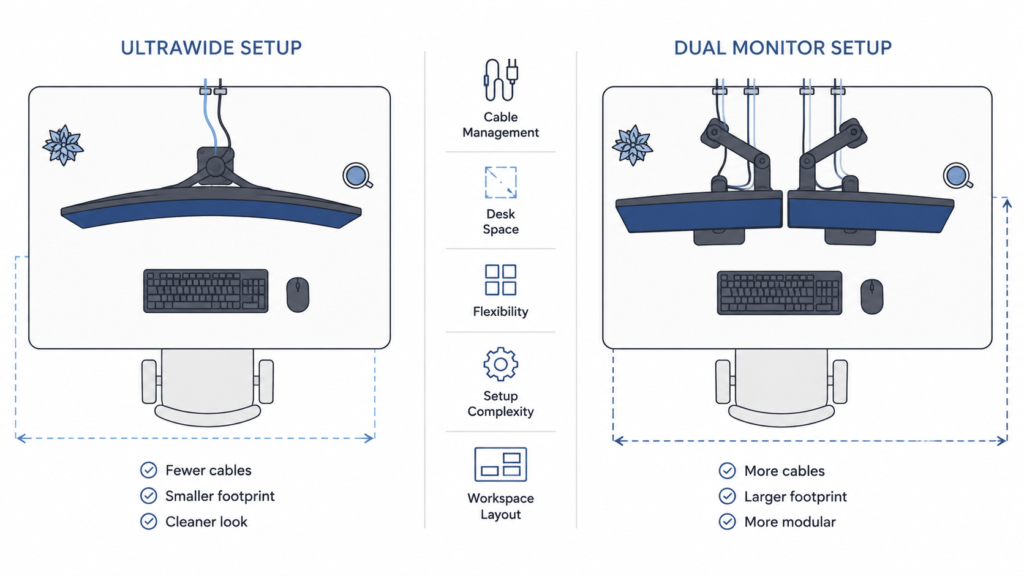
An ultrawide desk setup usually looks cleaner.
There is:
- One monitor stand
- Fewer cables
- Better screen continuity
- Less visual clutter
Dual monitor desk setup configurations can still look excellent, especially with proper alignment and cable management, but ultrawides generally create the more minimalist aesthetic.
Cable Management and Desk Organization
Ultrawide cable management is typically simpler.
A single display requires:
- One power cable
- One display cable
- One mount or stand
Dual monitors increase setup complexity because each display adds more wiring and mounting hardware.
For users prioritizing aesthetics, researching desk setup optimization can help dramatically improve overall organization.
Mounting Options and Flexibility
Both setups benefit greatly from monitor arms.
Dual monitors usually require:
- Dual-arm mounts
- Independent positioning
- Careful alignment
Ultrawides may require stronger monitor arms because large curved displays can be very heavy.
Dedicated monitor arms improve workspace ergonomics, viewing angles, and desk space efficiency regardless of setup type.
Best Choice for Small Desks
For very small desks, ultrawides often feel cleaner and more manageable.
However, dual 24-inch monitors can sometimes fit more efficiently than massive 49-inch super ultrawides.
Desk depth matters just as much as desk width.
Ergonomics, Comfort, and Long-Term Use
Neck and Eye Movement Differences
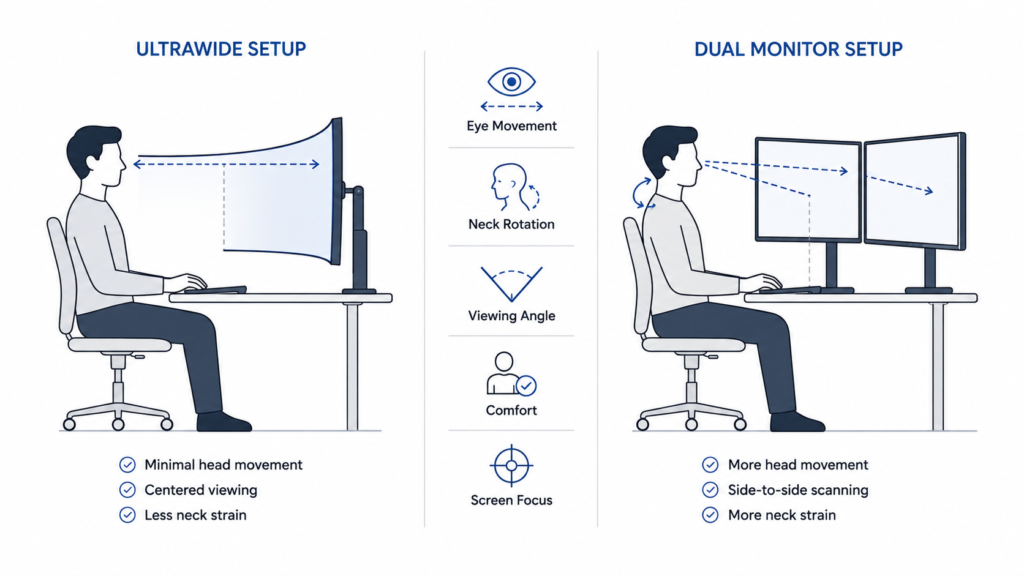
Ultrawide ergonomics and dual monitor ergonomics differ significantly.
Ultrawides reduce head turning because the workspace remains centered.
Dual monitors may require:
- More neck movement
- More frequent side-to-side viewing
- Stronger posture awareness
Still, ultrawide neck strain can become an issue with very large flat displays because users constantly scan wider viewing areas.
Bezels vs Seamless Viewing Experience
Dual monitor bezels create a visible interruption between screens.
For some workflows, this does not matter.
For immersive gaming, editing timelines, and media consumption, bezel interruption can feel distracting.
Ultrawides provide a seamless viewing experience with uninterrupted screen continuity.
Comfort During Long Work Sessions
Comfort depends heavily on positioning and monitor ergonomics.
Proper height, viewing distance, and monitor alignment matter more than monitor count alone.
Many users find curved ultrawides more comfortable during long sessions because the edges remain closer to the eyes.
Curved vs Flat Ultrawide Displays
Curved ultrawide monitor benefits become more noticeable as display size increases.
Curvature can:
- Improve viewing angles
- Reduce edge distortion
- Increase immersion
- Improve comfort on large displays
Flat ultrawides remain perfectly usable, especially in smaller sizes.
Eye Strain and Viewing Distance
Monitor setup eye strain often comes from:
- Poor brightness settings
- Incorrect viewing distance
- Improper monitor height
- Excessive glare
- Constant head movement
A well-positioned setup matters more than whether you choose ultrawide or dual monitors.
Setup Experience and Ease of Use
Initial Setup and Configuration
Ultrawides are generally easier to physically set up because there is only one display.
Dual monitor setups involve:
- Aligning displays
- Managing multiple cables
- Configuring monitor positions
- Matching resolutions and refresh rates
Aligning and Calibrating Dual Monitors
One common frustration with dual monitors is alignment.
Even small height or angle mismatches can feel distracting over time.
Users also sometimes experience:
- Color inconsistencies
- Different brightness levels
- Uneven scaling
- Cursor transition issues
Software Tools for Ultrawide Management
Window management ultrawide workflows benefit heavily from software.
Popular tools include:
- Windows Snap Layouts
- FancyZones
- Manufacturer partitioning software
- Virtual desktop managers
These tools make ultrawide multitasking much easier.
Everyday Ease of Use
Dual monitors feel more straightforward for some users because applications remain physically separated.
Ultrawides feel more fluid and flexible once users adapt to software-based screen partitioning.
Both setups become intuitive with time.
Pros and Cons Breakdown
Advantages of Ultrawide Monitors
Advantages include:
- Better immersion
- Seamless viewing
- Cleaner setup
- Fewer cables
- Strong creative workflow support
- Excellent gaming experience
- Better screen continuity
Users researching the best ultrawide monitors often prioritize immersion and aesthetics.
Limitations of Ultrawide Displays
Potential drawbacks include:
- Higher cost
- Greater GPU demands
- Game compatibility issues
- Less modular flexibility
- Larger desk requirements for super ultrawides
Benefits of Dual Monitor Setups
Advantages include:
- Excellent multitasking
- Easier workflow separation
- Lower entry cost
- Better upgrade flexibility
- Dedicated secondary screens
- Easier replacement over time
Drawbacks of Dual Monitors
Potential disadvantages include:
- More cables
- Bezel interruption
- More desk clutter
- Alignment challenges
- Increased setup complexity
Best Setup by Use Case
Remote Work and Home Office Productivity
Ultrawide vs dual monitors for work depends heavily on workflow style.
Remote workers focused on communication, spreadsheets, and multitasking often prefer dual monitors.
Users who value cleaner aesthetics and flexible workspace layouts may prefer ultrawides.
The best monitor setup for remote work is ultimately the one that matches your daily productivity workflow.
Student Setups and Study Efficiency
For students, ultrawides can sometimes feel excessive.
Dual monitors often provide better value for note-taking, research, and multitasking.
However, students working with creative software or coding environments may benefit significantly from ultrawide displays.
Creative Professionals and Editing Workflows
Ultrawide vs dual monitors for video editing often favors ultrawides because large timelines benefit from uninterrupted horizontal space.
Designers, editors, and creators may also appreciate the immersive workflow and cleaner visual layout.
Still, dual monitors remain excellent for creators who prefer fullscreen previews or isolated tool windows.
Trading, Analytics, and Data Monitoring
Trading and analytics workflows frequently favor multiple displays.
Dedicated screens make it easier to:
- Monitor dashboards
- Watch market movement
- Track alerts
- Separate applications
In these environments, dual monitors or even triple monitor setups often outperform ultrawides.
Alternative and Hybrid Setup Options
Combining Ultrawide With a Second Monitor
Some users combine ultrawides with secondary monitors for the best of both worlds.
Examples include:
- Ultrawide main display plus vertical monitor
- Gaming ultrawide with secondary communication display
- Creative ultrawide with reference monitor
This hybrid setup can be extremely powerful.
Triple Monitor Setups and When They Make Sense
Triple monitor setups work best for advanced workflows.
Common examples include:
- Flight simulators
- Trading setups
- Streaming workstations
- Security monitoring
- Complex production environments
For most users, however, triple monitors become excessive.
Super Ultrawide Displays (49-Inch and Beyond)
49 inch ultrawide monitors effectively replace dual monitor setups for some users.
These massive 32:9 displays provide enormous screen real estate while maintaining a seamless viewing experience.
They work especially well for:
- Simulation gaming
- Timeline-heavy editing
- Large spreadsheet workflows
- Multi-window productivity
Vertical and Stacked Monitor Layouts
Vertical and stacked monitors are niche but useful.
Vertical monitors work especially well for:
- Coding
- Reading documents
- Chat applications
- Secondary productivity screens
Some users also combine stacked displays with ultrawides for advanced productivity workflow layouts.
Common Mistakes When Choosing Between Ultrawide and Dual Monitors
Choosing Based Only on Desk Aesthetics
A clean setup can look impressive, but workflow efficiency matters far more over time. Some users buy ultrawides because they look modern, only to realize they prefer physically separated screens for multitasking.
Ignoring GPU Requirements
Ultrawide resolutions require significantly more GPU power, especially for gaming at high refresh rates. Many users underestimate how demanding ultrawide gaming can become.
Underestimating Desk Space
Both ultrawides and dual monitors require proper desk depth and positioning. Large displays placed too close to the user can create viewing discomfort and poor ergonomics.
Not Considering Workflow Type
The best setup depends more on workflow style than raw specifications. Structured multitaskers often prefer dual monitors, while users focused on immersion and creative workflows may prefer ultrawides.
Real-World Setup Examples
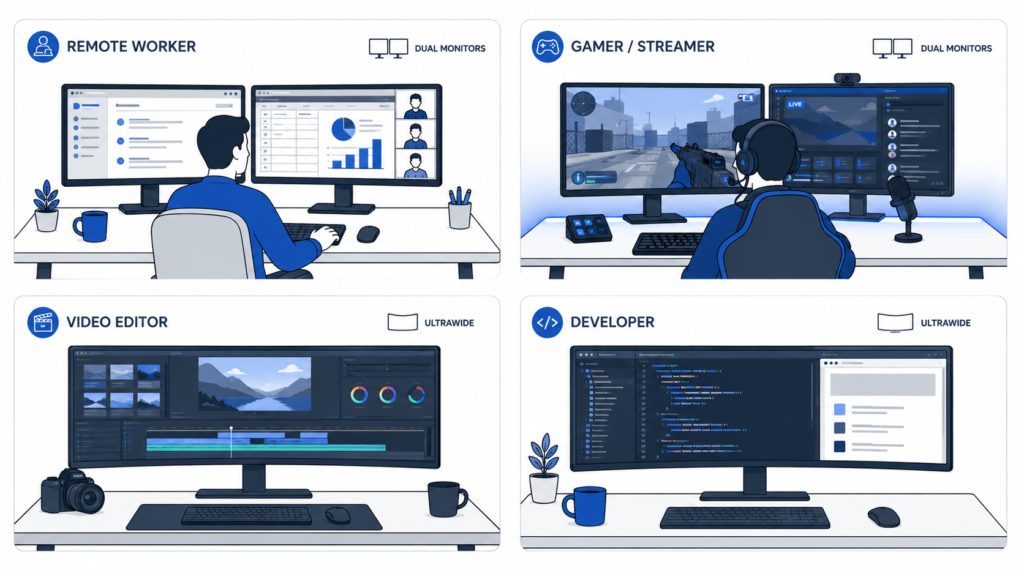
Remote Worker
Dual monitors often work extremely well for email, spreadsheets, video calls, browsers, and communication apps running simultaneously.
Gamer and Streamer
A dual monitor gaming setup is popular for streamers because one monitor handles gameplay while the second monitor manages OBS, chats, Discord, and monitoring tools.
Video Editor
Ultrawides work exceptionally well for video editing because large timelines fit naturally across the extended horizontal workspace.
Developer
Ultrawide vs dual monitors for programming depends heavily on preference. Some developers prefer ultrawides for larger IDE layouts, while others prefer dual monitors for separating documentation, terminals, and active projects.
Buying Guide: How to Choose the Right Setup
Choosing the Right Ultrawide Monitor
An ultrawide monitor buying guide should focus on:
- Size
- Resolution
- Panel type
- Refresh rate
- Curvature
- Connectivity
Users searching for gaming-focused options should also research gaming monitor recommendations to compare features and performance.
Building an Effective Dual Monitor Setup
An effective dual monitor setup should prioritize:
- Matching monitor sizes
- Similar resolutions
- Consistent refresh rates
- Proper alignment
- Comfortable viewing angles
Using identical displays generally creates the cleanest experience.
Ideal Screen Sizes and Resolutions
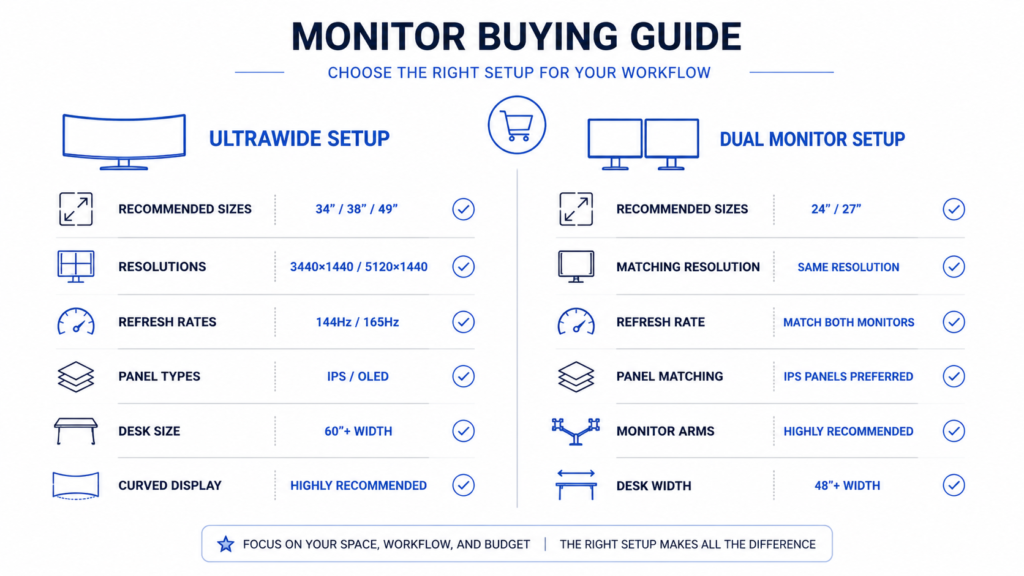
The best ultrawide monitor size depends on your desk and workflow.
Popular options include:
- 34 inch ultrawide for balanced productivity and gaming
- 38 inch ultrawide for larger workspaces
- 49 inch ultrawide for maximum multitasking
Refresh Rate and Performance Considerations
The best refresh rate for ultrawide gaming depends on the games you play.
Competitive gamers often prioritize:
- High refresh rates
- Low response times
- Motion clarity
Casual users and office-focused setups may not benefit significantly from extreme refresh rates.
Panel Types Explained (IPS, VA, OLED)
Panel technology affects:
- Contrast
- Color accuracy
- Viewing angles
- Motion performance
- HDR quality
Premium OLED ultrawide monitor models deliver incredible contrast and response times, but they are still expensive compared to traditional IPS and VA panels.
Making the Right Choice for Your Needs
When an Ultrawide Monitor Makes the Most Sense
An ultrawide monitor setup makes the most sense when you prioritize:
- Immersion
- Clean aesthetics
- Seamless workflows
- Creative applications
- Minimal cable clutter
- Flexible window layouts
Users asking “is ultrawide better than dual monitors” often prefer ultrawides when immersion and visual continuity matter most.
When Dual Monitors Are the Better Option
Dual monitors are often the better option when you prioritize:
- Structured multitasking
- Lower cost
- Flexible upgrades
- Separate workflows
- Monitoring multiple applications simultaneously
Users asking “are dual monitors better than ultrawide” often value organization and modularity more than immersion.
Situations Where Neither Option Is Ideal
Neither setup is perfect for every environment.
Limitations may include:
- Small desks
- Weak GPUs
- Laptop display limitations
- Budget restrictions
- Frequent portability needs
Expert Recommendation Based on Real-World Use
For most users, there is no universally correct answer.
Ultrawides generally feel better for:
- Immersion
- Creativity
- Minimalist setups
- Entertainment
Dual monitors generally feel better for:
- Heavy multitasking
- Structured workflows
- Monitoring multiple applications
- Flexible upgrades
The right choice depends entirely on your workflow and priorities.
Quick Decision Guide: Ultrawide vs Dual Monitors
Choose Ultrawide If
Choose ultrawide if you want:
- A clean desk setup
- Better immersion
- Fewer cables
- Seamless viewing
- Better creative workflows
- Flexible window layouts
- A more modern aesthetic
Choose Dual Monitors If
Choose dual monitors if you want:
- Heavy multitasking support
- Separate workspaces
- Lower initial costs
- Easier upgrades
- Dedicated secondary applications
- Better structured workflows
Final Verdict: Which Setup Wins Overall?
Best Choice for Most Users
In the ultrawide vs dual monitors debate, there is no universal winner.
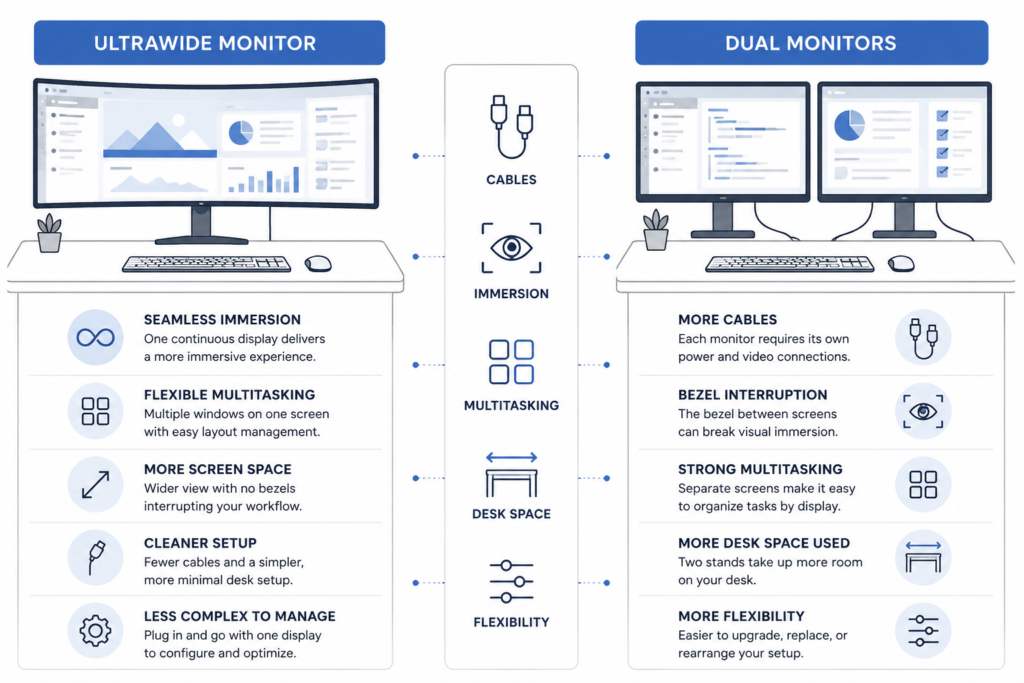
Ultrawides provide the better immersive experience, cleaner aesthetics, and more seamless workflows. Dual monitors provide superior modularity, structured multitasking, and upgrade flexibility.
For gaming and creative work, ultrawides often feel more modern and engaging. For office productivity and multi-application workflows, dual monitors remain extremely practical.
If productivity and flexibility matter most, dual monitors are usually the smarter choice. If immersion, simplicity, and aesthetics matter more, ultrawide is often the better upgrade.
If you are still deciding between ultrawide or dual monitors, think carefully about how you naturally organize work and applications throughout the day.
Safest Option If You’re Unsure
If you are unsure which setup fits your workflow best, dual monitors are usually the safer choice.
They are generally:
- More affordable
- Easier to upgrade
- More flexible
- Easier to adapt over time
However, users who strongly value immersion, aesthetics, and seamless workflows may ultimately find that ultrawide displays deliver a more enjoyable overall experience.
Ultimately, the best monitor setup for productivity, gaming, and daily usability is the one that supports your workflow naturally rather than forcing you to adapt to it.
FAQ
Is ultrawide better than dual monitors for productivity?
It depends on workflow style. Dual monitors are usually better for structured multitasking, while ultrawides provide more flexible layouts and a cleaner workspace.
Is ultrawide worth it for gaming?
Yes, especially for immersive games like racing titles, simulators, RPGs, and open-world games. However, your PC must be powerful enough to handle ultrawide resolutions.
Do dual monitors affect performance?
For general productivity, the impact is usually very small. During gaming and multitasking, however, additional applications running on the second monitor can increase system load.
Can an ultrawide replace dual monitors?
Yes. Many 34-inch and 49-inch ultrawide displays can effectively replace dual monitors, though the workflow organization feels different.
Which setup is better for gaming?
Ultrawides are generally better for immersion, while dual monitors are better for multitasking during gaming.
Are dual monitors better than ultrawide for work?
For heavy multitasking and structured workflows, many office users still prefer dual monitors. However, ultrawides can feel more natural for flexible multi-window workflows.
What is the best monitor setup for small desks?
For many users, ultrawides create a cleaner and more space-efficient layout. However, compact dual-monitor setups using smaller displays can also work well.
Do all games support ultrawide resolutions?
No. Most modern games support ultrawide resolutions, but some older games and competitive titles may not scale correctly.