
Monitor Resolution Explained: What It Is, How It Works, and What You Actually Need
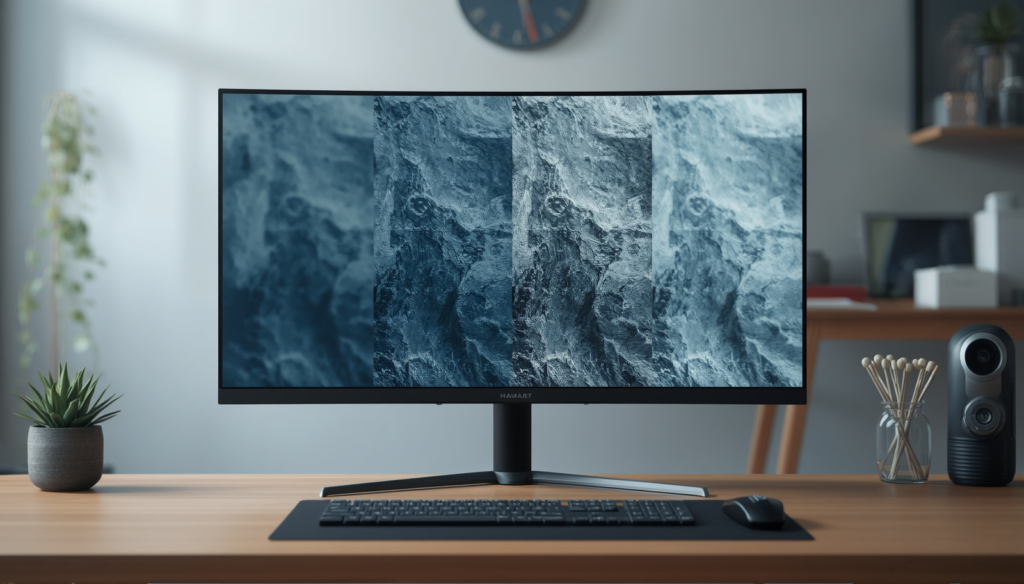
Monitor resolution is one of the biggest factors that affects how sharp, detailed, and clear a display looks. Whether you are buying a gaming monitor, upgrading your work setup, or trying to understand the difference between 1080p, 1440p, and 4K, resolution plays a major role in overall image quality and usability.
At the same time, monitor resolution is often misunderstood. Higher resolution does not automatically guarantee a better experience, and factors like screen size, pixel density, refresh rate, scaling, and GPU performance all influence how a monitor actually looks and performs in real-world use.
This guide explains monitor resolution in simple terms, including how monitor resolution works, how different resolutions compare, and what resolution makes the most sense for gaming, productivity, content creation, and everyday use in 2026. For a broader look at screen size, refresh rate, panel type, and resolution together, see our guide on how to choose a gaming monitor.
For display comparisons across gaming, productivity, and ultrawide setups, browse our monitor and display rankings and buying guides.
Monitor Resolution Explained (Quick Answer)
Monitor resolution refers to the number of pixels displayed on a screen, usually written as width × height (for example, 1920 × 1080). More pixels allow finer detail to be displayed, which increases image clarity and screen sharpness.
However, overall display quality also depends on:
- Screen size
- Pixel density (PPI)
- Display scaling
- Viewing distance
- Panel quality
For most users in 2026:
- 1080p is still good for budget setups
- 1440p is the best balance for most people
- 4K is ideal for large screens and creative work
Understanding Monitor Resolution
What Monitor Resolution Means in Simple Terms
Monitor resolution refers to the number of pixels displayed on a screen. Pixels are the tiny individual dots that make up everything you see on a display, including text, images, videos, icons, and applications.
Resolution is usually written as width × height. For example:
- 1920 × 1080
- 2560 × 1440
- 3840 × 2160
The first number represents horizontal pixels, while the second represents vertical pixels.
A higher monitor resolution allows the display to show more visual information at once while improving image detail and sharpness.
How Resolution Is Measured (Pixels Explained)
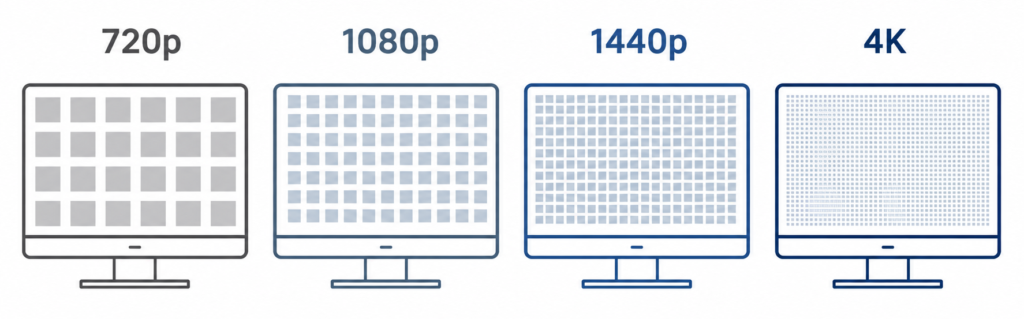
Every display is built from millions of tiny pixels arranged in a grid. These pixels combine to create the final image you see on-screen.
For example:
- 1080p contains about 2 million pixels
- 1440p contains about 3.7 million pixels
- 4K contains about 8.3 million pixels
As resolution increases, the total pixel count rises dramatically. This improves:
- Image detail
- Text clarity
- Screen sharpness
- Overall visual clarity
However, rendering more pixels also requires more GPU power, especially in games and creative workloads.
Resolution vs Pixel Density (PPI)
Resolution alone does not determine sharpness. Pixel density, usually measured in PPI (pixels per inch), is just as important.
PPI measures how tightly pixels are packed together on a screen.
For example:
- A 24-inch 1080p monitor has decent pixel density
- A 32-inch 1080p monitor spreads those same pixels across a much larger display
This is why larger low-resolution displays often look softer or blurrier.
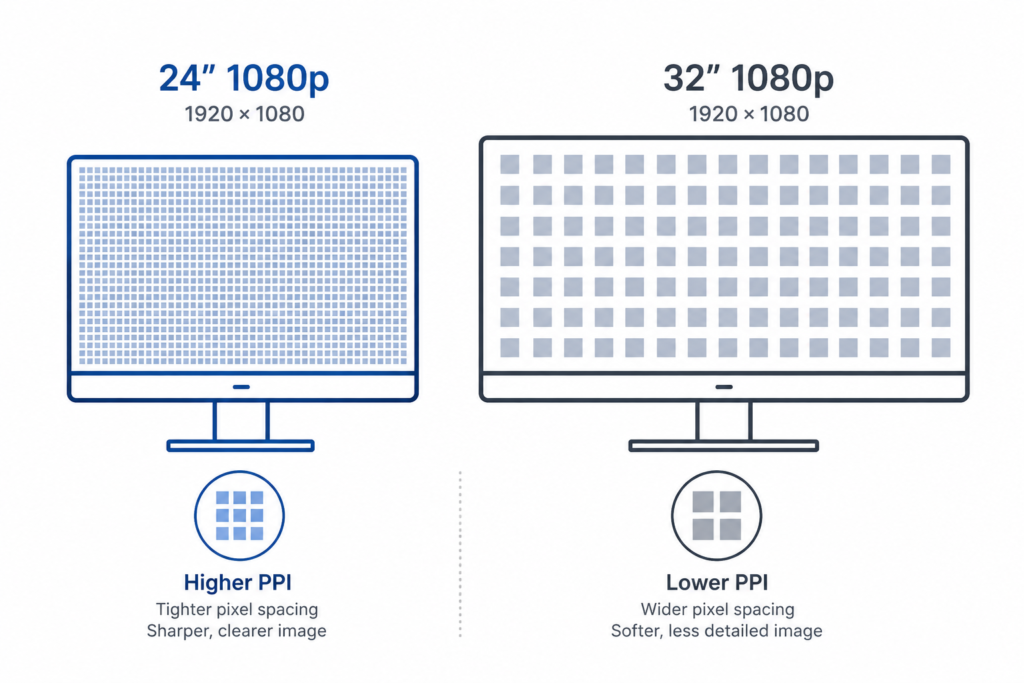
Higher pixel density generally improves:
- Text readability
- Fine detail
- Image sharpness
- Overall display quality
This is also one reason why 1440p became so popular on 27-inch monitors. It delivers noticeably better clarity without the heavy GPU demand of 4K.
Aspect Ratio and Its Impact on Display
Aspect ratio describes the shape of the display rather than the total number of pixels.
Most modern monitors use a 16:9 aspect ratio, including:
- 1080p
- 1440p
- 4K
Ultrawide monitors often use:
- 21:9
- 32:9
A wider aspect ratio increases horizontal workspace and immersion, especially for multitasking and gaming.
For example:
- 3440 × 1440 is an ultrawide resolution
- It has more horizontal screen space than standard 1440p
This gives users additional desktop room without significantly increasing vertical height.
Why Resolution Affects Image Clarity
More pixels allow finer detail to be displayed, which improves image clarity—especially in text, images, games, and modern applications.
Higher resolutions usually provide:
- Cleaner text
- Sharper edges
- More detailed visuals
- Better workspace visibility
Lower resolutions may appear:
- Softer
- Pixelated
- Less detailed
- Jagged around edges
However, image clarity also depends on:
- Screen size
- Viewing distance
- Pixel density
- Panel quality
- Display scaling
A properly sized 1080p display can still look excellent for everyday use.
Does Higher Resolution Always Mean Better Quality?
Not necessarily.
A higher resolution monitor may still provide a worse experience if:
- The screen is too small to benefit from additional pixels
- Scaling is poorly configured
- The GPU struggles to maintain performance
- The panel quality is weak
- The content itself is low resolution
For example:
- A high-quality 1440p IPS monitor may look better than a cheap 4K panel
- Smooth 1440p gaming may feel better than unstable 4K gameplay
Common Monitor Resolutions and What They Mean
Standard Resolutions (720p, 1080p, 1440p, 4K, 5K, 8K)
720p (1280 × 720)
Mostly outdated for monitors today, though it may still appear on older or budget hardware.
1080p (1920 × 1080)
Also called Full HD. This remains one of the most common monitor resolutions because it balances affordability and performance well.
1440p (2560 × 1440)
Often called Quad HD or QHD. This resolution provides noticeably sharper visuals and more desktop space than 1080p.
4K (3840 × 2160)
Also called Ultra HD. 4K offers excellent image detail and large workspace capacity, especially on larger monitors.
5K and 8K
These are primarily used for specialized creative workflows and high-end professional displays.
Full HD vs Quad HD vs Ultra HD
| Term | Resolution |
|---|---|
| HD | 1280 × 720 |
| Full HD (FHD) | 1920 × 1080 |
| Quad HD (QHD) | 2560 × 1440 |
| Ultra HD (UHD) | 3840 × 2160 |
Quad HD is called “Quad” because it contains roughly four times the pixel count of 720p.
4K Explained (UHD vs DCI 4K Differences)
Most consumer monitors use UHD resolution:
- 3840 × 2160
Professional cinema often uses DCI 4K:
- 4096 × 2160
For most users, this difference does not matter much because consumer displays almost always use UHD.
Pixel Counts by Resolution (Quick Reference Table)
| Resolution | Pixel Count |
|---|---|
| 720p | ~0.9 million |
| 1080p | ~2.1 million |
| 1440p | ~3.7 million |
| 4K | ~8.3 million |
| 8K | ~33 million |
The jump from 1440p to 4K is much larger than many people initially expect.
What Resolution Most Monitors Use Today
1080p remains extremely common because:
- It is affordable
- It works well with budget hardware
- It supports high FPS gaming easily
However, 1440p has become the current sweet spot for many users because it offers:
- Better sharpness
- More screen real estate
- Strong gaming performance
- Better long-term value
4K continues growing in popularity, especially for:
- Creative professionals
- Large monitors
- High-end gaming PCs
How to Check Your Monitor Resolution
Checking Resolution on Windows
On Windows:
- Right-click the desktop
- Select “Display Settings”
- Scroll to “Display Resolution”
Windows usually labels the monitor’s native resolution as “Recommended.”
Checking Resolution on Mac
On macOS:
- Open System Settings
- Select Displays
- View current resolution settings
macOS may show scaling presets rather than direct resolution values depending on the display.
Finding Your Monitor’s Native Resolution
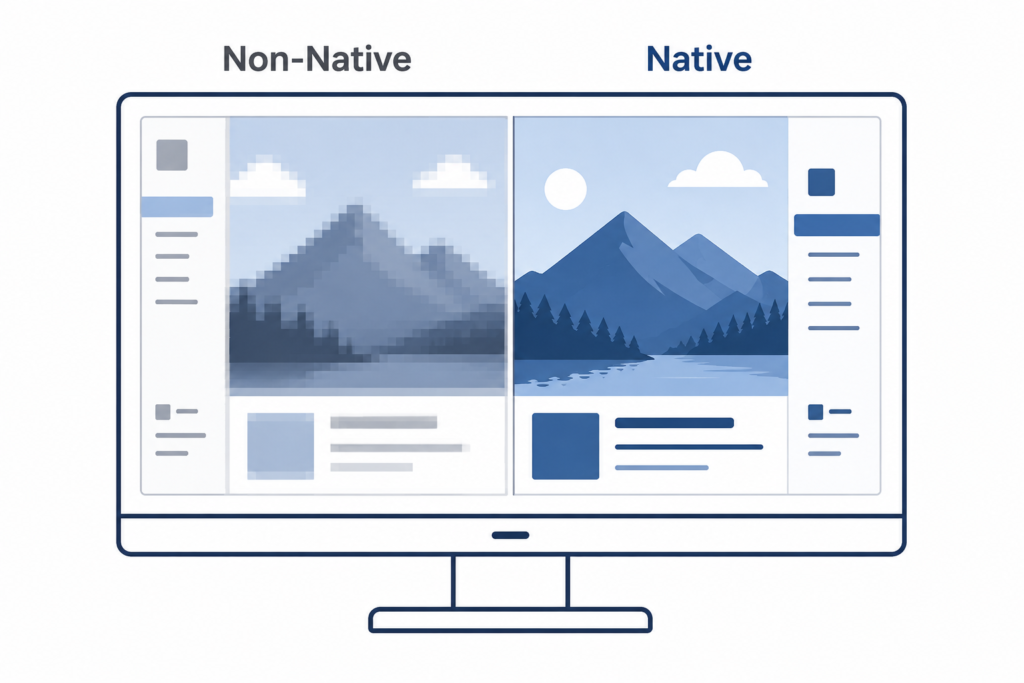
Native resolution refers to the actual physical pixel layout of the monitor.
Using native resolution usually provides:
- Sharpest image quality
- Best text clarity
- Proper scaling
- Most accurate visuals
Running non-native resolutions often causes blur because the image must be stretched.
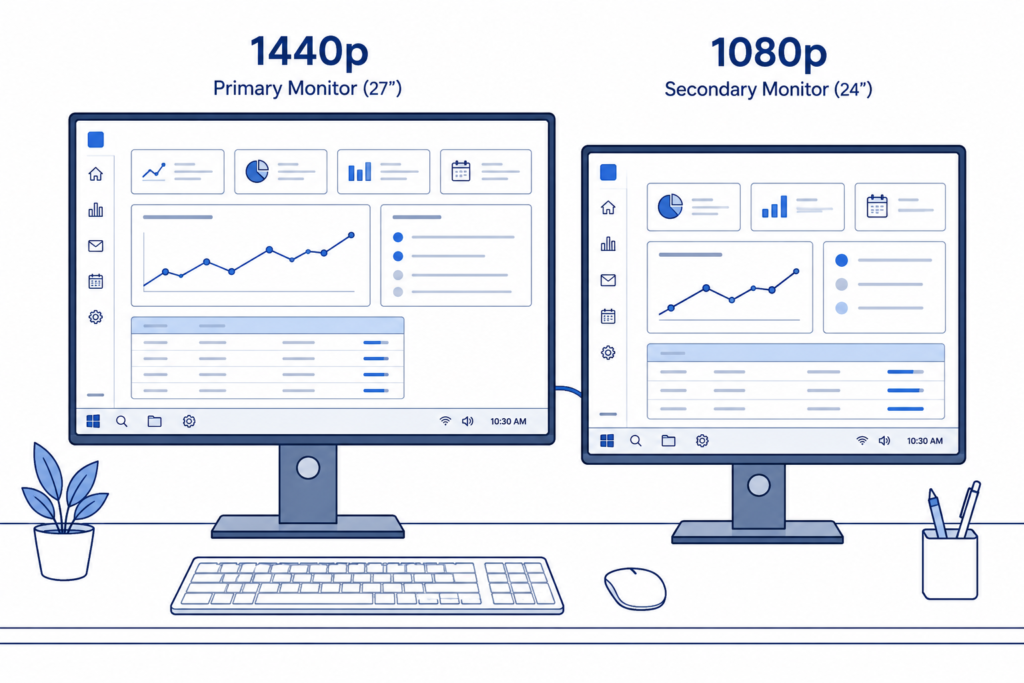
Checking Resolution for Multiple Displays
Multi-monitor setups can run different resolutions simultaneously.
For example:
- Main monitor: 2560 × 1440
- Secondary monitor: 1920 × 1080
Modern operating systems allow each display to use separate scaling and resolution settings.
How to Change Monitor Resolution
Changing Resolution on Windows
In Display Settings:
- Select the monitor
- Open the resolution dropdown
- Choose a supported resolution
- Confirm the change
For best results, start with the monitor’s recommended native resolution.
Changing Resolution on Mac
macOS allows display adjustments through:
- System Settings
- Display scaling controls
Some Macs prioritize scaling modes instead of listing every resolution directly.
Understanding “Recommended” Settings
The recommended resolution usually matches the monitor’s native resolution.
This provides:
- Best image quality
- Proper scaling
- Sharpest text
- Cleanest visuals
Lowering resolution below native generally reduces display clarity.
Custom Resolutions and When to Use Them
Some advanced users create custom resolutions for:
- Ultrawide gaming
- Competitive gaming
- GPU scaling adjustments
- Refresh rate tweaks
Custom resolutions can sometimes create:
- Compatibility issues
- Signal instability
- Scaling problems
Most users should stick with standard supported settings.
Resolution vs Display Scaling (When to Adjust Each)
Resolution changes the actual rendered pixel count.
Scaling changes the size of interface elements while maintaining image sharpness.
For example:
- A 4K monitor may use 150% scaling
- This keeps text readable while preserving detail
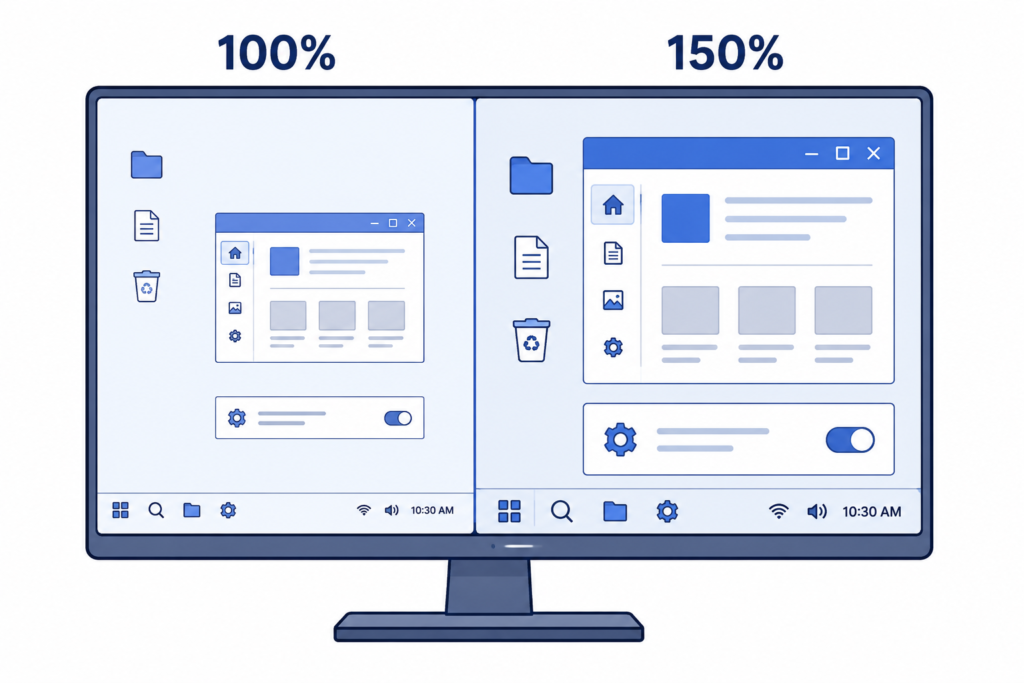
In most situations, adjusting scaling is preferable to lowering resolution.
Resolution vs Other Display Factors
Resolution vs Screen Size (Why Size Matters)
Resolution and screen size work together closely.
A resolution that looks sharp on a small monitor may look noticeably softer on a larger one.
Common pairings include:
- 24-inch → 1080p
- 27-inch → 1440p
- 32-inch → 4K
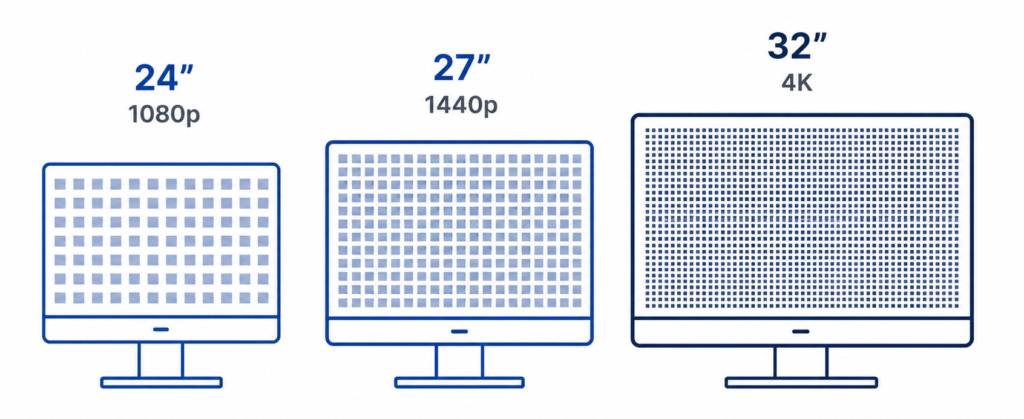
Larger screens benefit more from higher resolutions because pixels are spread across a bigger surface area.
Pixel Density (PPI) and Visual Sharpness
Pixel density directly affects how sharp a monitor appears at normal viewing distances.
Higher PPI usually improves:
- Image detail
- Text clarity
- Edge smoothness
- Fine visual detail
This is one reason why many users notice a substantial improvement moving from 1080p to 1440p on a 27-inch monitor.
Resolution and Text Readability
Higher resolutions can significantly improve text clarity, especially for:
- Office work
- Reading documents
- Programming
- Web browsing
However, very high resolutions may require scaling so text does not become too small.
Resolution vs Refresh Rate
Resolution affects image detail.
Refresh rate affects motion smoothness.
Competitive gamers often prioritize:
- Higher refresh rates
- Faster response times
- Stable FPS
Even if it means using a lower resolution. If you are comparing motion smoothness and responsiveness, our guide to refresh rate vs response time explains how those specs affect gaming performance.
Resolution vs GPU Performance
Higher resolutions increase GPU workload significantly.
Approximate workload increases:
- 1440p renders about 77% more pixels than 1080p
- 4K renders four times more pixels than 1080p
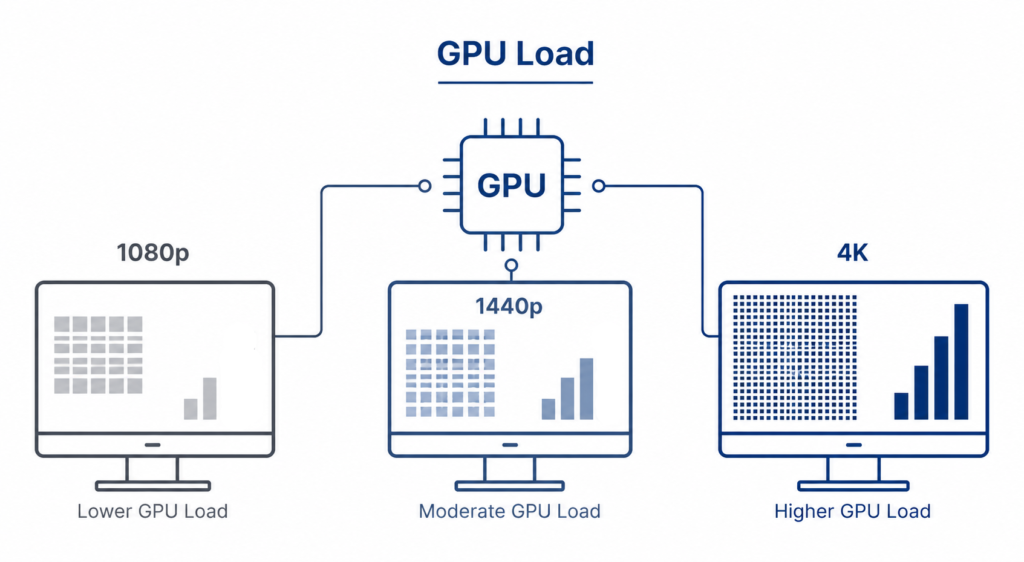
This impacts:
- Gaming FPS
- GPU temperatures
- Power consumption
- Hardware requirements
Viewing Distance and Perceived Sharpness
Viewing distance changes how sharp a display appears.
A monitor viewed from two feet away benefits more from higher pixel density than a television viewed across a room.
Closer viewing distances make pixel structure easier to notice.
Choosing the Right Resolution for Your Needs
What Monitor Resolution Should Most People Use?
For most users in 2026, 1440p is the best overall balance between:
- Sharpness
- Performance
- Cost
- Long-term usability
It provides a noticeable upgrade over 1080p without the heavy GPU demand of 4K.
Best Resolution for Everyday Use
1080p still works well for:
- Budget setups
- Casual users
- Small monitors
- Basic productivity
However, 1440p generally provides a more refined experience for long-term daily use.
Best Resolution for Productivity and Office Work
1440p and 4K both work very well for productivity because they increase usable desktop space.
Benefits include:
- Better multitasking
- More visible content
- Cleaner text rendering
- Improved spreadsheet workflows
Best Resolution for Programming
Programmers often benefit from:
- Higher pixel density
- More vertical workspace
- Sharper text clarity
1440p and 4K are both excellent choices for coding environments.
Best Resolution for Photo and Video Editing
Creative professionals benefit heavily from higher resolutions because they improve:
- Fine detail visibility
- Workspace flexibility
- Timeline space
- Editing precision
4K is especially useful for high-resolution photo and video work.
Is 1080p Still Good in 2026?
Yes.
1080p still makes sense for:
- Budget PCs
- Esports gaming
- Smaller displays
- Entry-level setups
However, many users upgrading today may find 1440p offers better long-term value.
1440p vs 1080p (Is It Worth Upgrading?)
For many users, yes.
1440p improves:
- Text sharpness
- Screen clarity
- Workspace size
- Gaming visuals
The difference is especially noticeable on 27-inch monitors.
Many of the displays featured in our best budget gaming monitors guide are built around this same 27-inch 1440p sweet spot because it balances image clarity, gaming performance, and long-term usability well.
Is 4K Worth It for Most People?
4K can be excellent, but it depends heavily on:
- Screen size
- GPU capability
- Budget
- Intended use
For many users, 1440p remains the more balanced choice overall.
Resolution vs Use Case
| Use Case | Recommended Resolution |
|---|---|
| Budget Setup | 1080p |
| Gaming (Balanced) | 1440p |
| Creative Work | 4K |
| Esports | 1080p (high refresh) |
| Office Productivity | 1440p |
| Large Displays | 4K |
Best Resolution by Monitor Size
Resolution vs Monitor Size Table
| Monitor Size | Best Resolution |
|---|---|
| 24-inch | 1080p / 1440p |
| 27-inch | 1440p |
| 32-inch | 4K |
| 34-inch Ultrawide | 3440 × 1440 |
| 42-inch+ | 4K |
24-Inch Monitors
1080p still works well at 24 inches because pixel density remains fairly reasonable.
1440p improves sharpness further but may increase cost.
27-Inch Monitors
27 inches is widely considered the ideal size for 1440p.
At this size:
- 1080p may appear softer
- 1440p provides noticeably cleaner detail
- 4K can look excellent but often requires scaling
32-Inch and Larger Monitors
Larger displays benefit substantially from higher resolutions.
At 32 inches and above:
- 1080p often looks blurry
- 1440p looks decent
- 4K looks significantly sharper
Why Lower Resolutions Look Worse on Bigger Screens
The same number of pixels gets stretched across a larger display area.
This lowers pixel density and reduces overall sharpness.
Ideal PPI Ranges for Different Setups
General guidelines:
- ~90–110 PPI → acceptable for general use
- ~110–140 PPI → very sharp for desktop monitors
- 140+ PPI → excellent detail and clarity
Higher PPI is especially beneficial for:
- Text-heavy work
- Creative applications
- Close viewing distances
Resolution for Gaming
Best Resolution for Gaming Performance
1080p remains the easiest resolution to run at very high FPS.
1440p offers one of the best balances between:
- Visual quality
- GPU demand
- Competitive performance
4K provides outstanding image quality but requires substantially more GPU power. For specific display recommendations, see our rankings of the best gaming monitors.
1080p vs 1440p vs 4K for Gaming
1080p
Best for:
- Esports
- Budget gaming
- Very high refresh rates
1440p
Best overall balance for many gamers.
4K
Best for visual fidelity and immersive gaming setups.
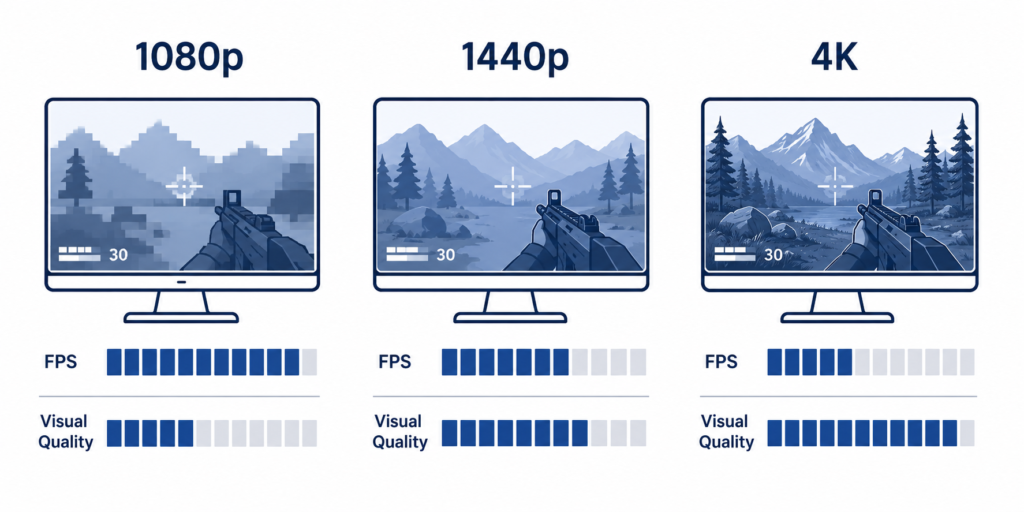
Resolution and FPS (Performance Impact)
Higher resolutions lower FPS because the GPU must render more pixels every frame.
This is one of the most important tradeoffs in gaming monitor selection.
Matching Resolution to Your GPU
Examples:
- Entry-level GPUs → 1080p
- Mid-range GPUs → 1440p
- High-end GPUs → 4K
Choosing unrealistic resolutions for weak hardware often leads to disappointing gaming performance.
Resolution vs Refresh Rate for Gamers
Many competitive players prioritize:
- Lower resolution
- Higher refresh rate
- Maximum FPS
Meanwhile, immersive gamers may prefer:
- Higher resolutions
- Better image quality
- Larger displays
Is 4K Gaming Worth It Right Now?
4K gaming can look incredible, especially on larger monitors and high-end systems.
However, it also requires:
- Powerful GPUs
- Higher budgets
- Strong cooling and power delivery
For many gamers, 1440p remains the more balanced long-term choice.
Fixing Common Resolution Problems
Why Does My Monitor Look Blurry?
A blurry display is usually caused by:
- Non-native resolution
- Incorrect scaling
- Poor cable quality
- GPU driver issues
Using the monitor’s native resolution typically fixes most clarity problems.
Resolution Keeps Changing Automatically
This may happen because of:
- Driver conflicts
- Windows updates
- Docking station issues
- Multi-monitor detection problems
Updating GPU drivers often resolves the issue.
Second Monitor Resolution Issues
Mixed monitor setups can create:
- Scaling inconsistencies
- Different text sizes
- Alignment issues
Adjust each display individually within operating system settings.
Missing or Locked Resolution Options
Common causes include:
- Outdated drivers
- Weak cables
- HDMI limitations
- Unsupported refresh rates
Zoomed-In or Scaled Incorrectly Displays
This is usually related to:
- Scaling settings
- Overscan
- Accessibility options
- TV display modes
Multi-Monitor Setups and Resolution
Using Different Resolutions Across Monitors
Modern operating systems handle mixed-resolution displays much better than they once did.
However, differences in:
- Scaling
- Pixel density
- Physical size
can still create inconsistencies.
Matching Scaling for Consistent Displays
Using similar scaling values across monitors often creates a smoother desktop experience.
This helps improve:
- Cursor movement consistency
- Window alignment
- Text sizing
Common Issues with Mixed-Resolution Setups
Common problems include:
- Different text sizes
- Uneven scaling
- UI alignment issues
- Cursor positioning inconsistencies
These problems become more noticeable when mixing 4K and 1080p displays.
Best Resolution Strategy for Dual Monitors
Popular dual-monitor combinations include:
- Dual 1080p
- Dual 1440p
- 1440p main + 1080p secondary
Matching resolutions usually creates the cleanest experience overall.
Hardware Limits That Affect Resolution
GPU and Maximum Resolution Support
Your GPU determines:
- Maximum supported resolution
- Refresh rate support
- Multi-monitor capabilities
Older GPUs may struggle with:
- 4K
- Ultrawide resolutions
- High refresh rate gaming
HDMI vs DisplayPort Capabilities
Different ports support different combinations of:
- Resolution
- Refresh rate
- Bandwidth
DisplayPort generally supports higher-end monitor configurations more easily than older HDMI standards.
Cable and Port Limitations
Cheap or outdated cables can limit:
- Refresh rate support
- Resolution options
- Signal stability
Not all HDMI cables fully support high-end 4K gaming features.
Running Non-Native Resolutions (Pros and Cons)
Running non-native resolutions may improve gaming performance, but it often reduces sharpness.
Pros:
- Higher FPS
- Lower GPU demand
Cons:
- Blurry visuals
- Softer text
- Reduced image clarity
Older Monitors and Modern Resolution Compatibility
Older monitors may lack support for:
- Modern refresh rates
- Advanced scaling
- High-bandwidth connections
Adapters and outdated ports can also create limitations.
Common Resolution Mistakes to Avoid
- Using non-native resolution, which often causes blur
- Ignoring pixel density when choosing monitor size
- Choosing 4K without enough GPU power
- Lowering resolution instead of adjusting scaling
- Assuming higher resolution always looks better
- Prioritizing resolution while ignoring panel quality
- Pairing large screens with resolutions that are too low
Advanced Concepts (Often Overlooked)
Display Scaling and HiDPI / Retina Displays
HiDPI displays combine extremely high pixel density with scaling to improve sharpness without making interface elements too small.
This approach is common on:
- MacBooks
- Premium laptops
- High-end monitors
Resolution and Eye Comfort
Sharper displays can improve readability and reduce visible pixelation, which some users find more comfortable during long work sessions.
Resolution and Battery Life (Laptops)
Higher resolutions increase GPU workload and power consumption.
This can reduce laptop battery life, especially on portable systems.
Resolution and Video/Streaming Quality
Streaming quality also depends on:
- Bitrate
- Compression
- Internet speed
- Source resolution
A 4K monitor cannot make low-quality compressed video suddenly look truly sharp.
Quick Recommendations (Simplified Guide)
Best Resolution for Most People
1440p is currently the best overall balance for:
- Gaming
- Productivity
- Sharpness
- Long-term usability
Best Budget Option
1080p remains the best budget-friendly choice.
Best Mid-Range Setup
A 27-inch 1440p monitor is one of the strongest overall monitor setups in 2026.
Best High-End Setup
4K is ideal for:
- Large monitors
- Creative professionals
- High-end gaming PCs
Final Thoughts
Monitor resolution plays a major role in how your display looks and feels, but it should always be balanced with screen size, performance, and your specific use case.
If you want a simple rule:
- Go 1080p for budget setups and esports gaming
- Choose 1440p for the best overall experience
- Use 4K for large monitors and creative work
Getting the right combination matters more than simply chasing the highest resolution number.