
Laptop Specs Explained (2026)
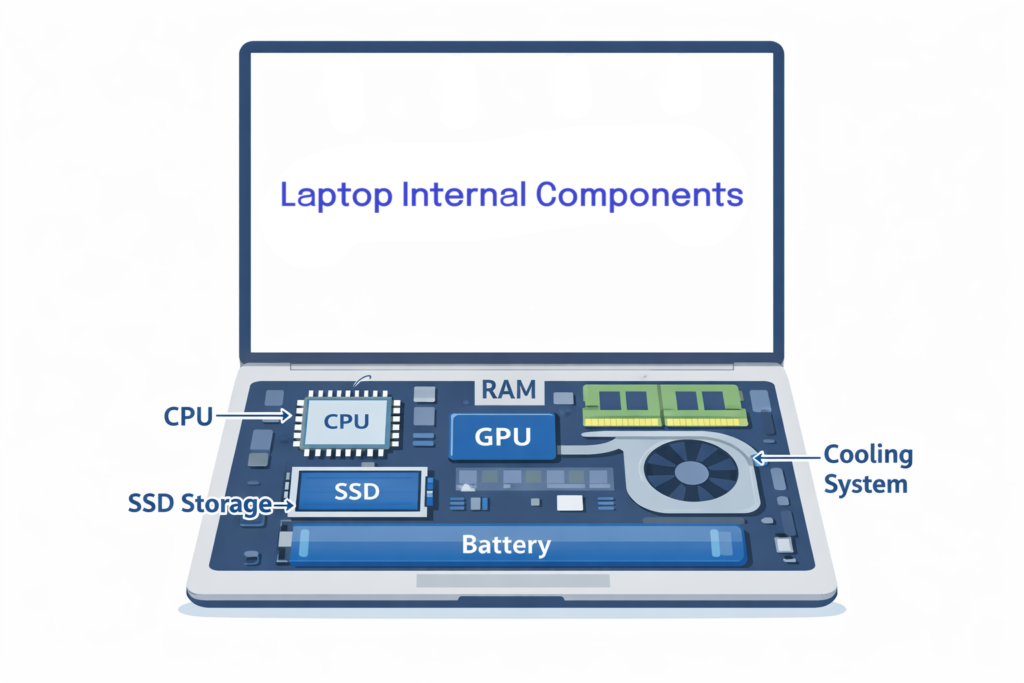
Laptop spec sheets are dense. You’ll see processor model numbers, core counts, clock speeds, VRAM amounts, PCIe generations, and Wi-Fi standards—all presented as if bigger numbers automatically mean better performance. For many buyers, that creates confusion rather than clarity.
The problem is that individual numbers like GHz or GPU memory don’t tell the full story. A higher clock speed doesn’t guarantee better multitasking. More VRAM doesn’t automatically mean smoother gameplay. And the fastest storage interface won’t always make everyday tasks feel noticeably quicker.
This guide explains laptop specifications in practical terms, helping you understand which components matter most when choosing a laptop in 2026. It’s designed for students, remote workers, gamers, creators, and anyone upgrading their computer. The goal is simple: understand what matters, avoid overspending on specs you won’t use, and avoid underbuying hardware that will limit you in a year or two.
If you’re comparing systems or researching hardware upgrades, visit our Laptop and Computer rankings and buying guides to explore recommended machines across different performance tiers.
Laptop Specs at a Glance
For most students, remote workers, and everyday users, a modern processor, 16GB of RAM, and a 512GB SSD provide a practical starting point. If you regularly store large files or install multiple games, consider 1TB of storage.
Gaming laptops generally benefit from a dedicated GPU, while demanding video editing, 3D work, and other creative tasks may require more memory and graphics performance.
The most important rule is to match the specifications to your workload. A balanced laptop with enough RAM, storage, and battery life is often more useful than one with a powerful processor but compromises elsewhere.
Start with Use Case (Work, Study, Gaming, Creator)
Before comparing CPUs or debating RAM capacity, start with how you’ll actually use the laptop. The most important answer to “what laptop specs matter” depends entirely on workload.
| Spec | Work & Study | Gaming | Content Creation |
|---|---|---|---|
| CPU | Modern midrange CPU | Strong gaming CPU | Strong multi-core CPU |
| GPU | Integrated graphics | Dedicated GPU | Depends on workload |
| RAM | 16GB | 16–32GB | 16–32GB+ |
| Storage | 512GB SSD | 1TB SSD | 1TB+ SSD |
Work & Study:
For web browsing, office software, video calls, and document editing, you don’t need extreme hardware. Stability, battery life, webcam quality, and keyboard comfort often matter more than raw performance.
Gaming:
Gaming shifts the priority toward graphics performance, thermal management, and refresh rate support. A balanced CPU and GPU pairing becomes critical, and cooling design plays a major role in sustained performance.
Content Creation:
Video editing, 3D work, and photo processing stress both CPU and GPU. Memory capacity and storage speed also become more relevant, especially with large project files.
General Upgrading:
If you’re replacing a 4–6-year-old laptop, even mid-tier modern hardware will feel significantly faster. In that case, future-proofing and balanced specs are more important than chasing high-end numbers.
Choosing based on use case prevents paying for performance you won’t use—and helps avoid frustration from underpowered systems. If you’re still deciding what type of system fits your needs, see our guide on how to choose the right laptop based on real-world use cases.
CPU Tiers & Cores (efficiency vs performance)
The CPU (central processing unit) is the primary “brain” of the laptop. It handles general computing tasks, multitasking, background processes, and coordination between components.
When comparing laptop specs, focus less on brand names and more on architecture, tier, and core structure.
Cores vs Clock Speed
Clock speed (GHz) indicates how many cycles per second a core can perform. Higher isn’t automatically better because modern processors dynamically boost speeds depending on workload and thermal conditions.
Processor cores allow a CPU to work on multiple processing tasks. Additional cores can improve performance in workloads that use them effectively, such as video rendering and software compilation. However, core count alone does not determine performance; processor architecture, power limits, and cooling also matter.
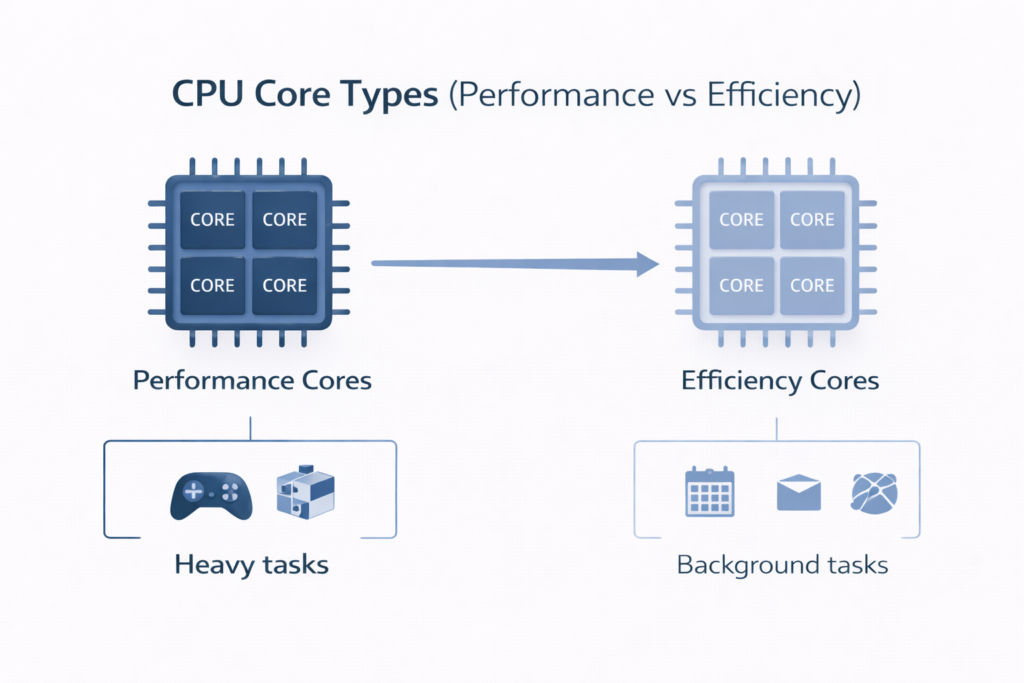
Performance Cores vs Efficiency Cores
Modern laptop CPUs often use hybrid designs with:
Performance cores for demanding tasks
Efficiency cores for background and low-power tasks
This balance improves battery life without sacrificing responsiveness. For productivity and general use, hybrid CPUs provide strong real-world performance without needing extreme core counts.
How Many Cores Do You Need?
For everyday tasks such as browsing, document editing, and video calls, a capable modern processor is generally sufficient without an especially high core count.
Gaming performance depends on the processor’s individual core performance, the GPU, and how well the laptop manages heat.
For demanding workloads such as video rendering, software compilation, and 3D production, additional high-performance cores can provide meaningful benefits when the software can use them.
Compare actual processor models and independent performance results rather than choosing a laptop based on core count alone.
GPU Classes (integrated vs mid vs high end)
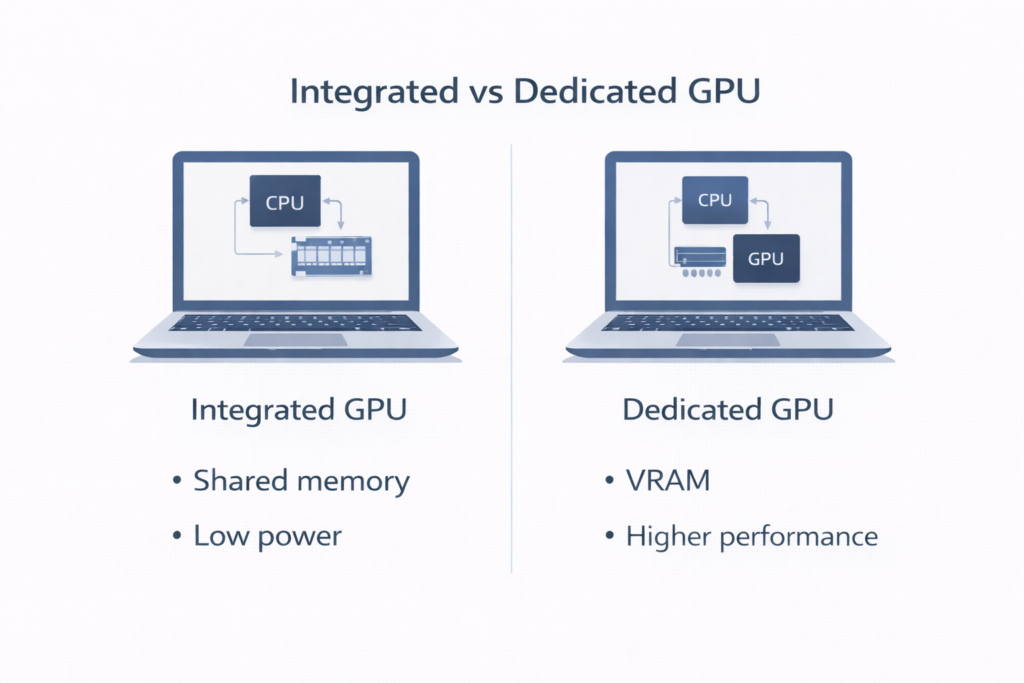
The GPU (graphics processing unit) handles visual rendering. This matters for gaming, 3D workloads, and certain creative applications.
Integrated Graphics
Integrated graphics share memory with the CPU and are built into the processor. They are power-efficient and adequate for:
Office tasks
Web browsing
Video streaming
Light gaming at reduced settings
Modern integrated graphics are far more capable than older generations, making them viable for many users.
Dedicated GPU (dGPU)
A dedicated GPU has its own graphics memory (VRAM) and can provide substantially greater graphics performance than integrated graphics, depending on the models being compared. It is particularly useful for demanding workloads such as:
Modern gaming at medium or high settings
Video editing acceleration
3D modeling
AI applications that benefit from local GPU acceleration
VRAM helps store textures and graphical assets. However, more VRAM doesn’t automatically mean better performance—overall GPU architecture matters more.
When evaluating integrated vs dedicated graphics, ask whether your workload truly requires sustained graphics performance. For non-gamers, a dGPU often adds cost, weight, and reduced battery life without meaningful benefit.
If gaming is a priority, see our Top 10 Gaming Laptops guide for performance-focused systems.
RAM Explained: Capacity, Speed, and Dual-Channel Memory
RAM (random access memory) stores active data that your system is currently using. It directly affects multitasking stability and smoothness.
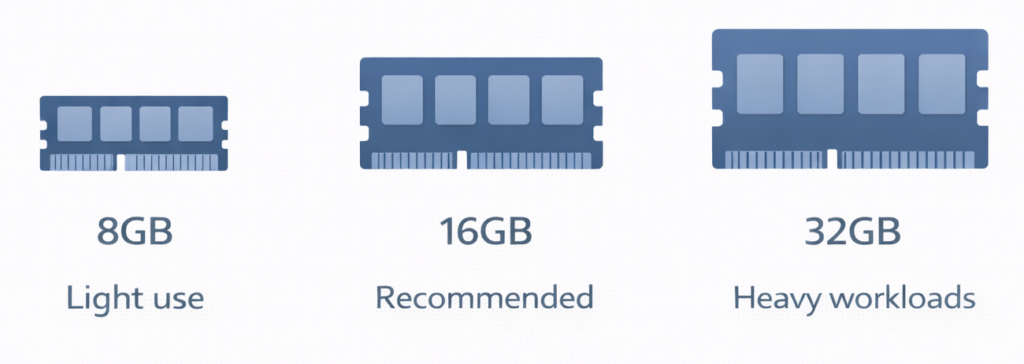
How Much RAM Do I Need?
8GB: Entry-level. Suitable for light browsing and basic tasks.
16GB: The current sweet spot for most users.
32GB: Recommended for video editing, large design files, or heavy multitasking.
In 2026, 16GB remains a balanced baseline for work and gaming. For long-term use, it provides breathing room without excessive cost.
If you want a deeper breakdown of real-world usage, performance differences, and when upgrading actually matters, see our guide on how much RAM you need for a laptop.
Dual-Channel RAM
Dual-channel memory allows the system to use two memory channels to increase available bandwidth. This can be especially beneficial for integrated graphics, which share system memory. The actual configuration depends on the laptop’s memory design, so check the manufacturer’s specifications rather than assuming that two removable RAM sticks are required.
DDR4 vs DDR5
DDR5 offers higher bandwidth and improved efficiency compared to DDR4. For most users, the real-world difference is modest unless paired with high-performance workloads.
When comparing laptop memory, prioritize having enough RAM for your workload before focusing on speed and configuration.
Storage: NVMe Generations & Real-World Impact
Storage determines how quickly your system boots, loads applications, and transfers files.
SSD vs HDD
Traditional hard drives (HDD) are largely outdated in modern laptops. Solid-state drives (SSD) are dramatically faster and more reliable.
NVMe vs SATA
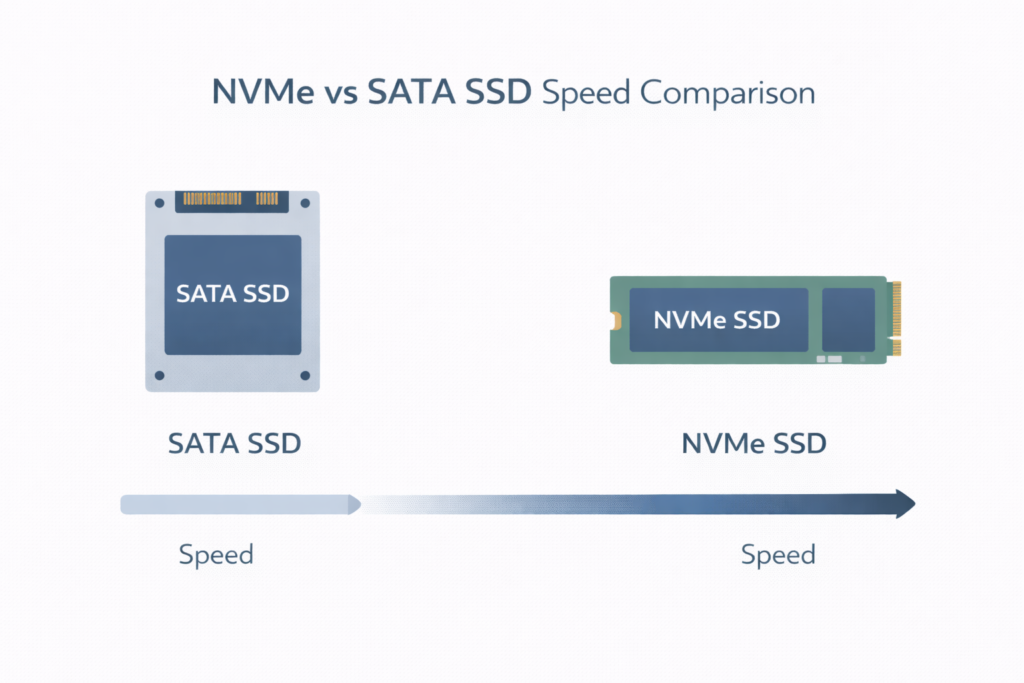
NVMe SSDs connect directly through PCIe lanes, offering significantly higher speeds than older SATA SSDs.
PCIe 4.0 vs PCIe 5.0
PCIe 4.0 drives are already extremely fast for everyday use. PCIe 5.0 offers higher theoretical speeds, but most users won’t notice meaningful differences in boot times or basic productivity tasks.
For most buyers, storage capacity matters more than generational differences. Among laptop storage types, a 1TB NVMe SSD is often a practical balance between space and performance.
Cooling, Noise, Battery Trade-offs
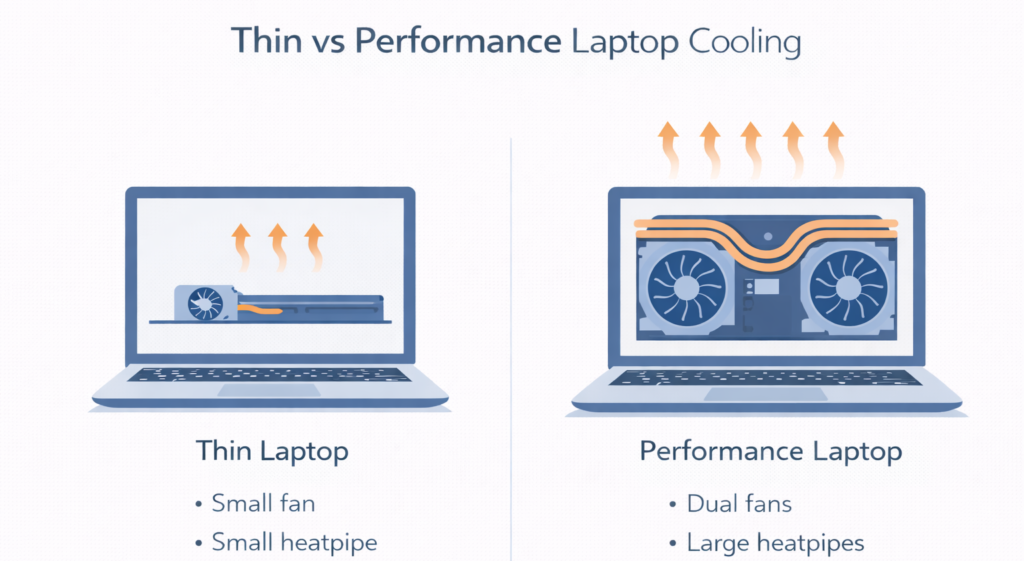
Performance is directly tied to cooling. Thin chassis designs can limit sustained power.
Thermal Throttling
When temperatures rise, CPUs and GPUs reduce performance to prevent overheating. This is known as thermal throttling.
Thin and light laptops prioritize portability and battery life. Performance laptops prioritize sustained power with larger cooling systems.
Battery Life Trade-offs
More powerful components consume more energy. Dedicated GPUs and higher wattage CPUs reduce battery life compared to efficient integrated systems.
When evaluating thin and light laptops vs performance laptops, consider whether portability or sustained performance matters more for your routine.
Ports, Wi-Fi, Webcam, Keyboard/Trackpad Quality
Specs aren’t limited to CPU and GPU.
Ports:
USB-C, Thunderbolt, HDMI, and SD card slots affect workflow flexibility. Fewer ports may require adapters.
Wi-Fi:
Modern Wi-Fi standards improve speed and stability, particularly in dense environments.
Webcam:
For remote work and study, webcam resolution and microphone quality are increasingly important.
Keyboard & Trackpad:
These are long-term interaction points. Poor input quality affects daily usability more than minor CPU differences.
If your priority is productivity and communication, our Top 10 Work From Home Laptops guide focuses on balanced systems for daily use.
How to Read a Laptop Specification Sheet
When comparing laptops, look at the complete configuration rather than judging each component separately.
For example, consider a laptop with the following specifications:
| Component | Example specification |
|---|---|
| Processor | Modern midrange CPU |
| Graphics | Integrated graphics |
| Memory | 16GB RAM |
| Storage | 512GB NVMe SSD |
| Display | 14-inch, 1920 × 1200 |
| Battery | Manufacturer-rated battery life |
This configuration could be a practical starting point for school, office work, browsing, and everyday productivity. However, the processor’s exact model, display quality, battery performance, and overall construction still matter.
A laptop with similar specifications may perform differently depending on its cooling system, power limits, and component choices.
Before buying, check the exact CPU and GPU models, whether the RAM and storage can be upgraded, the available ports, and independent reviews of battery life and sustained performance.
The goal is to evaluate the laptop as a complete system rather than choosing whichever model advertises the largest numbers.
Pre-Buy Checklist
Before purchasing, review:
Primary use case defined
CPU tier appropriate for workload
Integrated vs dedicated GPU decision made
Minimum 16GB RAM for multitasking (if possible)
SSD storage appropriate for your needs (512GB for many everyday users; 1TB or more for larger game libraries and files)
Cooling suitable for workload
Ports meet your accessory needs
Battery expectations realistic
Upgradeability (if important)
This checklist prevents impulse decisions based on isolated numbers.
How to Evaluate Laptop Specs for Real-World Use
Understanding laptop specs isn’t about memorizing numbers. It’s about evaluating how hardware performs in real-world use. When you consider CPU capability, GPU class, RAM capacity, storage type, and cooling design together—and align them with your actual workload—you can choose confidently without overspending on marketing-driven features. To see how these factors come together in real devices, you can explore best laptops for students in 2026.
Frequently Asked Questions
Is 16GB RAM still enough in 2026?
For most users, yes. Office work, browsing, streaming, and even moderate gaming run comfortably on 16GB. It provides enough headroom for multitasking without constant memory pressure.
Heavy creative professionals working with large 4K video files or complex 3D scenes may benefit from 32GB. But for general users and gamers, 16GB remains practical.
Capacity matters more than extreme memory speeds in everyday workloads.
Do I need a dGPU for light gaming?
Not necessarily. Modern integrated graphics can handle lighter titles and older games at reduced settings.
A sufficiently powerful dedicated GPU becomes valuable for demanding modern games, higher graphics settings, and consistently high frame rates. The exact GPU model matters more than whether the laptop simply advertises dedicated graphics.
If gaming is occasional rather than primary, integrated graphics may be sufficient.
PCIe 4.0 vs 5.0 SSD differences I’ll notice?
For everyday tasks like browsing, launching apps, and booting the system, most users won’t notice dramatic differences.
Large file transfers and certain professional workloads may benefit from PCIe 5.0 speeds, but PCIe 4.0 remains extremely fast for typical use.
Capacity and reliability often matter more than generation.
Thin-and-light vs performance laptops?
Thin-and-light laptops prioritize portability and battery life. Performance laptops prioritize sustained power and cooling.
If you travel frequently or work on battery power, lighter systems may be preferable. If you render video, game heavily, or compile large projects, stronger cooling and higher wattage components are more important.
Choosing between them depends on your daily routine, not benchmark charts.