
How to Choose the Right Tech Accessories for Your Setup
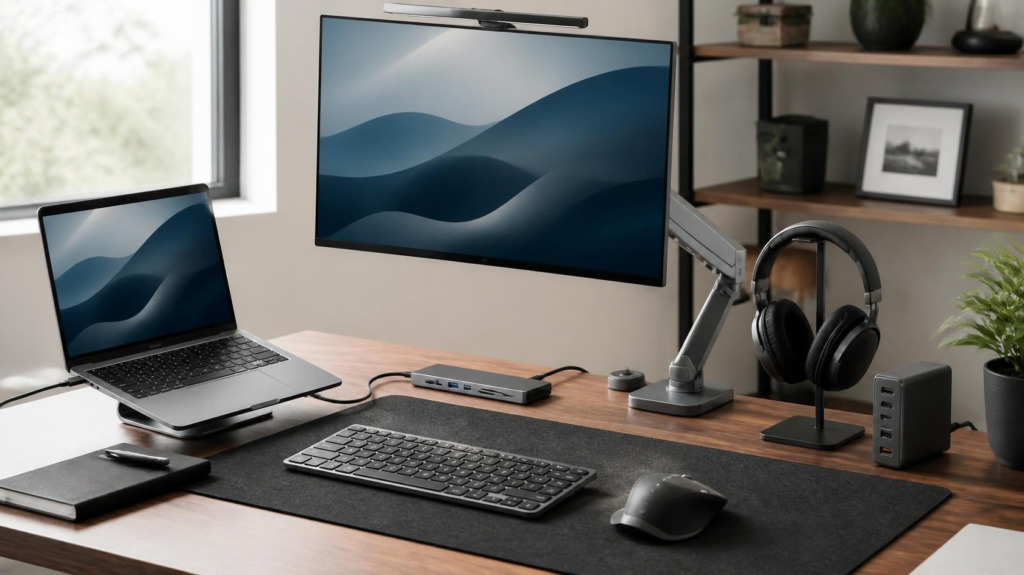
The right tech accessories can make your setup more comfortable, productive, and enjoyable. Whether you’re building a home office, upgrading a gaming PC, or improving your laptop workspace, choosing the right equipment can make a meaningful difference.
But which accessories are actually worth buying?
Do you need a mechanical keyboard? Will a USB-C hub work with your laptop? Are wireless accessories better than wired alternatives?
The answer depends on your devices, how you use them, and what your current setup is missing.
This guide explains how to choose tech accessories based on compatibility, comfort, functionality, performance, and value. You’ll learn which accessories deserve priority, what to look for before buying, and how to avoid spending money on features you don’t need.
If you’re building a more capable workspace or mobile setup, explore our tech accessories rankings and buying guides covering hubs, chargers, monitor arms, and productivity accessories.
Why the Right Tech Accessories Matter
Tech accessories do more than add features to your setup. The right products solve everyday problems, improve comfort, and make your devices easier to use.
Common accessories include keyboards, mice, USB-C hubs, docking stations, headphones, monitor arms, laptop stands, chargers, and external storage.
Their benefits generally fall into five categories:
Productivity: External monitors and docking stations can simplify multitasking and device connections.
Comfort: Adjustable stands and appropriately sized input devices can improve workstation positioning.
Performance: Responsive gaming peripherals can improve input and feedback in supported games.
Convenience: Wireless chargers, hubs, and cable organizers simplify everyday tasks.
Protection: Surge protectors and backup storage help address certain equipment and data risks.
For more guidance on arranging these products effectively, see our guide to optimizing your desk setup.
Which Accessories Provide the Most Value?
The most valuable accessory is usually the one that addresses a problem you encounter frequently.
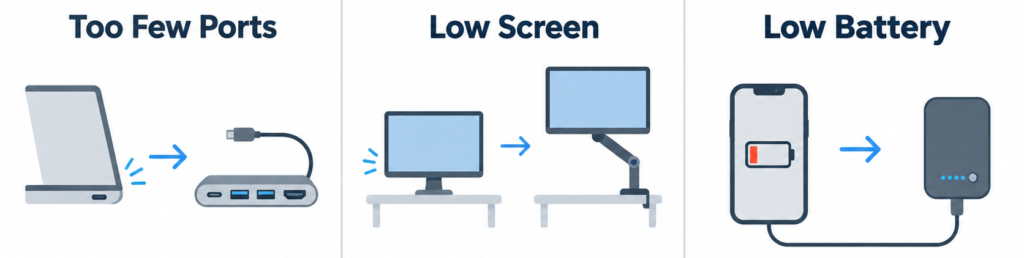
If your laptop lacks ports, a USB-C hub may be more useful than a premium keyboard. If your monitor sits too low, an adjustable stand could deserve priority over new speakers.
Before purchasing anything, ask yourself:
What specific problem will this accessory solve?
If you cannot identify a clear benefit, it probably isn’t a priority.
Start by Evaluating Your Setup and Needs
Before comparing products, identify what your existing equipment does well and where it falls short.
Common problems include insufficient USB ports, uncomfortable input devices, limited screen space, poor audio quality, excessive cables, and inconvenient charging.
Prioritize the problems that affect you most often.
Choose Accessories Based on Your Use Case
Different setups benefit from different equipment.
|
Setup |
Accessories worth considering |
Main priority |
|---|---|---|
|
Home office |
External monitor, keyboard, mouse, laptop stand |
Comfort and productivity |
|
Office workstation |
Compact peripherals, USB hub, monitor riser |
Reliability and organization |
|
Gaming |
Gaming mouse, keyboard, headset, controller |
Responsiveness and comfort |
|
Content creation |
Microphone, lighting, external SSD |
Recording quality and workflow |
|
Student |
Laptop sleeve, mouse, charger, headphones |
Portability and affordability |
|
Travel |
Power bank, compact charger, USB-C hub |
Size and versatility |
These are starting points, not mandatory purchases. A student working primarily from home may benefit more from an external monitor than a power bank, while a frequent traveler may have the opposite priorities.
Separate Needs From Nice-to-Have Accessories
Organize potential purchases into three categories:
|
Priority |
Description |
Example |
|---|---|---|
|
Essential |
Addresses a problem preventing normal use |
A compatible laptop charger |
|
Useful upgrade |
Improves an existing setup |
An adjustable monitor arm |
|
Optional |
Adds convenience or visual appeal |
Decorative RGB lighting |
An accessory’s priority depends on your circumstances. An external microphone may be optional for occasional video calls but essential for someone recording professional voice-overs.
Set a Realistic Budget
Allocate your budget according to how frequently you’ll use each accessory and how much benefit it provides.
A keyboard used throughout the workday may deserve more attention than decorative equipment.
Budget products can be perfectly adequate for basic tasks. Mid-range accessories may provide additional features or improved construction, while premium products often focus on specialized capabilities.
However, price alone doesn’t guarantee quality.
Account for additional expenses such as cables, adapters, mounting hardware, and replacement batteries.
The goal is to purchase equipment that meets your needs without paying for unnecessary features.
Ensuring Compatibility Before You Buy
Compatibility should be one of your first considerations when choosing computer setup accessories.
Even an excellent product can be a poor purchase if it doesn’t work properly with your devices.
Check Your Device and Operating System
Start by identifying your computer’s exact model, available ports, and operating system.
For laptops, check the manufacturer’s specifications. For desktops, examine the motherboard and graphics card connections.
Also verify whether an accessory requires dedicated software.
A keyboard might provide basic functionality on Windows and macOS while offering advanced customization only on one platform.
Some gaming peripherals have limited configuration software for Linux. Similarly, external display support can vary between Mac models, even when they use the same docking station.
For phones and tablets, verify support for the specific accessory rather than assuming every USB-C or Bluetooth device will work.
Understand Your Ports and Connections
Modern computers use several connection types, each with different capabilities.
|
Connection |
Common uses |
What to check |
|---|---|---|
|
USB-A |
Keyboards, mice, storage |
Data speed and power |
|
USB-C |
Charging, data, displays |
Supported features |
|
Thunderbolt |
Docks, displays, fast storage |
Version and device support |
|
HDMI |
Monitors and televisions |
Resolution and refresh rate |
|
DisplayPort |
Computer monitors |
Display capabilities |
The most important distinction is that USB-C describes a connector, not a guaranteed set of features.
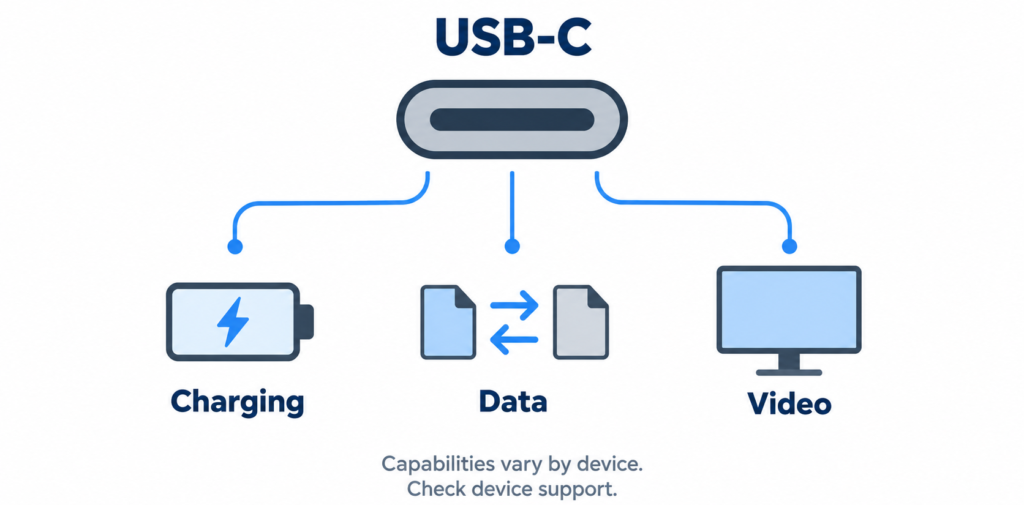
A USB-C port may support charging and data transfer without supporting video output. USB-C cables can also have different charging and data capabilities.
Our guide to understanding USB-C compatibility explains these differences in greater detail.
For additional information about choosing cables and charging equipment, our upcoming guides, USB-C Cable Types Explained and USB-C Power Delivery Explained, will cover those subjects separately.
When Do You Need a Hub, Dock, or Adapter?
These accessories solve different connectivity problems.
USB hub: Expands the number or variety of available ports.
Docking station: Provides a centralized connection for multiple peripherals and potentially displays, networking, and laptop charging.
Adapter: Converts one connection type to another when the devices support the required functionality.
If you only need to connect a mouse and external drive, a small hub may be sufficient.
If you regularly connect a laptop to multiple displays, wired networking, and several peripherals, a compatible docking station may be more convenient.
Our roundup of the best USB-C hubs can help you compare options for expanding your connectivity.
Common Compatibility Mistakes
Before buying, avoid assuming that:
Every USB-C port supports external displays.
All USB-C cables support identical charging speeds.
Every docking station supports multiple monitors on every computer.
A compatible connector guarantees sufficient charging power.
Advanced accessory features work on every operating system.
Always verify the complete connection, including the computer, accessory, cable, and any required software.
Wired vs. Wireless Accessories
Wired and wireless accessories offer different advantages. Neither connection type is automatically better for every setup.
|
Factor |
Wired |
Wireless |
|---|---|---|
|
Mobility |
Limited by cable length |
Greater freedom of movement |
|
Battery |
Often powered through the cable |
Usually requires charging or batteries |
|
Setup |
Often straightforward |
May require pairing or a receiver |
|
Desk organization |
Adds cables |
Reduces visible cables |
|
Responsiveness |
Depends on the product |
Depends on the product and wireless technology |
Choosing the Right Connection
Bluetooth accessories are convenient for laptops, tablets, and devices with limited ports.
Dedicated wireless receivers are common among gaming peripherals and may offer features optimized for the manufacturer’s hardware.
Wired accessories can be useful when you want to avoid battery management or need dependable connectivity in a crowded wireless environment.
However, a well-designed wireless gaming mouse can provide excellent responsiveness. Connection type alone doesn’t determine performance.
Our guide to wired vs wireless accessories explores the differences in greater detail.
Don't Forget Battery Life
Wireless devices introduce an additional consideration: keeping them charged.
Check battery-life estimates, charging methods, and whether the accessory can operate while charging.
Features such as RGB lighting, active noise cancellation, and high polling rates can affect battery consumption.
Choose the connection that best matches your priorities rather than assuming wireless is always more convenient.
Building a More Comfortable and Ergonomic Workspace
Comfort should be a priority when selecting tech accessories for a desk setup, particularly if you spend several hours a day using your computer.
Poorly positioned monitors, uncomfortable input devices, and limited adjustment options can make an otherwise capable setup unpleasant to use.
Ergonomic accessories help you adapt your workspace to your needs, but they aren’t substitutes for movement, breaks, and appropriate workstation adjustments.
Laptop Stands and Monitor Arms
Laptop stands raise your screen and can improve its position relative to your eyes.
However, raising a laptop also raises its built-in keyboard. For prolonged desk use, pairing a stand with an external keyboard and mouse is often more practical.
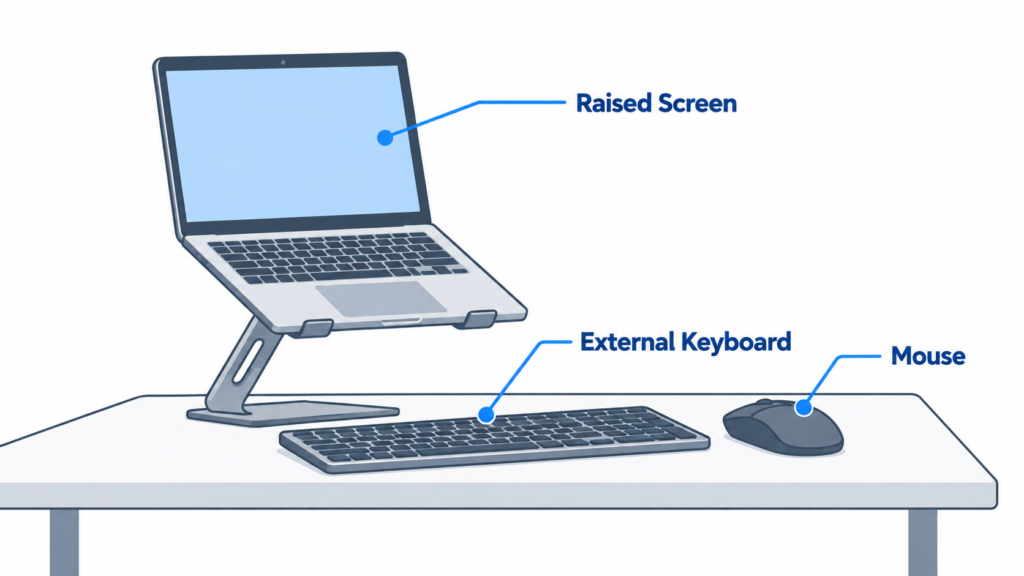
Monitor arms offer another way to adjust screen height, distance, and orientation while potentially freeing desk space.
Before purchasing either accessory, check its adjustment range, stability, weight capacity, and mounting compatibility.
A monitor arm isn’t automatically better than a stand. The right choice depends on your desk, monitor, and adjustment needs.
For a closer comparison, our monitor arm vs stand guide breaks down adjustability, desk space, compatibility, upfront cost, and potential long-term value.
Choosing a Comfortable Keyboard and Mouse
Keyboard comfort depends on layout, key spacing, switch feel, and positioning.
Ergonomic keyboards may feature curved or split designs intended to support different hand positions. However, these designs aren’t universally comfortable and may require an adjustment period.
Mouse comfort depends on hand size, grip style, shape, weight, and button placement.
Vertical mice and trackballs provide alternatives to traditional designs that some users prefer.
If possible, test input devices before purchasing or choose a retailer with a suitable return policy.
The best ergonomic accessory is one that allows you to work comfortably without forcing an unnatural posture.
Productivity Accessories That Make a Real Difference
Productivity accessories should reduce friction in your everyday workflow.
They don’t necessarily make your computer faster. Instead, they make information easier to access, simplify connections, or improve how you interact with software.
External Monitors and Display Space
An external monitor can provide additional room for documents, spreadsheets, and applications.
Dual monitors may be useful when you frequently reference information across multiple windows.
However, additional displays require desk space and compatible connections. A single larger monitor or ultrawide display may be more practical for some users.
Choose based on your workflow rather than assuming more screens automatically improve productivity.
Keyboards and Input Devices
A comfortable keyboard can improve the experience of repetitive typing.
Mechanical keyboards use individual switches beneath their keys and offer different layouts, switch types, and customization options.
Some users prefer their tactile feedback, but mechanical keyboards aren’t automatically more productive than membrane alternatives.
Switch feel, noise, layout, and personal preference matter more than the technology alone.
Our guide to mechanical vs membrane keyboards explains the differences and helps you choose the right type.
Docking Stations and Cable Management
A compatible docking station can simplify connecting a laptop to a permanent workstation.
Instead of connecting every peripheral individually, you may be able to use one central connection.
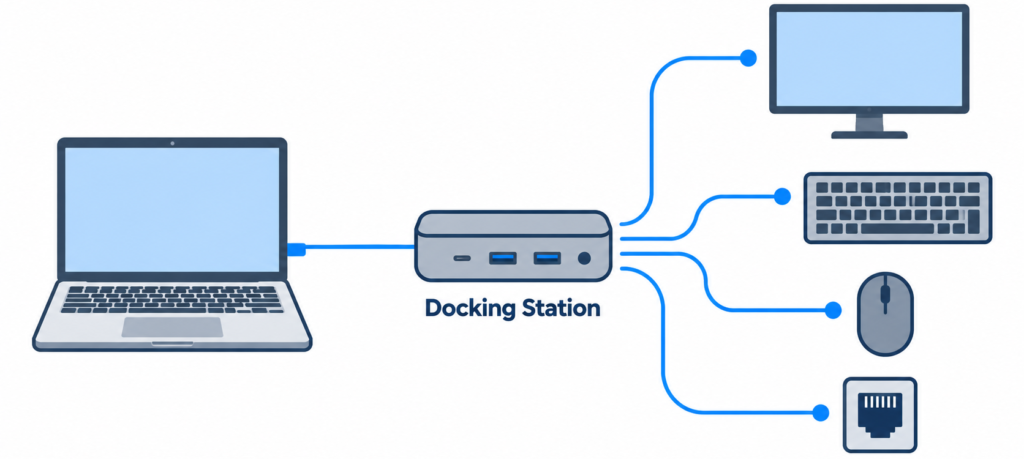
Cable trays, reusable ties, and cable clips can also help organize your workspace.
Start by removing unused cables, then organize the remaining connections without placing excessive strain on connectors or creating electrical safety concerns.
Good organization should make your equipment easier to access and maintain.
Choosing the Right Audio Accessories
Audio accessories can improve communication, entertainment, and gaming, but the right choice depends on your listening environment.
Headphones vs. Speakers
Headphones are useful for private listening, shared workspaces, and situations where you don’t want to disturb others.
Speakers allow room listening without wearing headphones and may be preferable for shared entertainment.
For work calls, prioritize microphone clarity, comfort, and reliable connectivity.
Active noise cancellation can help reduce certain background sounds, but its effectiveness varies by product and type of noise.
What Matters When Choosing Speakers?
Speaker quality depends on driver design, enclosure construction, amplifier performance, and acoustic tuning.
Higher wattage doesn’t automatically mean better sound, and a higher price doesn’t guarantee improvements you’ll notice.
Consider your room size, listening preferences, desired volume, and available space.
For a detailed breakdown of speaker selection, read our guide to How to Choose the Right Bluetooth Speaker.
Tech Accessories for Gaming Setups
Gaming accessories should complement the games you play rather than simply offer the highest advertised specifications.
Competitive shooters, racing games, and role-playing games place different demands on input devices, displays, and audio equipment.
Gaming Keyboards and Mice
Gaming keyboards may offer programmable keys, adjustable actuation, specialized switches, and customizable lighting.
However, comfort, layout, and reliable input should take priority over unnecessary features.
Gaming mice deserve particular attention because shape, weight, sensor performance, and button placement can influence how comfortably and accurately you interact with games.
Extremely high DPI settings aren’t automatically beneficial, and an advanced sensor won’t compensate for an uncomfortable mouse.
Our guide to choosing the right gaming mouse explains how to evaluate these features based on your grip and preferred games.
Monitors, Headsets, and Controllers
Higher-refresh-rate monitors can provide smoother motion when your computer delivers sufficient frames.
Response-time performance and input lag also matter, but they describe different characteristics.
A suitable headset can provide clear game audio and communication, while controllers may be preferable for games that benefit from analog input.
Prioritize the equipment that addresses limitations in your current gaming experience.
Avoid spending extra on features such as excessive RGB lighting or unnecessary programmable buttons unless you genuinely value them.
Essential Accessories for Laptops and Mobile Devices
Laptops offer portability, but their compact designs can introduce limitations involving connectivity, screen space, and input positioning.
The right accessories can address these issues without sacrificing convenience.
Must-Have Accessories for Laptop Owners
Useful options include an external mouse, laptop stand, USB-C hub, protective sleeve, and compatible charger.
An external keyboard can be particularly helpful when using a raised laptop stand.
An external monitor may also improve usability when you regularly work with multiple applications.
However, not every laptop owner needs every accessory.
Someone who primarily works while traveling may prioritize a compact charger and protective sleeve over a permanent docking station.
Our roundup of the best laptop accessories provides additional options for improving your setup.
Choosing a Power Bank
Power banks can provide portable charging for phones, tablets, and compatible laptops.
When comparing models, consider energy capacity in watt-hours (Wh), maximum output wattage, supported charging protocols, and portability.
A power bank designed primarily for phones may not provide sufficient output for a laptop.
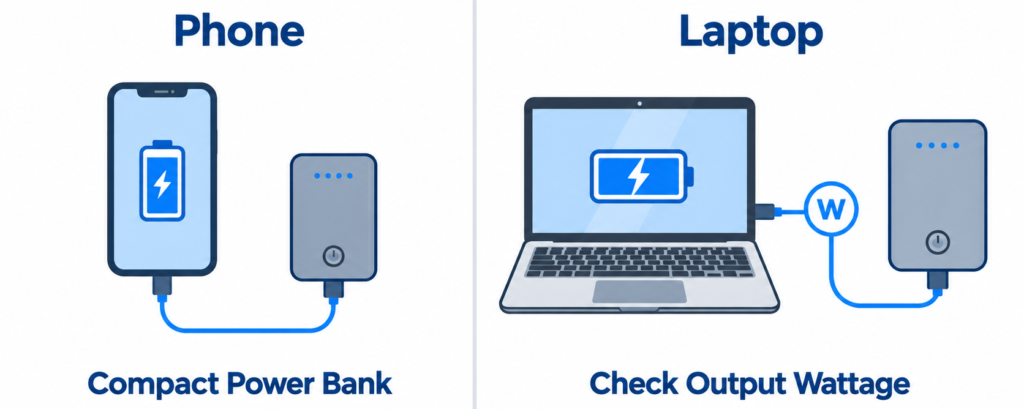
Also remember that some stored energy is lost during charging, so the rated battery capacity doesn’t represent the exact amount of energy your device will receive.
For frequent travelers, size and weight may be just as important as capacity.
Are Laptop Cooling Pads Worth It?
Laptop cooling pads are intended to improve airflow, but their effectiveness depends on the laptop’s cooling design and ventilation locations.
Some laptops may benefit, while others show limited improvement.
Before purchasing one, make sure your laptop’s ventilation openings are unobstructed.
A cooling pad isn’t a guaranteed solution for overheating or a substitute for repairing a malfunctioning cooling system.
Content Creation and Streaming Accessories
Content creators should prioritize equipment that improves recording quality or makes production more efficient.
The right accessories depend on whether you record videos, stream games, edit photographs, or produce audio.
An external microphone may improve recording quality compared with a laptop’s built-in microphone, but placement and room acoustics also matter.
Suitable lighting can improve video exposure and reduce distracting shadows. Before upgrading your webcam, consider whether better lighting would address your current limitations.
Video editors may benefit from fast external storage and additional display space, while streamers may prioritize microphones, camera mounts, and dedicated controls.
Start with the equipment that addresses the biggest limitation in your workflow rather than trying to recreate someone else’s studio.
Power, Charging, and Device Protection
Charging and protection accessories help keep your devices powered, simplify connections, and address certain electrical risks.
However, compatibility and safety should receive more attention than advertised charging speeds alone.
Understanding Charging Power
Charging power is measured in watts.
A charger’s maximum advertised wattage doesn’t guarantee that every connected device will charge at that rate.
Actual charging performance depends on the charger, cable, device, supported protocols, battery condition, and temperature.
Some multi-port chargers also redistribute available power when additional devices are connected.
GaN chargers can offer compact designs, but the technology alone doesn’t guarantee faster charging or better quality.
Wireless Chargers and Charging Stations
Wireless chargers provide a convenient way to charge compatible phones, earbuds, and other devices.
Multi-device charging stations can also reduce the number of separate adapters and cables on your desk.
Before purchasing, verify device compatibility, charging power, and whether the station supports all your devices simultaneously.
Wireless charging can introduce additional energy losses and heat compared with suitable wired charging.
Our roundup of the best wireless chargers can help you explore options for simplifying your charging setup.
Surge Protectors and UPS Battery Backups
A surge protector helps limit certain voltage spikes that could damage connected equipment.
Choose products with appropriate electrical ratings and recognized safety certification.
A basic power strip isn’t necessarily a surge protector, and surge protection cannot guarantee protection against every electrical event.
An uninterruptible power supply (UPS) provides temporary battery power during an outage.
It can give desktop users time to save work and shut down safely.
A UPS may be worthwhile for equipment where sudden power loss could cause significant problems, but it generally isn’t intended for extended operation during prolonged outages.
Storage and Data Protection Essentials
External storage accessories can expand capacity, simplify file transfers, and support a backup strategy.
The two common options are external solid-state drives (SSDs) and external hard disk drives (HDDs).
|
Feature |
External SSD |
External HDD |
|---|---|---|
|
Technology |
Flash memory |
Spinning magnetic disks |
|
Performance |
Generally faster access |
Generally slower access |
|
Portability |
Often smaller and lighter |
Varies by model |
|
Cost per gigabyte |
Often higher |
Often lower |
An external SSD may be preferable for frequent file transfers, video editing, or travel.
An external HDD may be suitable for storing large media collections when maximum transfer speed isn’t necessary.
When choosing storage, estimate your capacity requirements and check whether your computer’s connection supports the drive’s intended performance.
Neither technology is immune to failure.
For important files, consider the 3-2-1 backup approach: maintain three copies of your data, use two different storage devices or media, and keep one copy off-site.
Cloud storage can support this strategy, but file synchronization alone isn’t necessarily a complete backup solution.
How to Judge Quality Before Buying
A tech accessory can look impressive in product photographs while performing poorly in everyday use.
Evaluate products using specifications, construction quality, compatibility, warranty support, and credible reviews.
Specifications That Actually Matter
Different accessories require different purchasing considerations.
|
Accessory |
What to evaluate |
|---|---|
|
Keyboard |
Layout, switch feel, connectivity, compatibility |
|
Mouse |
Shape, weight, sensor performance, button placement |
|
USB-C hub |
Port capabilities, bandwidth, video support |
|
Charger |
Output wattage, protocols, safety certification |
|
Headset |
Microphone quality, comfort, battery life |
|
External SSD |
Capacity, sustained speed, interface |
|
Monitor arm |
Weight capacity, mounting compatibility, adjustment range |
Focus on specifications that affect your intended use.
Extremely high mouse DPI, exaggerated speaker power figures, and vague claims such as “professional-grade” provide limited information without supporting evidence.
Evaluate Reviews and Long-Term Value
Look for independent reviews that explain how products were tested.
Customer reviews can reveal recurring reliability problems, but individual experiences may be influenced by defective units or incompatible equipment.
Brand reputation can provide useful context, but evaluate the exact model rather than assuming every product from a familiar manufacturer performs equally well.
Also consider warranty coverage, firmware updates, replacement parts, and manufacturer support.
An accessory with replaceable cables or batteries may offer practical long-term advantages.
Common Tech Accessory Buying Mistakes
Avoiding a few common mistakes can help you build a better setup without unnecessary spending.
Buying features you don’t need: A docking station with multiple display outputs offers little value if you only connect one monitor.
Assuming expensive means better: Premium products may provide useful improvements, but higher prices can also reflect branding or unnecessary features.
Overlooking compatibility: Verify ports, operating system support, power requirements, and software before purchasing.
Ignoring future needs: Consider reasonable compatibility with future devices without paying substantially more for speculative features.
Buying accessories you’ll rarely use: Specialized macro controllers, elaborate RGB equipment, and additional monitors may provide limited value without a clear purpose.
Be cautious of products with vague specifications, unsupported performance claims, unclear return policies, or repeated reports of reliability problems.
For electrical accessories, prioritize appropriate safety documentation and reputable manufacturers.
Recommended Accessories by Use Case
The best tech accessories for your setup depend on how you use your devices.
Use this comparison to identify which equipment deserves consideration.
|
Use case |
Accessories to consider |
Primary benefit |
|---|---|---|
|
Home office |
Monitor, keyboard, mouse, laptop stand |
Comfort and productivity |
|
Remote work |
Headset, USB-C hub, compact charger |
Connectivity and flexibility |
|
Gaming |
Gaming mouse, keyboard, headset, controller |
Input and audio performance |
|
Students |
Laptop sleeve, mouse, headphones, charger |
Portability and convenience |
|
Content creation |
Microphone, lighting, external SSD |
Recording and workflow |
|
Frequent travel |
Power bank, multi-port charger, compact mouse |
Portable productivity |
|
Small desks |
Compact keyboard, monitor arm, cable tray |
Space efficiency |
These recommendations aren’t universal requirements.
For example, someone working with multiple documents may benefit from additional screen space, while someone who frequently travels may prioritize battery life and compact charging equipment.
Start with the accessories that address your most frequent problems.
Frequently Asked Questions
What Tech Accessories Are Actually Worth Buying?
Accessories that solve problems you regularly encounter are generally the most worthwhile.
A comfortable mouse, suitable keyboard, reliable charger, or compatible USB hub can provide practical benefits.
However, your existing equipment and intended use should determine which purchases deserve priority.
Which Accessories Improve Productivity the Most?
External monitors, docking stations, comfortable input devices, and suitable storage solutions can improve productivity when they address specific workflow limitations.
For example, additional display space may help someone working with multiple documents, while a docking station may benefit someone who frequently connects peripherals.
What Accessories Should Every Laptop User Own?
A compatible charger is essential for normal laptop use.
Other useful options include an external mouse, protective sleeve, USB-C hub, and laptop stand.
For prolonged desk use, pairing a raised laptop with an external keyboard and mouse may improve comfort.
Are Wireless Accessories Better Than Wired?
Wireless accessories offer greater mobility and reduce visible cables, while wired accessories often eliminate battery management.
Responsiveness and reliability depend on the specific product and connection technology.
Choose based on convenience, performance, and your intended use.
What Accessories Help Reduce Desk Clutter?
Cable trays, reusable cable ties, compact chargers, USB hubs, and monitor arms can help organize a workspace.
Wireless peripherals may also reduce visible cables.
However, removing unused equipment is often the most effective starting point.
Which Tech Accessories Should I Upgrade First?
Start with accessories that cause frequent inconvenience or limit your everyday activities.
Address compatibility problems first, followed by comfort, productivity, and performance limitations.
Optional features and aesthetic upgrades can come later.
If your current setup already meets your needs, there may be no reason to upgrade immediately.
Final Recommendations
Choosing the right tech accessories doesn’t require purchasing the newest or most expensive equipment.
It requires understanding your devices, identifying your needs, and selecting products that provide meaningful improvements.
A practical upgrade strategy is to address problems in the following order:

Compatibility and functionality: Fix missing ports, inadequate charging, and unreliable connections.
Comfort and ergonomics: Improve keyboard, mouse, and screen positioning.
Productivity and performance: Consider additional display space, faster storage, or specialized peripherals.
Organization and convenience: Add cable management and charging solutions.
Optional features: Consider decorative lighting, premium materials, and other extras once your setup works well.
Spend more when an accessory is used frequently or provides capabilities you genuinely need. Save money on features that offer little practical benefit.
When considering future upgrades, look for widely supported connections, reliable construction, and reasonable compatibility with your foreseeable needs.
No accessory can be guaranteed to remain compatible with every future device, so avoid paying substantially more for features you may never use.
Ultimately, the best tech accessories are the ones that make your existing devices easier, more comfortable, and more enjoyable to use. Start with the problems that matter most, compare products carefully, and upgrade only when the benefits justify the cost.