
How to Choose a Gaming Monitor in 2026
Choosing a gaming monitor isn’t just about picking the highest specs. It’s about understanding how those specs translate into real-world performance and matching them to your gaming style and hardware.
This guide is for PC and console gamers in 2026 who want the best balance between performance, visuals, and value—whether you’re upgrading for competitive play, immersive single‑player games, or everyday use.
It breaks down what actually matters so you can make a confident decision without overpaying for features you won’t use. It’s part of our broader Monitor and Displays coverage, designed to help you compare and choose the right setup for your needs.
Start With Your Gaming Style and Setup
Before looking at specs, it’s important to understand how you actually use your setup.
Different types of gamers benefit from different monitor features:
- Competitive / esports players typically benefit from higher refresh rates and lower latency
- Casual or story-driven players may prioritize image quality and resolution
- Immersive single-player gamers often prefer larger screens or ultrawide formats
The types of games you play matter just as much. Fast-paced shooters benefit from smooth motion, while RPGs and open-world games often look better at higher resolutions with stronger color reproduction.
Your platform also plays a role. PC gamers have more flexibility depending on their GPU, while console players are often limited to specific outputs like 4K at 120Hz.
Quick Answer — What Actually Matters Most
For most gamers in 2026, the ideal monitor setup balances resolution, refresh rate, and panel type without overpaying for unnecessary specs.
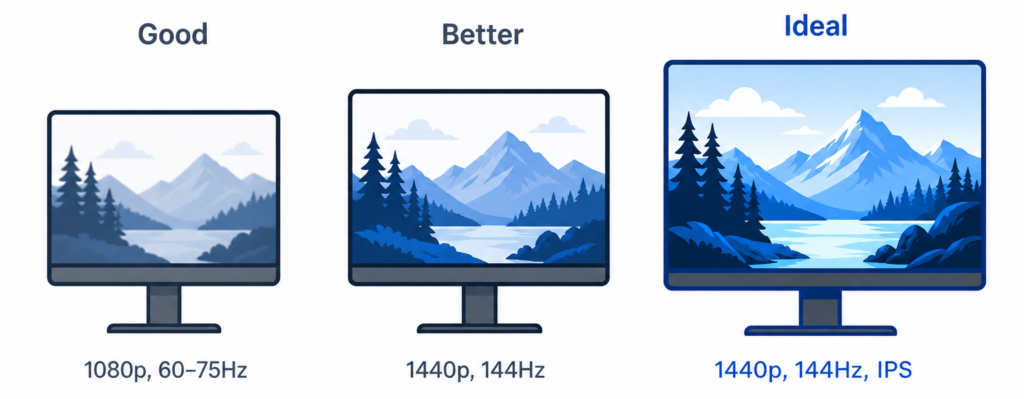
- 1440p is the most balanced resolution for most users
- 144Hz–165Hz is the ideal refresh rate range for smooth gameplay
- IPS panels offer the best overall balance of speed and image quality
- Adaptive sync helps eliminate tearing and improves consistency
- 27 inches is the most common and practical size for desk setups
What’s Changed in Gaming Monitors by 2026
Gaming monitor standards have shifted significantly in recent years. Features that were once considered premium are now widely available, especially in mid-range options.
- 1440p at 144Hz is now the mainstream standard, offering a strong balance of performance and clarity
- IPS panels have improved response times, closing much of the gap with older TN displays
- HDMI 2.1 has become essential for console gaming, especially for 4K at 120Hz support
- High refresh rates are now common even in mid-range monitors, making smoother gameplay more accessible
Match Your Monitor to Your Hardware
One of the most common mistakes is choosing a monitor that your system can’t fully support.
If your GPU struggles to maintain high frame rates, a high refresh rate monitor won’t deliver its full benefit. Similarly, running games at 4K requires significantly more power than 1080p or 1440p.
For console users, features like HDMI 2.1 are necessary to fully support 4K at 120Hz. Without the right hardware, you may not be able to access those capabilities.
Resolution — Image Sharpness vs Performance
Resolution determines how sharp your games look, but higher resolution also requires more performance.
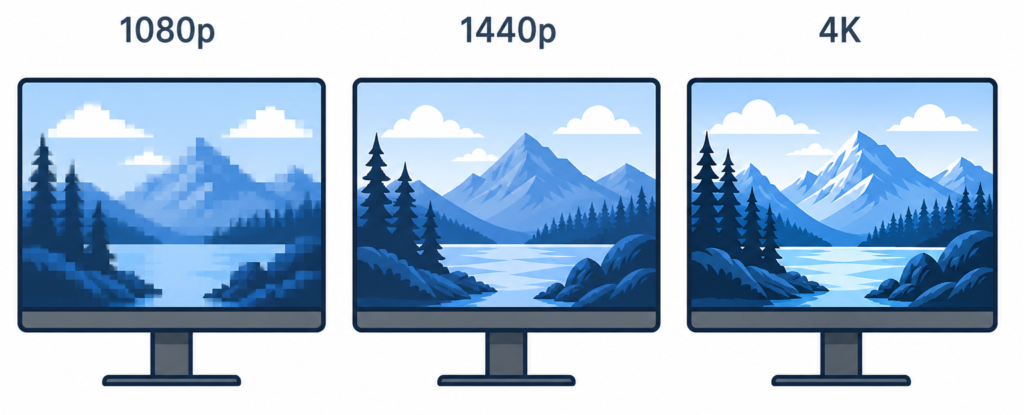
- 1080p (Full HD) → easiest to run, best for competitive play
- 1440p (QHD) → balanced clarity and performance
- 4K (UHD) → highest detail, but demanding on hardware
Higher resolution doesn’t always mean a better experience if your system can’t maintain stable performance. That’s why understanding how monitor resolution affects clarity and performance is important when deciding what to prioritize.
In general:
- Competitive players lean toward 1080p or 1440p
- Immersive players often prefer 1440p or 4K
Refresh Rate — Smoothness and Responsiveness
Refresh rate controls how smooth motion appears on screen.
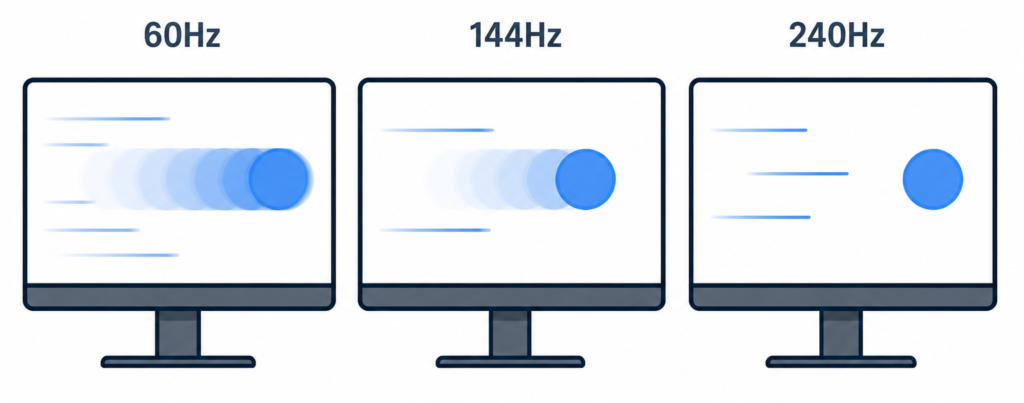
- 60Hz → basic smoothness
- 120Hz–144Hz → noticeable improvement
- 165Hz–240Hz+ → optimized for competitive gaming
Higher refresh rates reduce motion blur and improve responsiveness, especially in fast-paced games. However, benefits depend heavily on your system’s ability to produce matching frame rates.
If you’re unsure whether pushing beyond 144Hz is worth it, it helps to understand whether a higher refresh rate actually makes a noticeable difference and how it compares in real use.
You can also explore the relationship further in refresh rate vs response time.
Response Time and Motion Clarity
Response time refers to how quickly pixels change from one color to another. Slower transitions can create ghosting or motion blur.
Manufacturers often advertise “1ms response time,” but real-world performance varies depending on settings and panel type.
There are two common measurements:
- GtG (gray-to-gray)
- MPRT (moving picture response time)
Overdrive settings can improve response time but may introduce visual artifacts if pushed too far.
Panel Types — IPS vs VA vs TN
Panel type affects both image quality and performance.
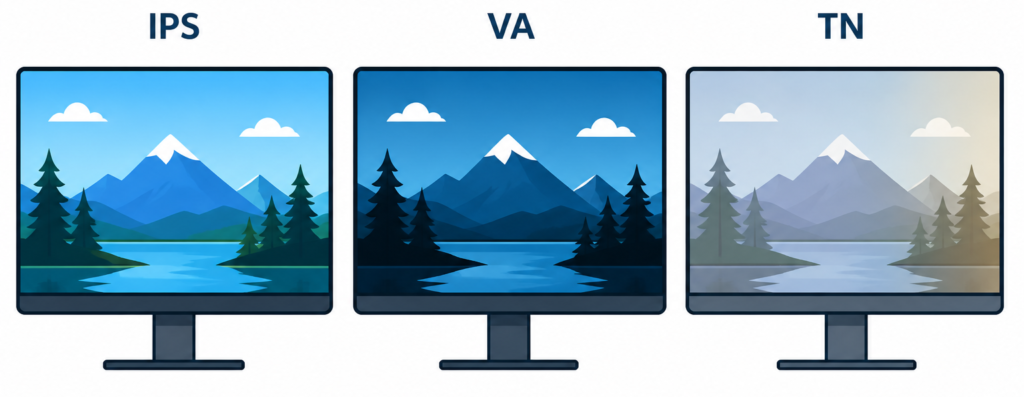
- IPS panels → best all-around balance (color, viewing angles, speed)
- VA panels → higher contrast and deeper blacks
- TN panels → fastest response times, but weaker visuals
For most users, IPS offers the most consistent experience. VA panels are often better for darker environments, while TN is becoming less common outside of competitive niches.
If you want a deeper breakdown, see monitor panel types explained.
Adaptive Sync — Eliminating Tearing
Screen tearing happens when your monitor and GPU fall out of sync. Adaptive sync solves this by dynamically matching refresh rates.
There are two main types:
- AMD FreeSync
- NVIDIA G-Sync
Many monitors now support both through compatibility modes. This feature is especially helpful when frame rates fluctuate during gameplay.
Screen Size and Aspect Ratio
Monitor size affects both comfort and immersion.
- 24 inches → common for competitive setups
- 27 inches → balanced for most users
- 32 inches+ → more immersive, requires more desk space
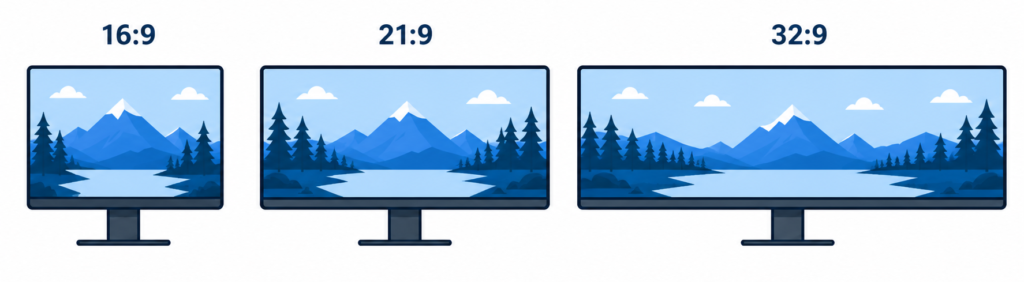
Aspect ratios also change the experience:
- 16:9 → standard
- 21:9 (ultrawide) → wider field of view
- 32:9 → extreme immersion
Ultrawide monitors can improve immersion but may not be supported in all games. If you’re comparing setups, understanding ultrawide vs dual monitor setups can help you decide which approach fits better.
You can also explore different ultrawide monitor options if you’re considering that format.
What About Portable Monitors?
Portable monitors are designed for flexibility rather than performance. They’re typically smaller and powered through USB-C or HDMI, making them useful for travel setups or secondary displays.
While they can handle casual gaming, they usually lack the refresh rates, brightness, and overall performance of full desktop monitors. For a closer look at these options, see our portable monitor rankings.
HDR — Worth It or Not?
HDR improves contrast and brightness, making highlights and darker scenes more detailed.
However, not all HDR is equal.
- Entry-level HDR often lacks real brightness improvements
- Higher-end displays with local dimming deliver better results
For most users, HDR is a bonus feature rather than a priority unless you’re buying in the higher price range.
Connectivity and Compatibility
The ports on your monitor determine what features you can actually use.
- DisplayPort → preferred for PC gaming
- HDMI 2.1 → required for 4K at 120Hz on consoles
- USB-C connections → useful for laptops and portable setups
Ergonomics and Build Quality
A monitor isn’t just about performance—it’s something you use for hours at a time.
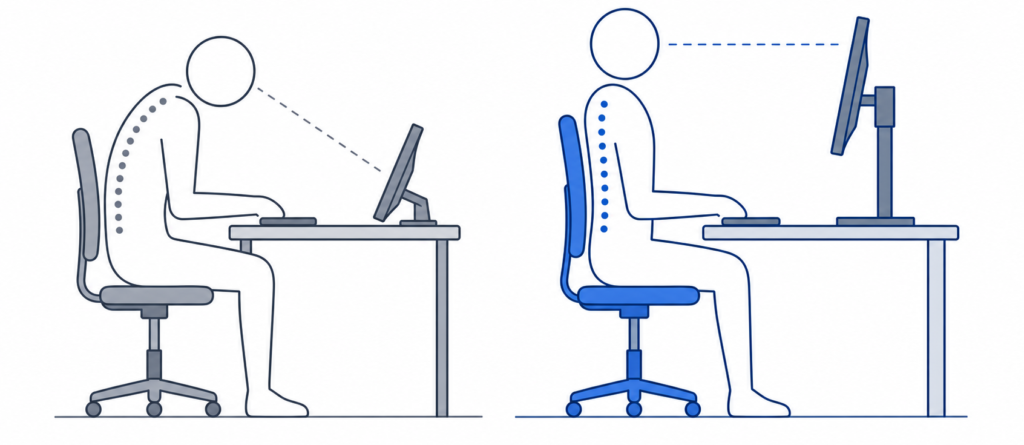
Look for:
- Height and tilt adjustments
- Swivel or pivot options
- VESA mount compatibility
Good ergonomics can improve comfort significantly over long sessions.
Eye Comfort and Everyday Use
For extended use, eye comfort becomes important.
Features to consider:
- Flicker-free backlighting
- Blue light reduction modes
- Matte vs glossy coatings
A monitor that’s comfortable for gaming should also be usable for work, browsing, and general use.
Extra Features That May Matter
Some additional features can improve usability:
- Curved screens for immersion
- Built-in speakers (basic use only)
- USB hubs or KVM switches
- RGB lighting (purely aesthetic)
These are secondary considerations compared to core performance specs.
Budget and Value — What Should You Spend?
Gaming monitors fall into three general categories:
- Entry-level → 1080p, lower refresh rates
- Mid-range → 1440p, 144Hz–165Hz (best value)
- High-end → 4K, ultrawide, advanced HDR
The mid-range category is where most users get the best balance of performance and price. If you’re comparing options, looking at budget gaming monitor options can help you understand what’s available at lower price points.
Common Mistakes to Avoid
- Buying 4K without enough GPU power
- Choosing high refresh rates without matching FPS
- Relying too heavily on advertised response times
- Ignoring ergonomics and comfort
- Paying extra for weak HDR performance
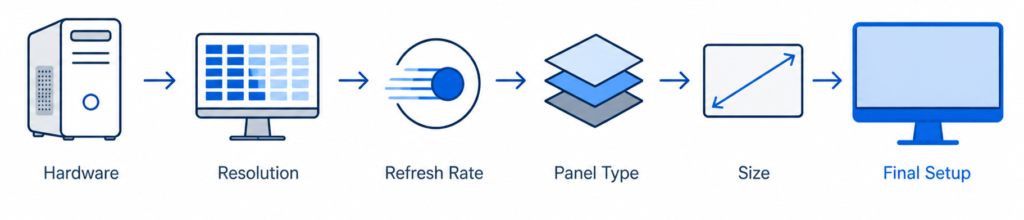
How to Choose the Right Gaming Monitor (Step-by-Step)
- Identify your GPU performance
- Choose the right resolution
- Select a refresh rate based on your games
- Pick a panel type
- Decide on size and aspect ratio
- Confirm compatibility and features
- Set a realistic budget
Quick Recommendations by Use Case
- Competitive gaming → 1080p or 1440p with high refresh rate
- Immersive gaming → 1440p or 4K with strong visuals
- Ultrawide setups → better for immersion and multitasking
- Budget setups → prioritize refresh rate over resolution
If you want to compare real-world options, explore our gaming monitor rankings.
Frequently Asked Questions
Is 144Hz enough for gaming?
Yes, for most players 144Hz provides a noticeable improvement over 60Hz and is more than sufficient.
Is 4K worth it for gaming?
It depends on your hardware. Without a powerful GPU, the performance tradeoff may not be worth it.
What size monitor is best for FPS games?
24–27 inches is typically preferred for competitive gaming.
IPS vs VA for gaming?
IPS offers better overall balance, while VA provides stronger contrast.
Can HDMI run 144Hz?
Yes, depending on the version and resolution. HDMI 2.0 and above can support higher refresh rates.
Decision Checklist
Before you buy, make sure you’ve considered:
- Resolution
- Refresh rate
- Panel type
- Screen size
- Adaptive sync support
- Connectivity
- Budget
Final Verdict
Choosing the right gaming monitor comes down to matching performance with your actual use.
- For balance → 1440p at 144Hz with an IPS panel
- For competitive play → 1080p with higher refresh rates
- For immersion → 4K or ultrawide setups
The best choice isn’t the highest spec—it’s the one that fits your setup and the way you play.