
Top 10 Laptop Accessories for Productivity
If you rely on a laptop for work, school, or a hybrid setup, the right accessories can make a bigger productivity difference than upgrading your laptop itself. The best laptop accessories can be simple but make a huge difference. A protective sleeve, a better mouse, or an ergonomic stand can help you stay organized, reduce strain during long sessions, and turn a lightweight laptop into a more capable workstation.
For this Top 10 Laptop Accessories for Productivity list, we used these focus areas — comfort, portability, organization, and workstation expansion — and prioritized accessories that remove daily friction: fewer cables, better posture, smoother navigation, and faster multitasking.
Disclosure: As an Amazon Associate I earn from qualifying purchases.
Exploring more everyday tech accessories?
This post is part of our Tech Accessories category, featuring chargers, hubs, stands, mounts, and must-have add-ons that make your tech setup better.
Quick Picks: Best Laptop Accessories
Best Overall Productivity Upgrade: Logitech MK850 Combo (#1)
Best Ergonomic Mouse: Logitech Lift Vertical Mouse (#2)
Best Budget Adjustable Stand: j5create Laptop Stand JTS127 (#4)
Best Dual-Monitor Workstation Upgrade: Targus Dual Docking Station(#7)
How We Ranked the Best Laptop Accessories
To rank these laptop accessories, we focused on how much each item improves day-to-day productivity — especially for remote work, hybrid setups, and long laptop sessions.
Our main criteria were:
Productivity impact: Does it help you work faster or more comfortably (typing, navigation, multitasking)?
Ergonomics: Does it reduce strain (neck, wrist, shoulder) during long sessions?
Portability: Is it easy to travel with for commuting or hybrid workdays?
Desk efficiency: Does it reduce clutter or add needed connectivity?
Real-world usefulness: Does it solve a common laptop problem (limited ports, small screen, awkward posture)?
Value: Does it deliver meaningful improvement for the cost?
Accessories that upgraded both comfort + workflow (like the MK850 combo, ergonomic mice, and docks) ranked highest.
10. tomtoc 360 Protective Laptop Sleeve (15-Inch)
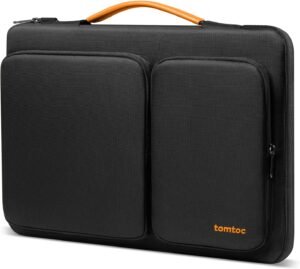
If you’re looking for a slim, protective way to carry your laptop and accessories without hauling a bulky case, the tomtoc 360 Protective Laptop Sleeve is one of the most practical upgrades you can make. Designed for modern laptops like the 15-inch MacBook Air, Surface Laptop, and Dell XPS, it delivers serious protection in a clean, professional form factor.
In this review, we’ll break down why this well-designed sleeve earns a spot on our Top 10 Laptop Accessories list, where it excels, and who it’s best for.
Why Choose the tomtoc 360 Protective Laptop Sleeve?
Protecting your laptop isn’t just about avoiding drops — it’s about preventing daily wear, scratches, and cable clutter. The tomtoc 360 sleeve is built for professionals, students, and hybrid workers who want dependable protection without sacrificing portability.
Instead of oversized laptop bags or flimsy sleeves, this case strikes the perfect balance between slim design, real protection, and smart organization, making it an easy everyday essential.
Key Features and Benefits
360° CornerArmor Protection
Reinforced corners help absorb impact from drops
Internal padding protects all sides of the laptop
Designed to safeguard vulnerable edges and corners
Water-Resistant Exterior
Durable, water-resistant fabric protects against spills and rain
Ideal for commuting, travel, and daily carry
Helps keep your laptop safe in unpredictable conditions
Slim & Travel-Friendly Design
Slides easily into backpacks, briefcases, or totes
Maintains a low-profile shape without bulk
Perfect for minimalists and mobile setups
Integrated Accessory Storage
Front accessory pocket for chargers, cables, mouse, or adapters
Keeps essentials organized and easy to access
Eliminates the need for a separate tech pouch
Soft, Scratch-Resistant Interior
Plush lining prevents scratches on laptop surfaces
Keeps premium finishes looking new
Ideal for aluminum and glass-bodied laptops
Specifications at a Glance
Fit: 15-inch laptops
Compatibility: MacBook Air 15″ (M4/M3/M2), Surface Laptop 7/6/5, Dell XPS 15 Plus
Protection: 360° padded design with reinforced corners
Material: Water-resistant fabric exterior
Storage: Front accessory pocket
Use Case: Commuting, travel, office, school, hybrid work
Who Is It For?
Professionals who commute with a laptop daily
Students who want protection without bulky bags
Remote and hybrid workers who travel between locations
Minimalists who prefer slim, functional accessories
Laptop owners who want drop and scratch protection
Pros & Cons
Pros
Excellent corner and edge protection
Slim, lightweight profile
Water-resistant exterior
Integrated accessory pocket
Clean, professional design
Broad compatibility with popular laptops
Cons
No rigid hard-shell structure
Limited space for bulky accessories
Not designed to carry additional documents or tablets
Final Verdict
If you want a reliable, slim laptop sleeve that actually protects your device, the tomtoc 360 Protective Laptop Sleeve is an excellent choice. It offers smart impact protection, water resistance, and just enough storage to handle daily essentials — all without adding unnecessary bulk.
For commuters, students, and hybrid workers who want peace of mind without a full laptop bag, this sleeve is a simple upgrade that makes a big difference.
9. Logitech Pebble 2 M350s Wireless Mouse
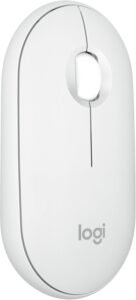
If you want a comfortable, silent wireless mouse that keeps you focused and productive, the Logitech Pebble 2 M350s Wireless Mouse is a standout choice near the top of our accessories list. It blends minimalist design, reliable performance, and whisper-quiet clicks into a portable package that enhances everyday work-from-home workflows.
In this review, we’ll break down what makes the Pebble 2 M350s a great productivity accessory, where it shines, and who will benefit most from its sleek and functional design.
Why Choose the Logitech Pebble 2 M350s Wireless Mouse?
Not all productivity accessories need to be complex — sometimes the right input device can transform your workflow. The Pebble 2 M350s sits comfortably in your hand, pairs seamlessly with multiple devices, and keeps noise to a minimum so you can stay focused during typing, scrolling, or long editing sessions.
Whether you’re hopping between browser tabs, navigating documents, or working across devices, this mouse offers precise tracking and a distraction-free experience that supports productivity without drawing attention to itself.
Key Features and Benefits
Quiet Clicks & Smooth Tracking
Whisper-quiet buttons reduce noise in shared spaces
Precise optical tracking for smooth cursor movement
Great for long typing or editing sessions without distraction
Wireless Freedom
Reliable wireless connection via Bluetooth or USB receiver
Easy to pair with laptops, tablets, or desktops
Minimizes desk clutter and cable mess
Slim and Portable Design
Clean, modern aesthetic that complements any setup
Lightweight and easy to carry between workspaces
Fits neatly into laptop bags
Long Battery Life
Keeps going for months on a single set of batteries
Reduces interruptions for charging or battery swaps
Ideal for everyday productivity use
Comfortable, Ambidextrous Shape
Comfortable grip for both left and right hands
Natural feel for extended use
Works well for users who prefer simple, streamlined mice
Specifications at a Glance
Connection: Bluetooth LE and USB receiver
Buttons: Left, right, scroll wheel
Battery Life: Up to several months
Compatibility: Windows, macOS, ChromeOS, tablets
Design: Slim, portable wireless mouse
Use Case: Everyday productivity, hybrid work setups
Who Is It For?
Remote workers who want a quiet, distraction-free mouse
Professionals who switch between devices
Students and hybrid workers on the go
Anyone who prefers simple, reliable input devices
Users who value minimalist design and portability
Pros & Cons
Pros
Silent clicks reduce noise in shared environments
Dual wireless modes (Bluetooth + USB receiver)
Comfortable and portable design
Long battery life
Works across multiple platforms
Cons
Not as feature-rich as high-end ergonomic mice
Basic button layout (no extra programmable buttons)
Limited for gaming or advanced productivity macros
Slightly light for users who prefer weightier mice
Final Verdict
The Logitech Pebble 2 M350s Wireless Mouse is a stylish and productivity-focused accessory that boosts everyday laptop workflows without unnecessary bells and whistles. Its quiet operation, reliable connection options, and portable design make it a great option for remote workers, students, or anyone who wants a simple mouse that gets the job done.
If you want a clean, quiet, and comfortable wireless mouse that complements your work-from-home setup, the Pebble 2 M350s is an affordable and effective choice.
8. J5Create 4K60 Elite USB‑C Triple‑Monitor Mini Dock

If you want to supercharge your work-from-home setup with multiple high-resolution displays, the J5Create 4K60 Elite USB-C Triple-Monitor Mini Dock is a powerful and compact way to turn a single USB-C port into a productivity-boosting hub. It’s designed for professionals who need more screen real estate for multitasking, data analysis, creative workflows, or collaboration.
In this review, we’ll break down what makes this triple-monitor dock a standout accessory, where it excels, and who will benefit most from expanded display capabilities.
Why Choose the J5Create 4K60 Elite USB-C Triple-Monitor Mini Dock?
Having more screen space can dramatically improve productivity — allowing you to keep reference material, email, chat, and work windows visible at the same time. The J5Create 4K60 Elite USB-C Triple-Monitor Mini Dock lets you connect up to three external displays at resolutions up to 4K at 60Hz, all through a single USB-C connection.
Instead of juggling windows on one screen or constantly Alt-Tabbing between apps, this dock helps you build a desktop-class workflow from a laptop — ideal for remote work, finance, design, or multitasking heavy workloads.
Key Features and Benefits
Triple 4K Display Support
- Supports up to three external monitors (maximum resolution/refresh depends on your laptop and dock configuration)
Ideal for multitasking and extended workflows
Single-Cable USB-C Connectivity
Quick setup (some configurations may require drivers depending on your laptop and dock model)
Reduces cable clutter on your desk
Works with laptops that support USB-C video output
Versatile Port Selection
HDMI and DisplayPort outputs expand compatibility
Other built-in ports for peripherals
Makes your setup feel more like a desktop
Boosted Productivity
Spread apps across multiple screens
Stay organized with reference windows always visible
Great for spreadsheets, coding, research, and meetings
Compact & Portable Design
Small enough to travel with your laptop
Perfect for hybrid work setups
Easily packed into laptop bags
Specifications at a Glance
Connection: USB-C (Single-cable connectivity)
Display Outputs: Up to three external displays (resolution/refresh varies by laptop + dock configuration)
Ports: Multiple HDMI/DisplayPort outputs, USB expansion
Compatibility: USB-C laptops (requirements vary; may use DP Alt Mode and/or require drivers depending on the dock model)
Design: Compact mini dock for desktops or mobile setups
Use Case: Multi-display productivity, home office expansion
Who Is It For?
Professionals who need multiple external displays
Remote workers and hybrid employees
Financial analysts, designers, coders, and researchers
Anyone who wants a desktop-like experience from a laptop
Users working with data, dashboards, or multiple apps at once
Pros & Cons
Pros
Supports up to three external displays for a larger multi-screen workflow
Expands a laptop into a more powerful workspace
Reduces desk clutter with single-cable connectivity
Great for multitasking and advanced workflows
Compact and travel-friendly
Cons
Requires a laptop that supports USB-C display output
Setup can be more complex with multiple monitors
Larger investment than basic docks
May need power delivery adapter separately
Final Verdict
The J5Create 4K60 Elite USB-C Triple-Monitor Mini Dock is a high-impact productivity accessory that transforms your laptop into a multi-screen powerhouse. If your work involves juggling spreadsheets, documents, reference material, and communication apps, having three displays can drastically improve your efficiency and reduce context switching.
For remote workers, professionals, and power users who want a desktop-style experience from their laptop, this dock delivers flexibility, performance, and expanded workspace in a compact, travel-ready package.
7. Targus USB‑C Universal Dual HD Docking Station
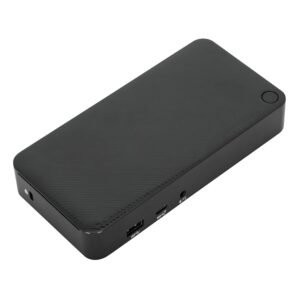
If you want to boost your work-from-home productivity with multiple screens and extra ports, the Targus USB-C Universal Dual HD Docking Station is a straightforward way to expand your laptop’s capabilities. It turns a single USB-C connection into a dual-monitor setup with additional USB ports, Ethernet, and convenient connectivity options — perfect for hybrid workstations and home offices.
In this review, we’ll break down why this docking station earns a place on our Top 10 accessories list, where it excels, and who will benefit most from adding it to their setup.
Why Choose the Targus USB-C Universal Dual HD Docking Station?
Many laptops — especially ultraportables — come with limited ports and may only support one external display natively. The Targus USB-C Universal Dual HD Docking Station solves this by letting you connect two external monitors while also providing additional USB-A ports, Ethernet, and more. This unlocks a desktop-like workflow from your laptop without sacrificing mobility or convenience.
Rather than relying on adapters or juggling cables, this dock brings essential productivity tools into one hub — freeing up your workspace and making multitasking smoother.
Key Features and Benefits
Dual Monitor Support
Connect two external displays via HDMI or DisplayPort
Great for spreadsheets, multitasking, and reference windows
Turns your laptop into a more capable productivity station
Versatile Connectivity
Multiple USB-A ports for peripherals
Ethernet port for stable wired network connections
Audio output for headsets or speakers
Single USB-C Connection
Simple plug-and-play setup
Reduces cable clutter on your desk
Keeps your laptop charged and connected
Workstation-Ready Features
Expand your setup without hassles
Ideal for remote workers transitioning to home offices
Supports hot-desking and hybrid workflows
Compact & Practical Design
Small footprint fits most desk layouts
Easy to pack for travel or office moves
Durable build for frequent use
Specifications at a Glance
Connection: USB-C single cable
Display Outputs: Dual HDMI/DisplayPort (varies by model)
Ports: USB-A, Ethernet, audio output
Compatibility: USB-C laptops with extended display support
Design: Desk docking station
Use Case: Dual-monitor productivity, expanded connectivity
Who Is It For?
Remote workers looking to expand screen space
Professionals who use multiple apps at once
Hybrid workers who switch between locations
Users needing extra ports for peripherals
Anyone wanting a classic desktop workflow from a laptop
Pros & Cons
Pros
Adds dual-monitor support easily
Extra USB ports for accessories
Ethernet support for stable networking
Compact and simple to set up
Turns laptops into desktop-like workstations
Cons
Requires a laptop that supports dual-display over USB-C
Not as advanced as triple-monitor docks
May need external power for higher demands
Limited to standard productivity ports
Final Verdict
The Targus USB-C Universal Dual HD Docking Station is a practical and productivity-boosting accessory that helps you make the most of your laptop’s potential. By enabling dual external displays and adding crucial connectivity options like extra USB ports and Ethernet, it streamlines your workflow and reduces clutter.
If your current setup feels constrained by limited ports or a single screen, this dock offers a simple, reliable way to expand your workspace — making multitasking, video calls, and document work easier and more efficient.
6. Targus Portable Stand with Integrated USB‑A Hub
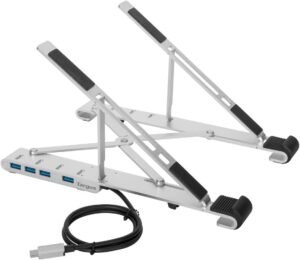
If you want a portable way to improve ergonomics and add essential USB connectivity, the Targus Portable Stand with Integrated USB-A Hub is a must-consider accessory for work-from-home productivity. It combines a sturdy laptop stand with built-in USB ports, giving you better posture and more ways to connect your peripherals — all without cluttering your desk.
In this review, we’ll break down what makes this stand a productivity booster, where it shines, and who will benefit most from its mix of comfort and convenience.
Why Choose the Targus Portable Stand with Integrated USB-A Hub?
Great productivity starts with comfort and ease of use. Laptops are amazing for flexibility, but long work sessions on a flat desk can lead to poor posture and cramped ports. The Targus Portable Stand with Integrated USB-A Hub solves both problems at once:
It raises your laptop screen to a more ergonomic viewing angle, reducing neck and shoulder strain.
It provides built-in USB-A ports, so you don’t have to unplug a hub every time you connect something new.
Instead of juggling separate stands and dongles, this clever combo gives you connectivity and comfort in one simple accessory.
Key Features and Benefits
Ergonomic Laptop Elevation
Raises your screen closer to eye level
Encourages better posture during long work sessions
Reduces neck and shoulder strain
Integrated USB-A Hub
Adds multiple USB-A ports for accessories
Great for keyboards, mice, flash drives, and more
Eliminates the need for a separate dongle or hub
Portable, Foldable Design
Easy to pack for travel or hybrid work
Lightweight and compact when folded
Ideal for on-the-go productivity setups
Stable & Durable Construction
Built to hold laptops securely in place
Sturdy enough for regular daily use
Keeps your laptop from slipping during typing
Simple Setup
Quick to unfold and fold down when needed
No tools or adapters required
Works with most USB-A peripherals
Specifications at a Glance
Function: Laptop stand + USB-A connectivity
Ports: Multiple USB-A ports
Design: Portable, foldable stand
Compatibility: Most laptops and USB accessories
Use Case: Ergonomics + expanded connectivity
Who Is It For?
Remote workers wanting better posture and comfort
Professionals needing extra USB-A ports
Students and hybrid workers who move between workspaces
Anyone tired of bending over laptop screens
Users who want a two-in-one productivity accessory
Pros & Cons
Pros
Combines ergonomic stand and USB hub
Portable and foldable for travel
Reduces desk clutter by combining accessories
Comfortable viewing angle for long sessions
Adds practical USB connectivity
Cons
Limited to USB-A ports (no USB-C hub included)
Stand height is fixed (not adjustable mid-use)
Slightly heavier than minimalist stands
Best for laptops, not suitable for large external displays
Final Verdict
The Targus Portable Stand with Integrated USB-A Hub is a clever dual-function accessory that boosts work-from-home productivity by improving comfort and expanding connectivity. Its ergonomic lift helps reduce fatigue, while the built-in USB-A ports make it easier to connect and manage peripherals.
If you’re looking for a simple, portable solution that does double duty, this accessory delivers excellent practicality in a compact package — perfect for everyday laptop use at home, the office, or on the go.
5. Uncaged Ergonomics Swivel Laptop Stand

If you want a dynamic way to boost comfort and collaboration in your work-from-home setup, the Uncaged Ergonomics Swivel Laptop Stand is one of the most versatile accessories you can add to your desk. It elevates your laptop to a better viewing height and lets you swivel the screen with ease — perfect for sharing work, adjusting angles, or reducing glare throughout the day.
In this review, we’ll break down what makes this swivel stand a productivity-enhancing accessory, where it performs best, and who will benefit most from its unique ergonomic design.
Why Choose the Uncaged Ergonomics Swivel Laptop Stand?
Traditional laptop stands hold your device at a fixed angle, but the Uncaged Ergonomics Swivel Laptop Stand goes further — it lets you rotate and tilt your laptop smoothly, giving you unmatched flexibility in positioning. Whether you’re presenting during a video call, collaborating across the room, or simply adjusting your view for comfort, this stand adapts to your needs without you lifting the whole laptop.
Instead of craning your neck or moving your chair, you can just swivel your screen — a small change that can have a big impact on comfort and productivity.
Key Features and Benefits
360° Swivel Motion
Easily rotate your laptop for better viewing angles
Great for screen sharing and collaboration
Smooth action without lifting the laptop
Ergonomic Elevation
Raises your screen to eye level to reduce neck strain
Encourages better posture during long work sessions
Helps with comfort during typing and video meetings
Stable, Sturdy Base
Solid construction supports laptops securely
No wobble during typing or trackpad use
Keeps your workspace steady and reliable
Clean, Minimal Desktop Look
Sleek design fits any home office
Keeps your workspace uncluttered
Works equally well with external keyboard and mouse
Portable & Easy to Set Up
Simple to install — no tools required
Light enough to move between setups
Works in home, hybrid, and shared workspaces
Specifications at a Glance
Function: Adjustable ergonomic laptop stand with swivel
Rotation: 360° smooth swivel base
Height: Elevated viewing angle (fixed or adjustable by model)
Compatibility: Most laptops up to standard sizes
Use Case: Ergonomic comfort, collaboration, hybrid work
Who Is It For?
Remote workers who want better posture and eye comfort
Professionals who collaborate frequently
Users who share screens during meetings
Anyone who adjusts workspace angles often
Hybrid workers who shift between setups
Pros & Cons
Pros
Swivel action adds flexible viewing angles
Improves posture and comfort
Solid, stable construction
Sleek, professional aesthetic
Great for sharing screens or adjusting view
Cons
Larger footprint than simple stands
May be overkill if you don’t reposition often
Fixed height on some models (swivel only)
Not a docking or connectivity solution
Final Verdict
The Uncaged Ergonomics Swivel Laptop Stand is a dynamic productivity accessory that elevates both comfort and collaboration in your workspace. Its unique swivel capability makes it ideal for video calls, team work, and flexible positioning, while the ergonomic lift reduces strain for long workdays.
If you want a laptop stand that adapts to you — not the other way around — this swivel design offers meaningful flexibility and comfort that supports productivity all day long.
4. j5create Multi‑Angle Laptop Stand JTS127
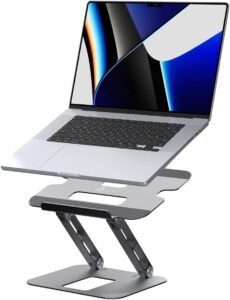
If you want a versatile and ergonomic way to elevate your laptop for long work-from-home sessions, the j5create Multi-Angle Laptop Stand JTS127 is a strong productivity accessory that adapts to your workflow. With multiple angle settings, this stand helps you find the perfect viewing height and position — reducing neck strain and keeping you comfortable throughout the day.
In this review, we’ll break down what makes the JTS127 a great choice for productivity, where it performs best, and who will benefit most from its adjustable design.
Why Choose the j5create Multi-Angle Laptop Stand JTS127?
A good laptop stand does more than just raise your screen — it improves posture, reduces physical strain, and enhances comfort during long work sessions. The j5create Multi-Angle Laptop Stand goes further by letting you adjust the angle of your laptop display easily, so you can find the sweet spot for typing, reading, or video calls.
Instead of hunching over your keyboard or constantly readjusting your setup, this stand lets you tailor your workstation to you — making tasks like writing documents or joining meetings more comfortable and productive.
Key Features and Benefits
Multi-Angle Adjustability
Adjusts to multiple viewing and typing angles
Helps reduce neck and shoulder strain
Makes it easy to find the most comfortable setup
Solid Elevation for Better Posture
Raises the laptop screen closer to eye level
Encourages a healthier ergonomic position
Great for long work sessions or multiple meetings
Sturdy & Stable Build
Securely holds your laptop without wobbling
Stable while typing or using trackpads
Solid construction for daily use
Portable, Foldable Design
Lightweight and easy to carry
Folds flat for travel or hybrid work environments
Ideal for on-the-go productivity setups
Clean, Functional Aesthetic
Minimalist look fits any workspace
Keeps your desk uncluttered
Blends well with any laptop style
Specifications at a Glance
Function: Adjustable laptop stand
Adjustment: Multiple angle settings
Compatibility: Most laptop sizes
Design: Portable, foldable, ergonomic
Use Case: Work-from-home comfort and posture
Who Is It For?
Remote workers who want custom viewing and typing angles
Professionals doing long typing or editing sessions
Students who multitask across apps and windows
Anyone who experiences neck or shoulder strain
Hybrid workers who need portable ergonomics
Pros & Cons
Pros
Multiple angle adjustments for comfort
Improves posture and reduces strain
Solid, stable build
Portable and easy to pack
Functional, clean design
Cons
No integrated connectivity features
Requires separate peripherals for full desk setups
Adjustment may feel fiddly for some
Not a docking solution
Final Verdict
The j5create Multi-Angle Laptop Stand JTS127 is a simple but highly effective productivity accessory that helps you find the most comfortable laptop position for any work session. Its adjustable angles, solid build, and portable nature make it a great addition to any work-from-home setup, whether you’re typing reports, attending video calls, or managing long stretches of email.
If you want a stand that adapts to you — not the other way around, this j5create model delivers ergonomic comfort and flexibility that enhances comfort and boosts focus throughout the day.
3. Logitech Ergo M575S Wireless Trackball Mouse
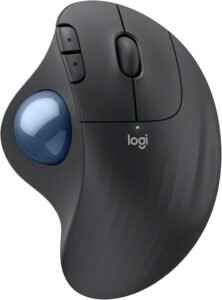
If you want a mouse that helps reduce wrist strain and keeps your workflow smooth, the Logitech Ergo M575S Wireless Trackball Mouse is a standout productivity accessory worth adding to your setup. It replaces traditional mouse movements with a comfortable trackball that stays in place — perfect for tight desk spaces and long work sessions.
In this review, we’ll break down what makes the Ergo M575S a great choice for productivity, where it excels, and who will benefit most from its ergonomic design.
Why Choose the Logitech Ergo M575S Wireless Trackball Mouse?
Traditional mice require constant movement across your desk — and prolonged use can lead to wrist fatigue or discomfort. The Logitech Ergo M575S keeps your hand stationary and uses a precise trackball mechanism instead of moving the whole device, which can significantly reduce strain during extended work sessions.
With reliable wireless connectivity, smooth tracking, and a sculpted shape that supports your hand, this trackball mouse delivers comfort without sacrificing control — making it a strong choice for anyone prioritizing ergonomics and focus.
Key Features and Benefits
Trackball Precision & Comfort
Smooth, adjustable tracking with a large, responsive ball
Keeps your hand and arm still during use
Reduces repetitive movement and wrist fatigue
Wireless Connectivity Options
Connects via Bluetooth or USB receiver
Stable connection with low latency
Works across laptops, tablets, and desktops
Ergonomic Sculpted Design
Hand-friendly shape supports your thumb and fingers
Comfortable for long sessions without gripping hard
Great for users with joint discomfort
Long Battery Life
Extended use between battery changes
Minimal interruptions during work
Saves time and hassle
Compact & Desk-Friendly
Small footprint frees up desk space
Perfect for home offices or tight workstations
Easy to pair with keyboard setups
Specifications at a Glance
Connection: Bluetooth and USB receiver
Tracking: Trackball sensor
Buttons: Standard left/right + scroll + navigation buttons
Battery Life: Long-lasting (varies by use)
Compatibility: Windows, macOS, ChromeOS
Use Case: Ergonomic pointing, long work sessions
Who Is It For?
Remote workers who want reduced wrist strain
Users with repetitive strain or joint discomfort
People working long hours on clicking and scrolling
Professionals with limited desk space
Anyone who prefers precision pointing
Pros & Cons
Pros
Ergonomic design reduces movement and strain
Precise tracking with smooth responsiveness
Reliable wireless options (Bluetooth + receiver)
Comfortable for extended use
Small footprint frees up desk space
Cons
Trackball takes time to adapt for new users
Not ideal for high-speed gaming
Fewer buttons than some advanced mice
Requires some learning for peak precision
Final Verdict
The Logitech Ergo M575S Wireless Trackball Mouse is a highly ergonomic productivity accessory that supports long work-from-home hours with comfort and precision. By replacing traditional point-and-move mouse actions with a stationary trackball, it reduces wrist strain and makes extended use more comfortable — especially for users who spend hours clicking and scrolling.
If you want a mouse focused on comfort, control, and long-term ease of use, the Ergo M575S is a strong choice that elevates your productivity while protecting your posture.
2. Logitech Lift Vertical Ergonomic Wireless Mouse
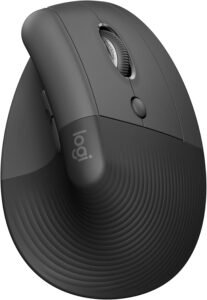
If you want a more natural, strain-reducing way to interact with your laptop, the Logitech Lift Vertical Ergonomic Wireless Mouse is one of the best productivity accessories you can add to your work-from-home setup. Its vertical orientation supports a more neutral wrist position, helping reduce discomfort during long work sessions — all without sacrificing precision or performance.
In this review, we’ll break down what makes the Lift Vertical Mouse a standout ergonomic choice, where it shines, and who will benefit most from its thoughtful design.
Why Choose the Logitech Lift Vertical Ergonomic Wireless Mouse?
Traditional mice place your wrist in a flat, pronated position — which can contribute to strain over hours of clicking and scrolling. The Logitech Lift changes that by orienting the mouse vertically, encouraging a more natural handshake posture that can ease tension in your forearm and wrist.
With smooth tracking, reliable wireless connectivity, and a comfortable shape that fits a variety of hand sizes, this ergonomic mouse feels good to use throughout long workdays — especially for creative workflows, document editing, or heavy internet research.
Key Features and Benefits
Ergonomic Vertical Design
Promotes a natural hand and wrist position
Helps reduce forearm and wrist tension
Great for all-day use without fatigue
Smooth Precise Tracking
Accurate cursor control for productivity tasks
Ideal for scrolling documents, spreadsheets, and presentations
Reliable performance for everyday navigation
Wireless Freedom
Connects via Bluetooth or USB receiver
Keeps your desk tidy with no wired clutter
Simple pairing with multiple devices
Comfortable Sculpted Shape
Soft contours support your hand naturally
Fits a wide range of hand sizes
Helps maintain comfort during long work sessions
Long Battery Life
Keeps you productive for weeks without charging
Reduces interruptions and maintenance
Great for daily workflow without worry
Specifications at a Glance
Connection: Bluetooth and USB receiver
Tracking: Optical sensor
Buttons: Left/right click + scroll wheel
Battery Life: Long-lasting wireless performance
Compatibility: Windows, macOS, ChromeOS
Use Case: Ergonomic navigation, everyday productivity
Who Is It For?
Remote workers seeking reduced wrist and forearm strain
Professionals who spend long hours clicking and scrolling
Users with repetitive strain concerns
Students, hybrid workers, and frequent multitaskers
Anyone who prioritizes comfort without losing precision
Pros & Cons
Pros
Ergonomic vertical angle promotes natural hand posture
Smooth, precise tracking for productivity tasks
Dual wireless connectivity (Bluetooth + receiver)
Comfortable grip for extended use
Long battery life
Cons
Takes some time to adjust from traditional mice
Limited extra buttons for advanced shortcuts
Not optimized for gaming
Smaller size may not suit very large hands
Final Verdict
The Logitech Lift Vertical Ergonomic Wireless Mouse is a comfort-first productivity accessory that helps reduce wrist strain and improve ergonomics during long work-from-home sessions. Its vertical design supports a more natural posture, and its precise, reliable tracking makes it versatile and practical for most everyday tasks.
If you’re looking for a mouse that feels good to use all day, especially during heavy editing, browsing, or multitasking work, the Lift Vertical Mouse is a top ergonomic choice for boosting productivity without discomfort.
1. Logitech MK850 Performance Wireless Keyboard and Mouse Combo
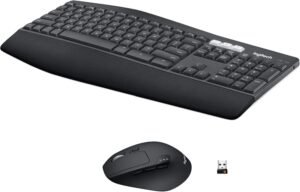
If you want a complete input solution that elevates comfort, speed, and multitasking efficiency, the Logitech MK850 Performance Wireless Keyboard and Mouse Combo is our #1 pick for work-from-home accessories. It combines a full-featured ergonomic keyboard with a precision mouse in one package — perfect for professionals, students, and anyone who spends long hours at their laptop.
In this review, we’ll break down what makes the MK850 Combo such a productivity powerhouse, where it shines, and who will benefit most from its thoughtful design and reliable performance.
Why Choose the Logitech MK850 Performance Wireless Keyboard and Mouse Combo?
Productivity is powered by comfort and control — and the Logitech MK850 Performance Combo delivers both with style. The keyboard’s cushioned palm rest and scooped keys keep your hands comfortable during hours of typing, while the accompanying mouse provides smooth, responsive control for every task. The combination feels cohesive and intentional, making long work sessions easier and more efficient.
Instead of managing separate peripherals or settling for cramped laptop keyboards, this combo gives you desktop-class comfort and wireless freedom — helping you stay focused without fatigue.
Key Features and Benefits
Ergonomic Full-Size Keyboard
Spacious layout with number pad for efficient typing
Cushioned palm rest reduces strain during long sessions
Well-spaced keys with satisfying feedback
Precision Wireless Mouse
Smooth tracking and responsive buttons
Ergonomic shape for comfortable everyday use
Works seamlessly with the keyboard for cohesive control
Reliable Wireless Connectivity
Connects via Logitech’s Unifying receiver or Bluetooth
Strong, dependable connection with minimal lag
Keeps your desk tidy and cable-free
Easy-Switch Between Devices
Quick toggling between multiple paired devices
Ideal for users who switch between laptop, tablet, and desktop
Makes hybrid work smoother
Long Battery Life
Months of use on a single set of batteries
Reduces interruptions and hassle
Keeps you productive longer
Specifications at a Glance
Keyboard: Full-size ergonomic layout with number pad
Mouse: Precision wireless mouse included
Connectivity: Bluetooth + Unifying wireless receiver
Compatibility: Windows, macOS, ChromeOS
Battery Life: Long-lasting performance for both devices
Use Case: Everyday productivity, hybrid work, multitasking
Who Is It For?
Remote workers who type frequently or for long hours
Professionals juggling documents, spreadsheets, email, and chat
Multitaskers using multiple devices throughout the day
Students and hybrid workers who value comfort and control
Anyone seeking an all-in-one input solution
Pros & Cons
Pros
Comfortable, ergonomic keyboard with palm rest
Responsive, smooth mouse included
Wireless freedom and easy setup
Ability to switch between devices effortlessly
Great value for a full input combo
Cons
Slightly larger footprint than compact keyboards
Not mechanical (so typing feel is soft)
Battery-powered (not rechargeable)
May be overkill if you already use premium standalone peripherals
Final Verdict
The Logitech MK850 Performance Wireless Keyboard and Mouse Combo stands at the top of our Top 10 Laptop Accessories for Productivity because it delivers comfort, control, and versatility in one cohesive package. Whether you’re typing reports, managing multiple apps, or switching between devices throughout your day, this combo helps you stay efficient and comfortable — session after session.
If you want a complete upgrade from your laptop’s built-in keyboard and trackpad, the MK850 Performance Combo is a highly productive addition to any work-from-home setup.
Final Verdict: Which Laptop Accessories Should You Buy?
If you want the biggest productivity upgrade right away, start with your input setup. The Logitech MK850 Performance Combo (#1)is the most noticeable “day one” improvement because it replaces cramped laptop typing and trackpad navigation with a more comfortable, efficient workflow. If you want to focus on comfort even more, pair it with an ergonomic mouse like the Logitech Lift (#2)(natural wrist posture) or the Logitech Ergo M575S (#3) (excellent for tight desks and reducing wrist movement).
If your productivity bottleneck is multitasking and screen space, your top upgrade is a USB-C dock. The Targus Dual HD Dock (#7) is a strong option for most home-office setups, while the J5Create triple-monitor dock (#8) is ideal for power users who live in spreadsheets, research windows, dashboards, or creative apps. And if you commute or move between locations, the tomtoc 360 sleeve (#10) is the practical “protect your investment” pick that keeps your laptop safe and your essentials organized without carrying a bulky bag.