
USB-C Explained: What It Can (and Can’t) Do
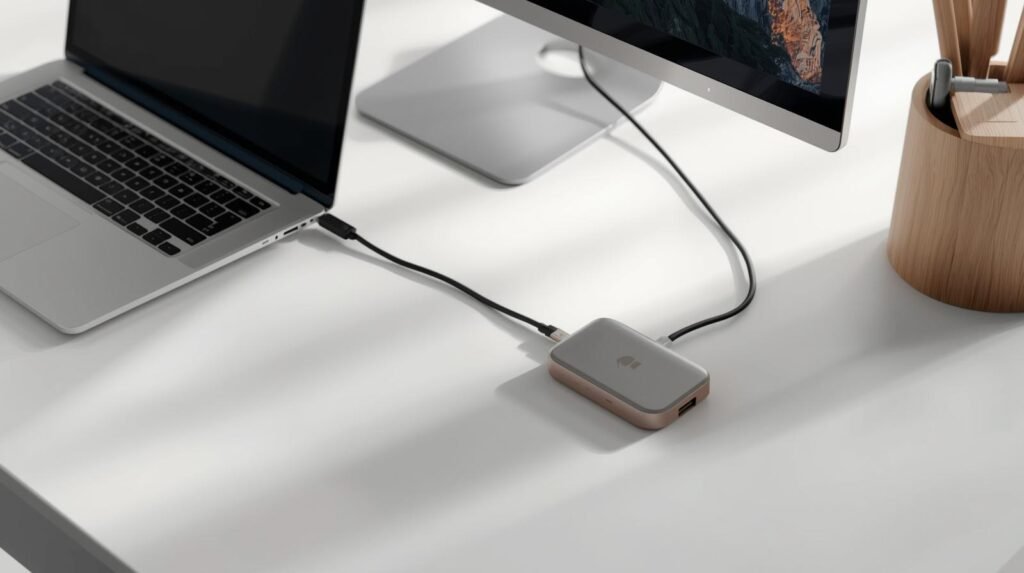
USB-C has become one of the most common ports found on modern electronics. Laptops, smartphones, tablets, monitors, and accessories increasingly rely on this single connector for charging, data transfer, and external displays. Yet despite its widespread adoption, many people still feel confused about what USB-C actually does.
Part of the confusion comes from the fact that USB-C is not just a charging port. Depending on the device, a USB-C connection may support fast charging, high-speed data transfer, video output to monitors, or even multiple functions at the same time.
Another reason USB-C can be confusing is that not all USB-C ports or cables support the same capabilities. Two devices may use the same connector but offer very different performance depending on the hardware and cable involved.
In this guide, we’ll break down what USB-C is, how USB-C charging works, what the technology can actually do, and how it compares to alternatives like Thunderbolt and older USB standards.
If you’re building a more capable workspace or mobile setup, explore our Tech Accessories rankings and buying guides covering hubs, chargers, monitor arms, and productivity accessories.
What Is USB-C?
USB-C (officially called USB Type-C) is a modern connector standard used for powering devices, transferring data, and connecting accessories.
Unlike older USB connectors, USB-C has a small, symmetrical design that can be plugged in either direction. This reversible connector eliminates the frustration many people experienced with older USB cables.
When people ask “what is USB-C?”, they are usually referring to two things:
The physical connector shape
The technology standard that operates through the connector
The USB-C port is designed to support a wide range of functions depending on the device.
Common uses include:
Charging laptops, phones, and tablets
Transferring data between devices
Connecting external monitors
Supporting docking stations and hubs
Powering accessories and peripherals
How USB-C Replaced Older USB Ports
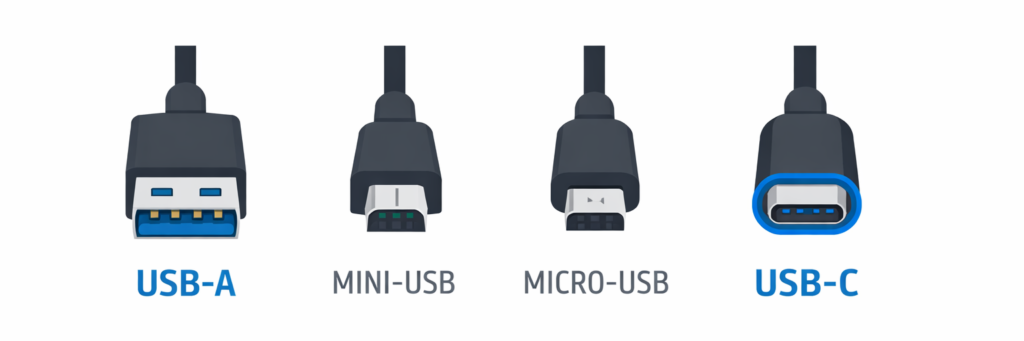
Before USB-C, several connector types existed:
USB-A (the traditional rectangular USB port)
Mini-USB
Micro-USB
Each of these connectors served similar purposes but lacked the flexibility of USB-C. Many older connectors also supported slower data speeds and limited charging capabilities.
USB-C has become popular because its reversible design is convenient and it can accommodate a wide range of capabilities, depending on the devices and standards involved. These include:
- A reversible plug design
- Support for advanced charging technologies
- Support for high-speed data transfer
- Video and display output on compatible devices
Today, USB-C has become the standard connector for many modern laptops, smartphones, and accessories.
How USB-C Charging Works
One of the most widely used functions of USB-C is charging electronic devices.
Some USB-C devices and chargers support USB Power Delivery (USB-PD), a charging standard that allows compatible equipment to negotiate appropriate power levels. However, not every USB-C port, charger, or cable supports the same charging capabilities.
USB-C Charging Basics
Traditional USB ports provided limited charging power. For example, older USB-A connections typically delivered only a few watts of power.
USB-C introduced a more advanced charging system that allows devices to negotiate how much power they need.
This process involves communication between the charger and the device.
Smart Power Negotiation
When a USB-C device is plugged into a charger:
The device communicates its power requirements
The charger checks whether it can supply that power
The system negotiates the appropriate voltage and current
This process allows USB-C chargers to safely power a wide range of devices.
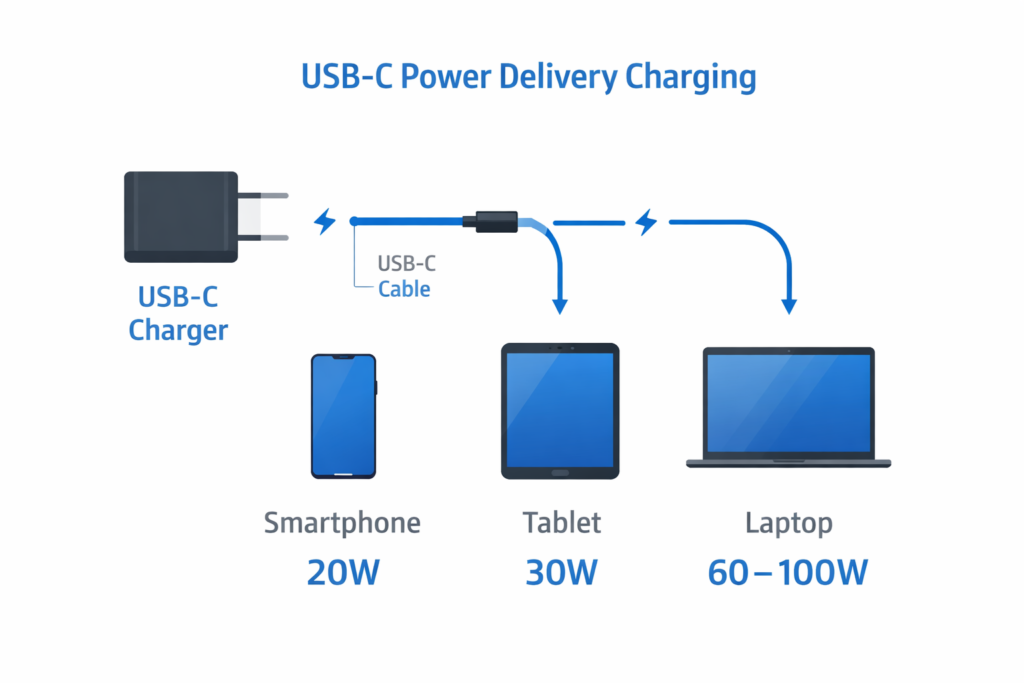
For example:
Smartphones may require around 15–30 watts
Tablets may use 30–45 watts
Laptops may require 60–100 watts or more
Because of this negotiation system, one USB-C charger can safely charge many different types of devices.
Why Some USB-C Chargers Charge Faster
Not all USB-C charging setups perform the same.
Charging speed depends on several factors:
The charger’s maximum wattage
The device’s supported charging standard
The USB-C cable used
Some cables support higher power levels than others. If a cable cannot handle higher wattage, charging speeds may be reduced.
Understanding USB-C charging requires considering all three components: the device, the charger, and the cable.
What USB-C Can Actually Do
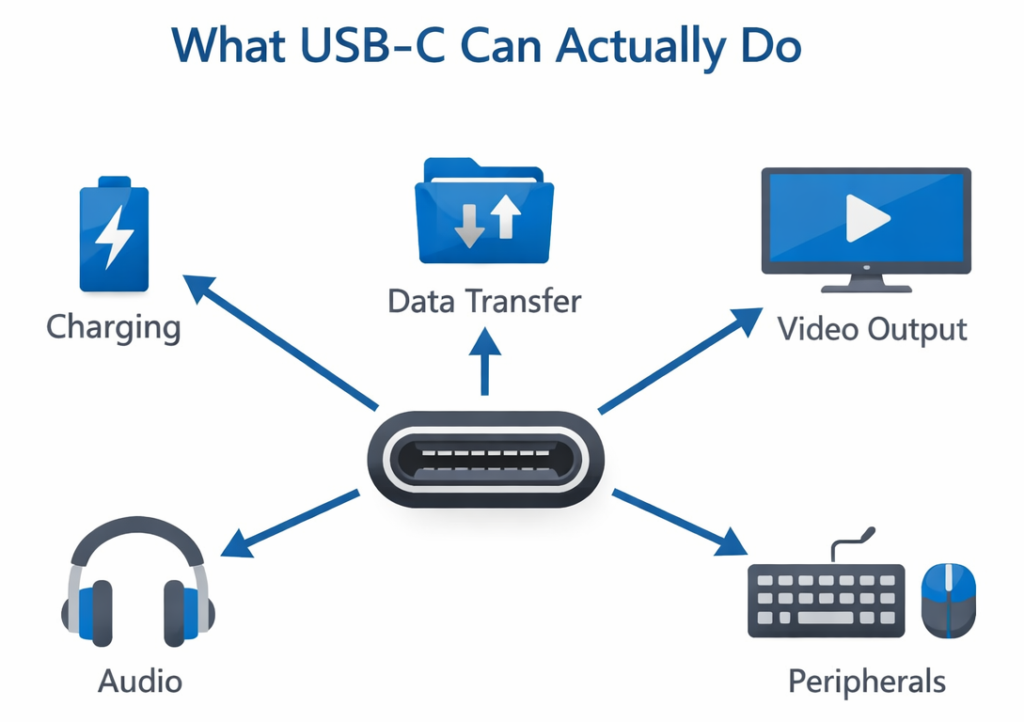
USB-C is designed to support multiple functions through a single connector. Depending on the device and hardware configuration, a USB-C port may provide several capabilities at once.
USB-C Capabilities
USB-C connections may support:
Device charging
Data transfer
Video output
Audio output
Peripheral connectivity
Because the port can handle multiple roles, USB-C is often used for docking stations and multi-function hubs.
Data Transfer
USB-C supports several USB data standards.
These include:
USB 3.2
USB4
Other high-speed data protocols
Higher standards allow faster transfer speeds when moving files between devices.
Video Output
Many USB-C ports support external displays using a technology called DisplayPort Alternate Mode (DisplayPort Alt Mode).
This allows a USB-C cable to send video signals directly to compatible monitors.
For example, a laptop may connect to an external display using a single USB-C cable.
Audio Support
Some USB-C connections also support digital audio output. This allows devices to connect to speakers, headphones, or audio interfaces.
Docking and Expansion
USB-C also enables devices to connect to docking stations or hubs.
These accessories can provide:
Additional USB ports
HDMI display outputs
Ethernet connectivity
SD card readers
Because USB-C supports multiple functions, a single cable can sometimes handle charging, video output, and accessory connections simultaneously.
USB-C vs Thunderbolt
A common question people ask is USB-C vs Thunderbolt. These technologies often appear similar because they use the same connector shape.
However, they are not the same.
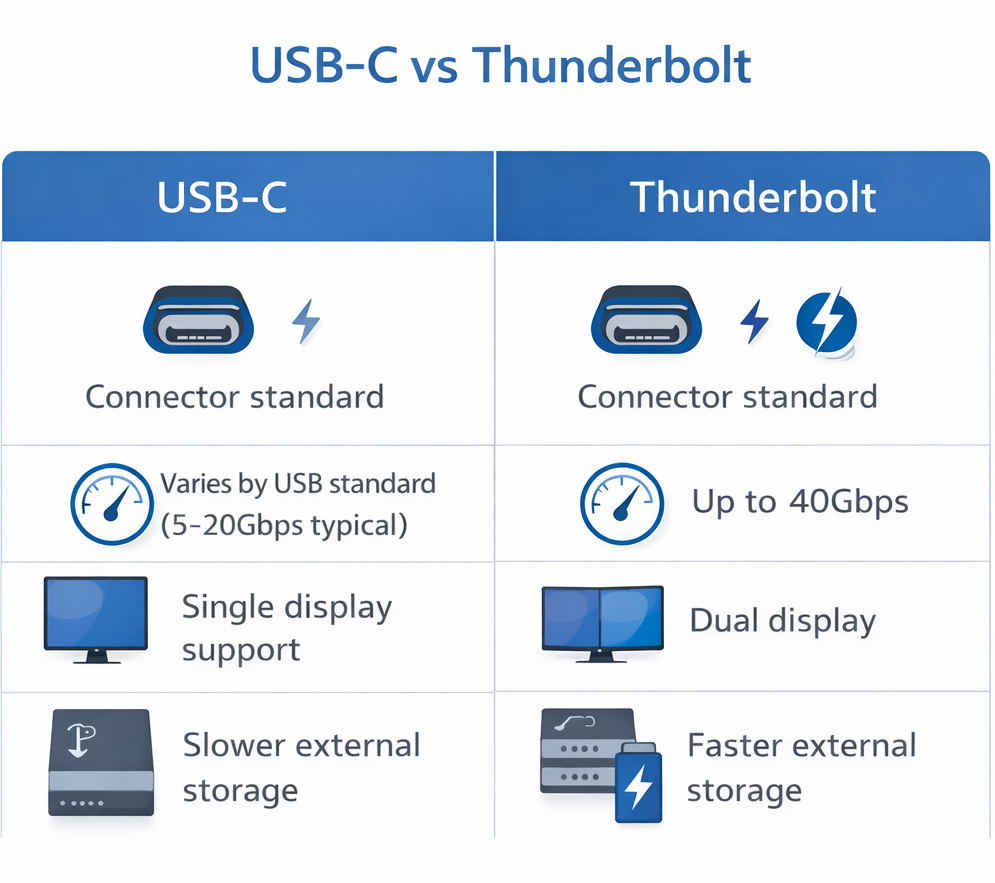
Same Connector, Different Technology
USB-C describes the physical connector.
Thunderbolt describes a data transfer protocol that can operate through a USB-C port.
This means some USB-C ports support Thunderbolt, while others do not.
Thunderbolt Bandwidth
Thunderbolt typically provides higher performance than standard USB connections.
Advantages of Thunderbolt include:
Higher bandwidth for data transfer
Support for multiple displays
High-speed external storage connections
For example, Thunderbolt ports can support significantly faster data speeds than many standard USB-C connections.
Compatibility
In many cases:
Thunderbolt ports can work with USB-C devices
Standard USB-C ports may not support Thunderbolt accessories
Understanding this distinction helps explain why two ports that look identical may behave differently.
Why USB-C Cables Are Not All the Same
One of the biggest sources of confusion surrounding USB-C is the wide variety of cables available.
Although the connectors look identical, USB-C cables can support very different capabilities.
Types of USB-C Cables
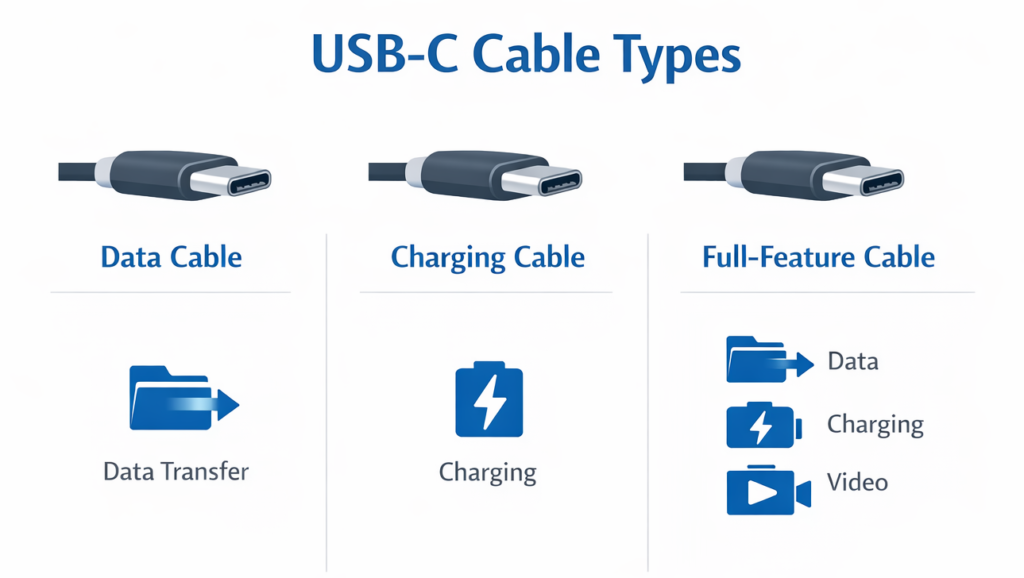
Common cable types include:
Data-only cables
Designed primarily for file transfers
May not support video output
Charging-focused cables
Designed to deliver higher power levels
May not support high-speed data transfer
Full-feature USB-C cables
Support charging, data transfer, and video output
Typically required for advanced setups
E-Marked Cables
Some high-performance cables include electronic markers (E-markers).
These chips communicate cable capabilities to connected devices.
E-marked cables help ensure safe operation when transferring high power levels or high-speed data.
Because of these differences, choosing the correct cable is important when connecting displays, docking stations, or high-power chargers.
Using USB-C for Displays and Portable Monitors
USB-C has become increasingly popular for connecting external displays.
Many laptops now support monitor connections through USB-C rather than traditional HDMI ports.
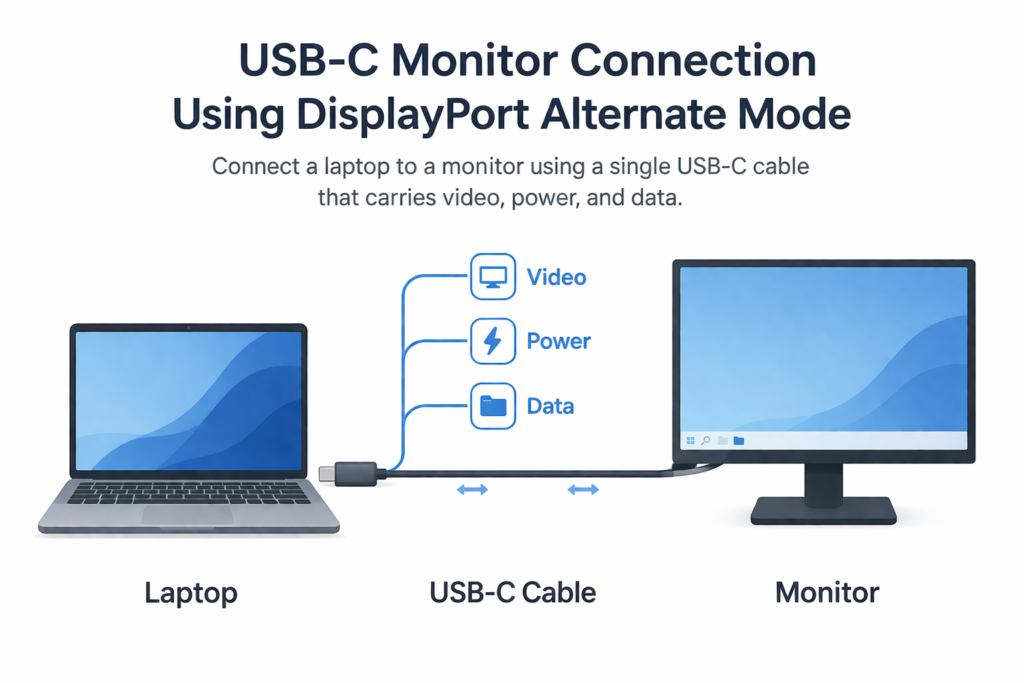
DisplayPort Alternate Mode
Display connections over USB-C rely on DisplayPort Alternate Mode.
This technology allows a USB-C port to transmit video signals directly to a monitor.
When supported by both the device and the cable, a single USB-C connection can handle:
Video output
Device charging
Data transfer
Portable Monitor Setups
USB-C also makes portable monitors easier to use.
Many portable displays can operate using a single cable that provides both power and video from a laptop.
This simplifies travel and mobile workstation setups.
If you want to explore display options further, learn more in our Top 10 guide to portable monitors.
USB-C Hubs and Laptop Accessories
USB-C’s versatility has enabled a wide ecosystem of accessories designed to expand device connectivity.
Two common solutions include USB-C hubs and docking stations.
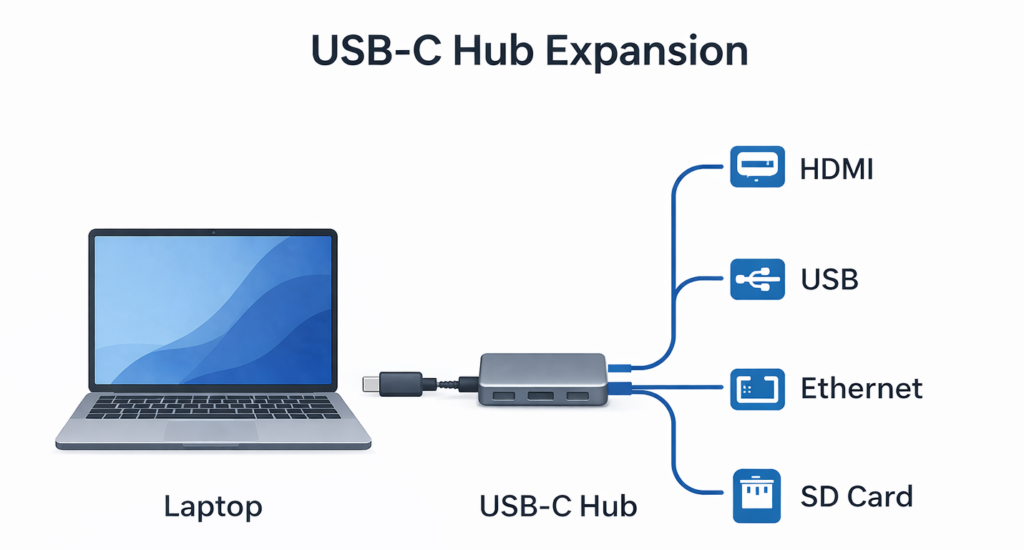
USB-C Hubs
USB-C hubs are compact adapters that provide additional ports.
Typical features include:
HDMI display outputs
Extra USB ports
SD or microSD card readers
Ethernet connectivity
These hubs allow laptops with limited ports to connect to a wider range of devices.
If you want to explore options, learn more in our Top 10 guide to USB-C hubs.
Docking Stations
Docking solutions are commonly used in workstation environments where laptops connect to multiple peripherals.
For readers building a workspace, our Desk Setup Optimization guide explains how USB-C accessories can simplify desk layouts.
Common USB-C Limitations
Not All Ports Support the Same Features
Some USB-C ports only support:
Charging
Basic data transfer
Others support advanced features like:
Video output
Thunderbolt connectivity
High-speed storage devices
Two USB-C ports on the same device may behave differently depending on their internal configuration.
Cable Limitations
Cables may also restrict performance.
For example:
Some cables do not support video output
Some cannot carry higher charging wattages
Others may limit data transfer speeds
Device Compatibility
Even when two devices use USB-C connectors, they may not support the same standards.
Understanding device specifications can help avoid compatibility problems.
USB-C Compatibility Checklist
Before buying a USB-C cable, charger, hub, or monitor, check:
- Charging: Does the device support USB Power Delivery, and can the charger and cable supply the required wattage?
- Data transfer: What USB data speeds do the port and cable support?
- Video: Does the device support video output over USB-C, and does the cable support the required connection?
- Thunderbolt or USB4: Does your device support the features required by the accessory?
- Multiple functions: If you want one cable for charging, video, and data, confirm that the device, cable, and dock support that combination.
A matching USB-C connector does not guarantee that every feature will work.
Once you’ve confirmed compatibility, our guide on how to choose the right tech accessories for your setup can help you decide which upgrades are actually worth adding.
USB-C vs Other Ports
USB-C vs USB-A
USB-A is the familiar rectangular connector found on many computers and accessories. USB-C is smaller and reversible.
USB-C can support advanced charging, high-speed data transfer, and video output, but the connector alone does not guarantee those features. Check the specifications of the port, device, and cable to determine what a particular connection supports.
USB-C vs HDMI
HDMI is primarily used for video connections.
However, USB-C can sometimes replace HDMI through DisplayPort Alternate Mode.
This allows laptops to connect to monitors using a USB-C cable.
USB-C vs Traditional Charging Ports
Many laptops previously relied on proprietary charging connectors.
USB-C now allows multiple devices to share a common charging standard.
This shift helps simplify device ecosystems and reduce cable clutter.
When USB-C Is the Best Choice
Modern Laptops
Many modern laptops rely on USB-C for charging, display output, and accessory connections. If you’re deciding which features actually matter when buying a laptop, see our guide on how to choose the right laptop for your needs.
Portable Monitors
Portable monitors often use USB-C for both power and video transmission.
High-Power Charging
USB-C Power Delivery allows higher wattage charging than older USB standards.
Clean Desk Setups
Because USB-C can support multiple functions simultaneously, it allows fewer cables and simpler workspace setups.
Final Thoughts
USB-C has become one of the most flexible connection standards used in modern electronics. A single USB-C port can support charging, data transfer, display output, and accessory connectivity depending on the device and hardware configuration.
However, understanding how USB-C works requires recognizing that not all ports and cables offer the same capabilities. Charging speed, data transfer performance, and display support may vary depending on the device, cable, and underlying technology.
By understanding the basics of USB-C charging, cable types, and compatibility differences, users can make better decisions when connecting accessories or purchasing new equipment.
As devices continue to move toward universal connectivity standards, USB-C is likely to remain a central part of modern technology ecosystems.